Veneno - Coronavirus Information WordPress Theme
Documentation version 1.0
Introduction
- Item Name : Veneno - Coronavirus (COVID-19) Information WordPress Theme
- Item Version : v 1.0
- Author : imithemes
- Support : https://support.imithemes.com/help/
- License : ThemeForest Split License
First of all, Thank you so much for purchasing this theme and for being my loyal customer.
You are awesome!
You are entitled to get free lifetime updates to this product + exceptional support from the author directly.
This documentation is to help you regarding each step of customization. Please go through the documentation carefully to understand how this template is made and how to edit this properly. Basic WordPress knowledge is required to use this theme to full potential. You may learn basics here.
Requirements
You will need a test domain or a live website with WordPress installed on it.
Getting Started #back to top
Veneno - Coronavirus (COVID-19) Information WordPress Theme
A short guide and general information to help you get to know your new theme.
This document covers the installation and use of this theme and reveals answers to common problems and issues - We encourage you to read this document thoroughly if you are experiencing any difficulties. If you have any questions that are beyond the scope of this document, feel free to open a ticket here.

How to Install Theme #back to top
To install this theme you must have a working version of WordPress already installed. For information regarding the installing of the WordPress platform, please see the WordPress Codex - http://codex.wordpress.org/Installing_WordPress
Installation
Tip: Before uploading the theme make sure you unzip the theme package downloadeded(All files & Documentation) from ThemeForest and inside of the unzipped folder upload the zip called “veneno.zip”
When you are ready to install a theme, you must first upload the theme files and then activate the theme itself. The theme files can be uploaded in two ways:
FTP Upload - Using your FTP client, upload the non-zipped theme folder into the /wp-content/themes/ folder on your server
WordPress Upload - Navigate to Appearance -> Add New Themes -> Upload. Go to browse, and select the zipped theme folder. Hit "Install Now" and the theme will be uploaded and installed.
Get a Installation Service Ask a QuestionOnce the theme is uploaded, you need to activate it. Go to Appearance -> Themes and activate your chosen theme. Upon activation you will get to the activation page of the theme:
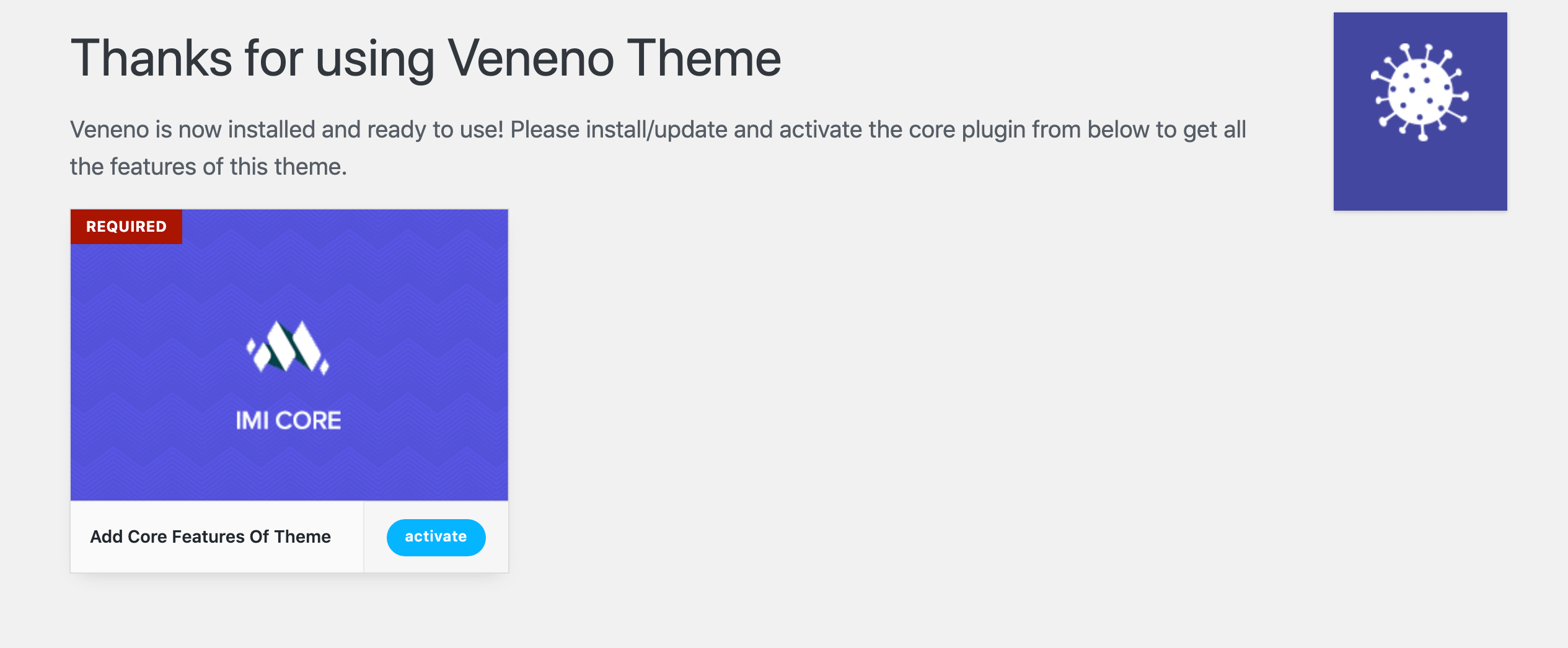
Here you need to activate the core plugin "IMI Core" to be able to use this theme at full potential. Upon activating the core plugin you will see this welcome page:
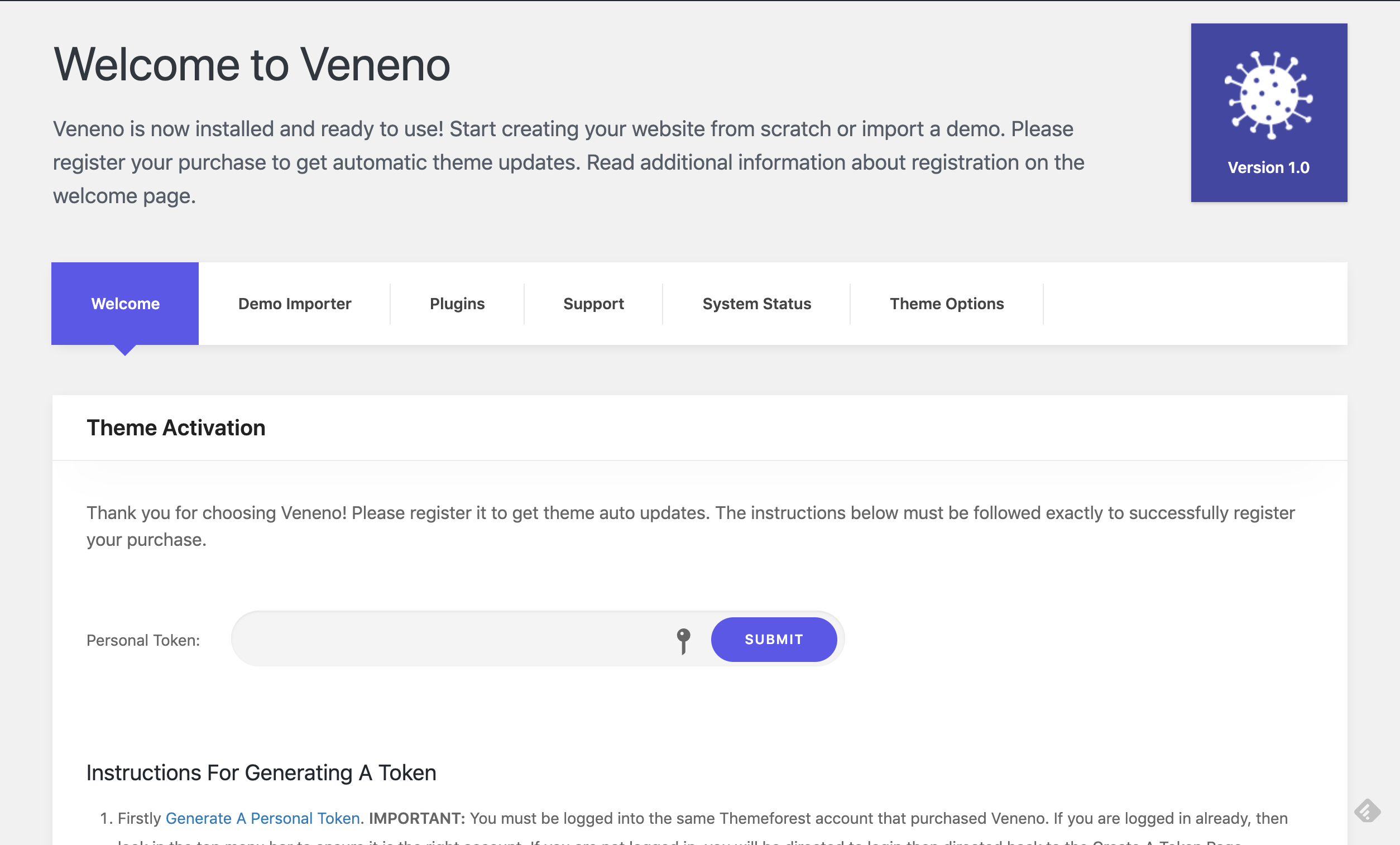
Enter your Envato's personal token in this page to receive updates for the theme when they are available. Instructions to generate the token are available on the same page.
Installing Plugins #back to top
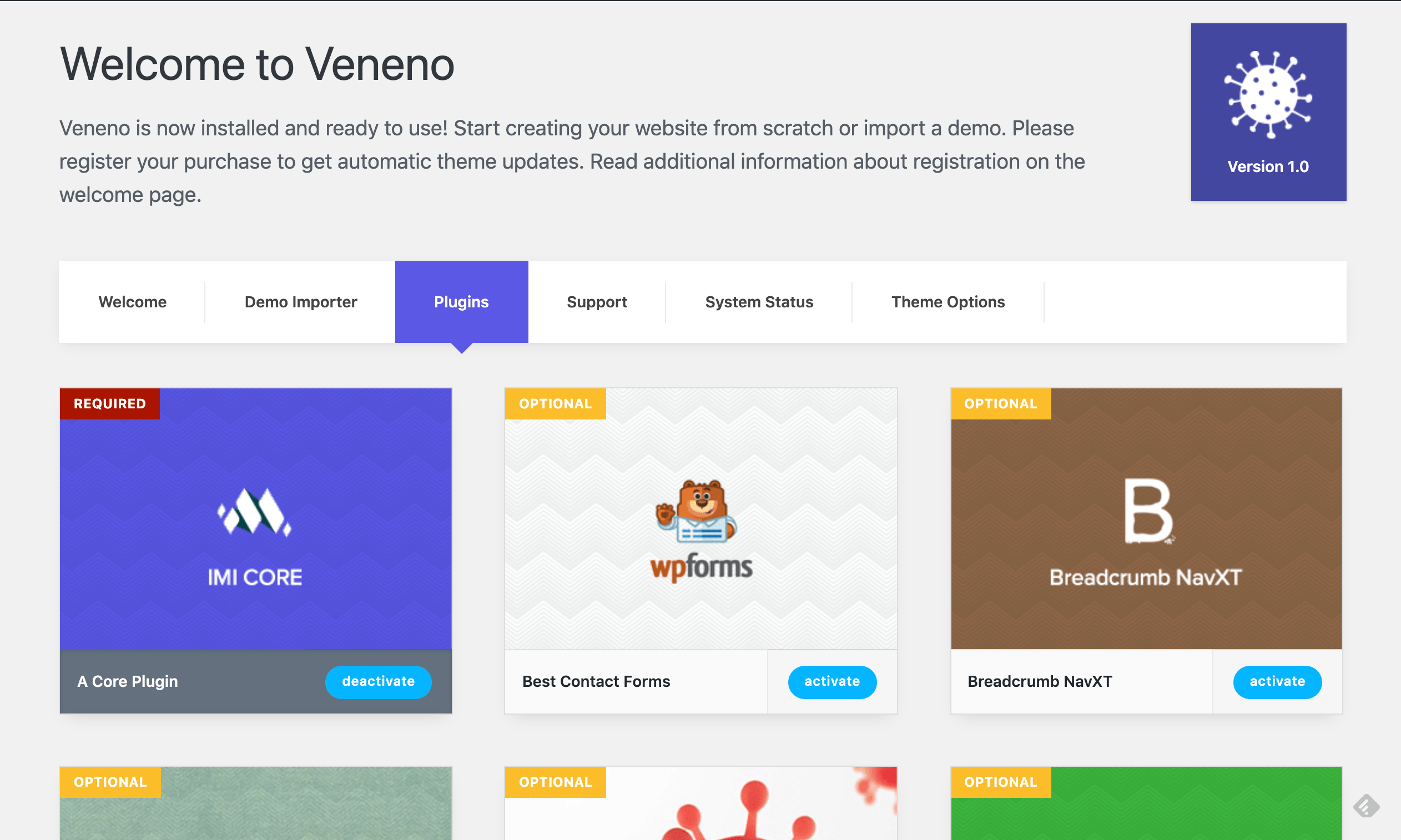
As per the best standards of WordPress theme, all custom functionality of any theme needs to be outside in a plugin. So to follow this we have a separate plugin "IMI Core" which needs to be activated before you install demo content or any other plugin
Plugins required for this theme can be installed easily from the dedicated "Plugins" page as shown below
Demo Import #back to top
This is optional step but highly recommended. This will make your website look like the demo you see while purchasing this theme. You should activate all the recommended plugins before importing the content file.
One Click Demo
This way of demo import is the most easy way but require your server to have minimum config as described here These settings can be changes easily by following the help available or you can ask your hosting provider to do it for you.
One click demo import option can be found under the "Veneno" welcome page in your WP Dashboard
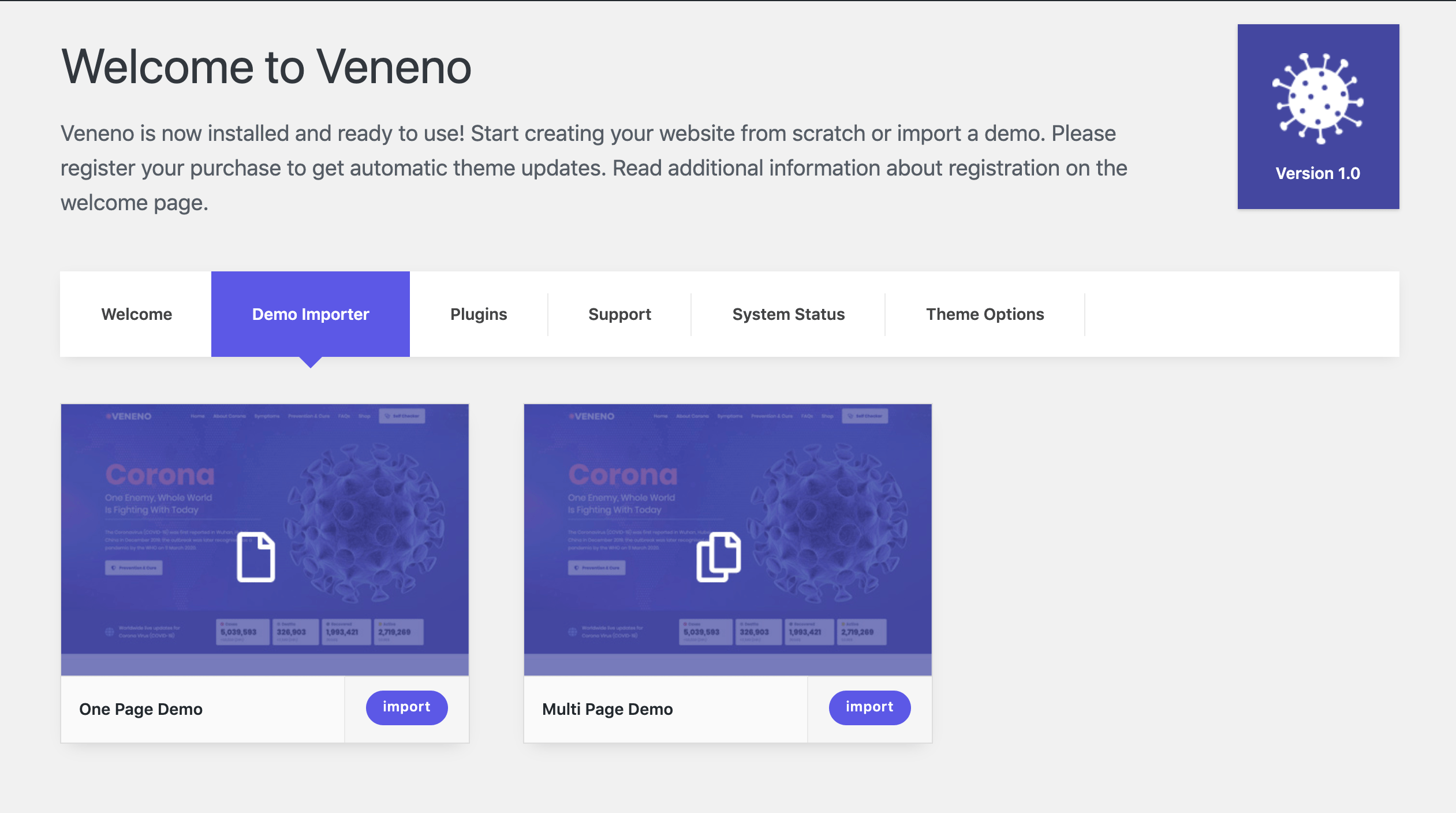
Once you click the "Import" button here, you will see the required plugins list and options for the import as seen here:
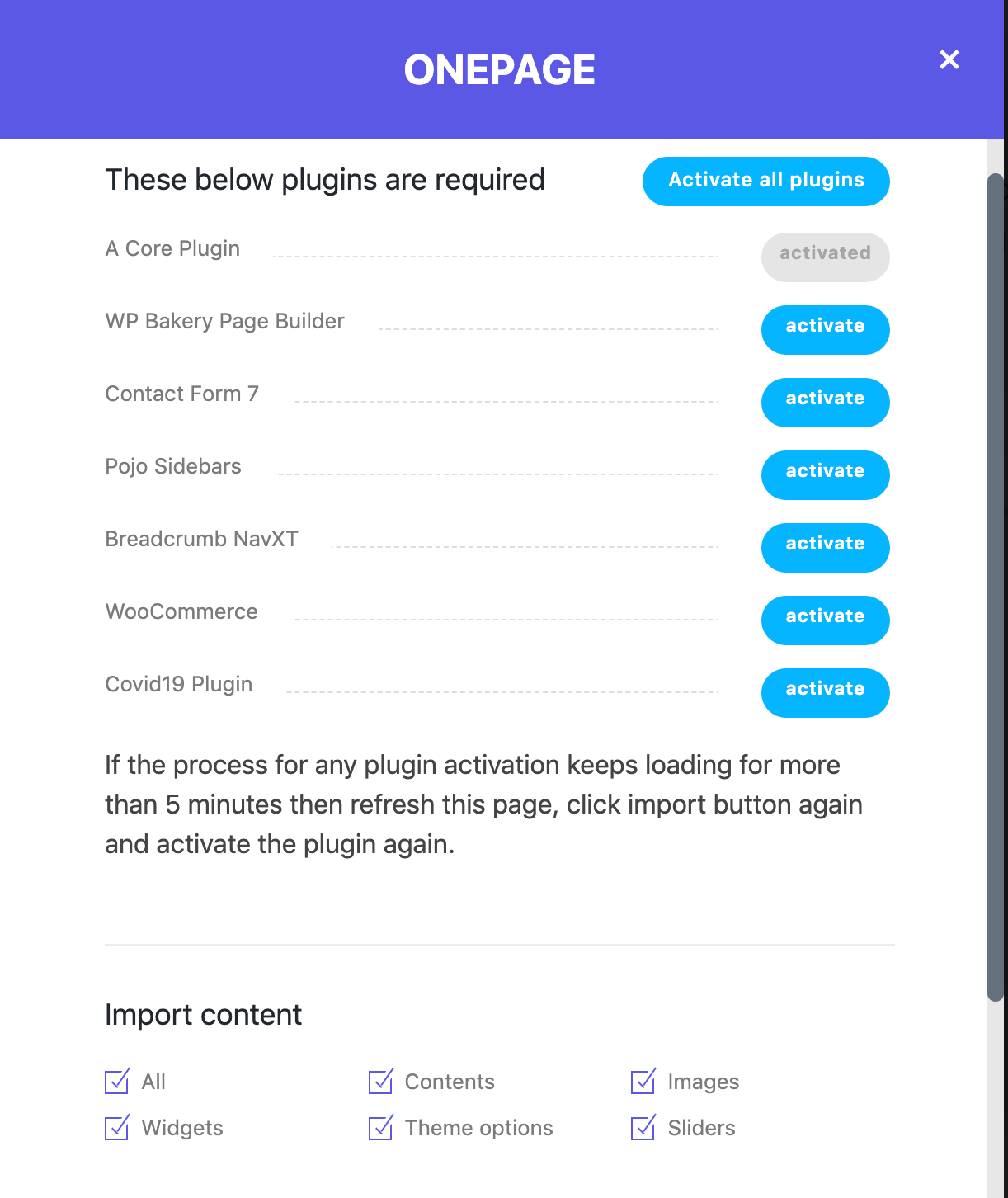
Make sure you activate all the required plugins before the import so it works smoothly. Once all plugins are installed, click the "Import" button and the process will start. It can take upto 15 minutes as per the chosen options and your server config.
Manual Import
If you wish to the demo content via WordPress importer plugin and using wp native import command. For this you need to have the WordPress importer plugin installed on your website.
Step 1: Log into your WordPress Dashboard and navigate to Tools > Import. Then click on WordPress
Step 2: Install and Activate importer plugin. Then select the XML file from your theme download file "content.xml" , it will be in a folder called "Demo Content".
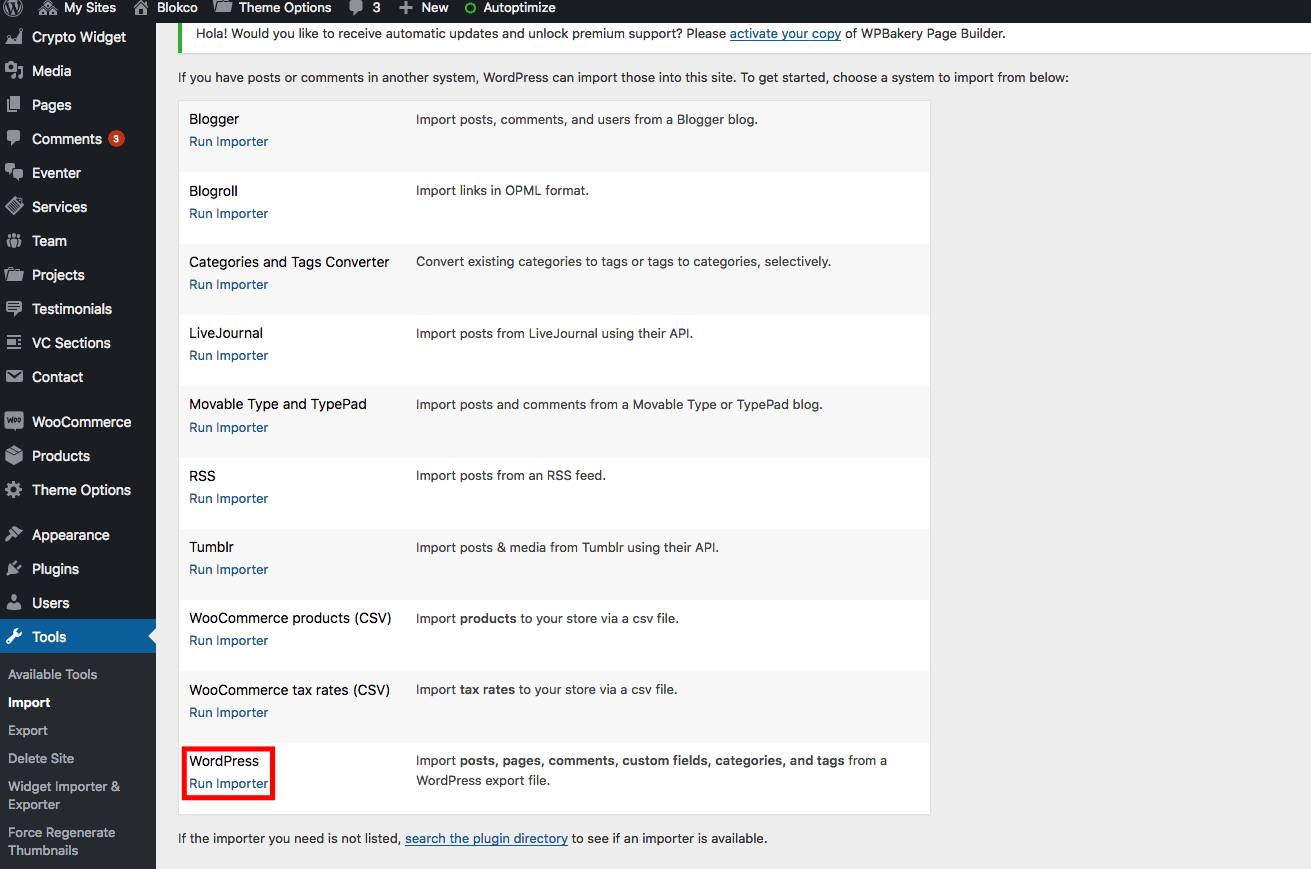
Step 3: Once uploaded it will ask you to import the data into your WordPress user account select from the drop-down an existing user, also click on the check box that says “Download and import file attachments” Once complete all the data will be imported into your site. Do not interrupt/cancel the import process!

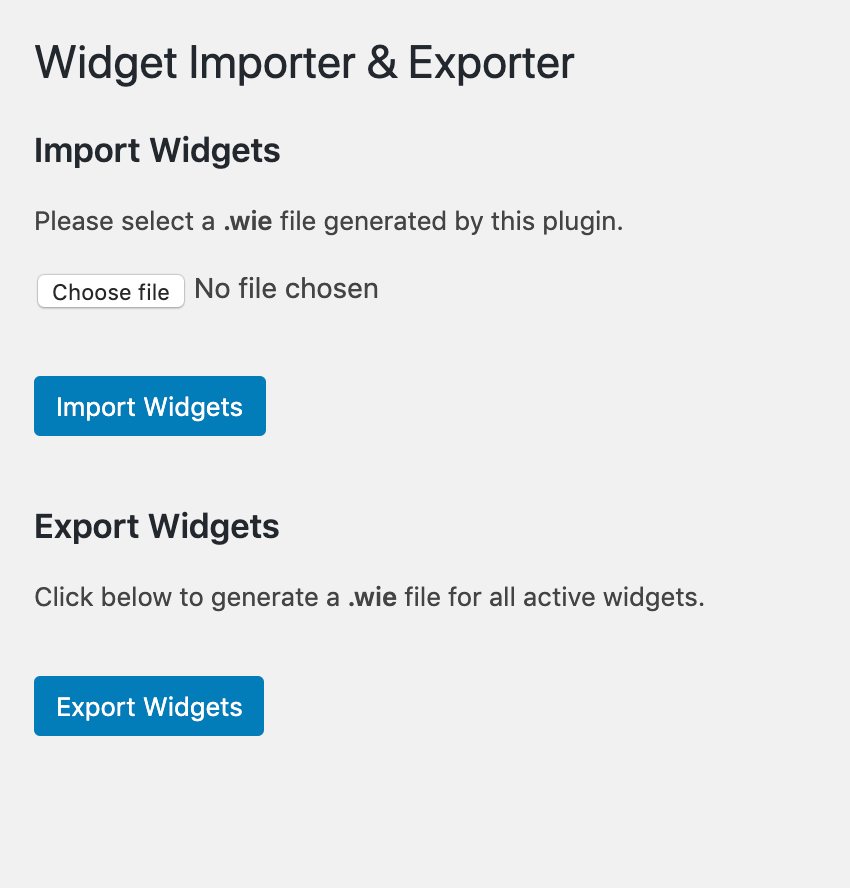
Step 4: Import the widgets used in the demo to your website. For this a plugin "Widgets Importer & Exporter" is required which is freely available and can be installed from your WP Dashboard => Plugins => Add New. Once the plugin is installed, move to Tools -> Widgets Importer & Exporter Page. In this page import the file widgets.wie which is available in the "Demo Content" folder of the package.
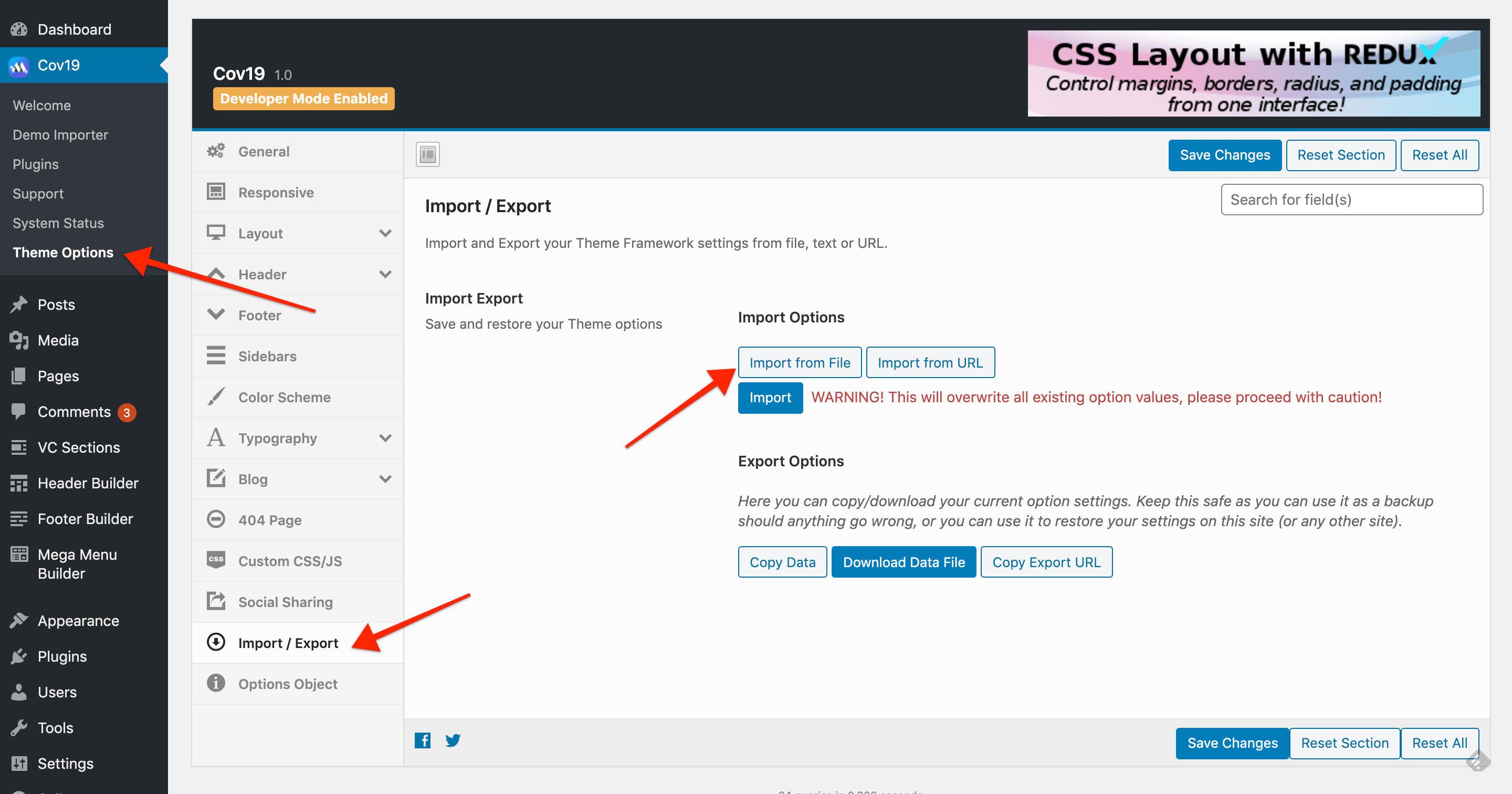
Step 5: Now you need to import the theme options data into so the styling can be same as the demo. For this move to "Theme Options" page in the "Veneno" dashboard page. Here, you will have option for Import/Export where a file needs to be imported. This file is available in the "Demo Import" folder of the package
Page Options #back to top
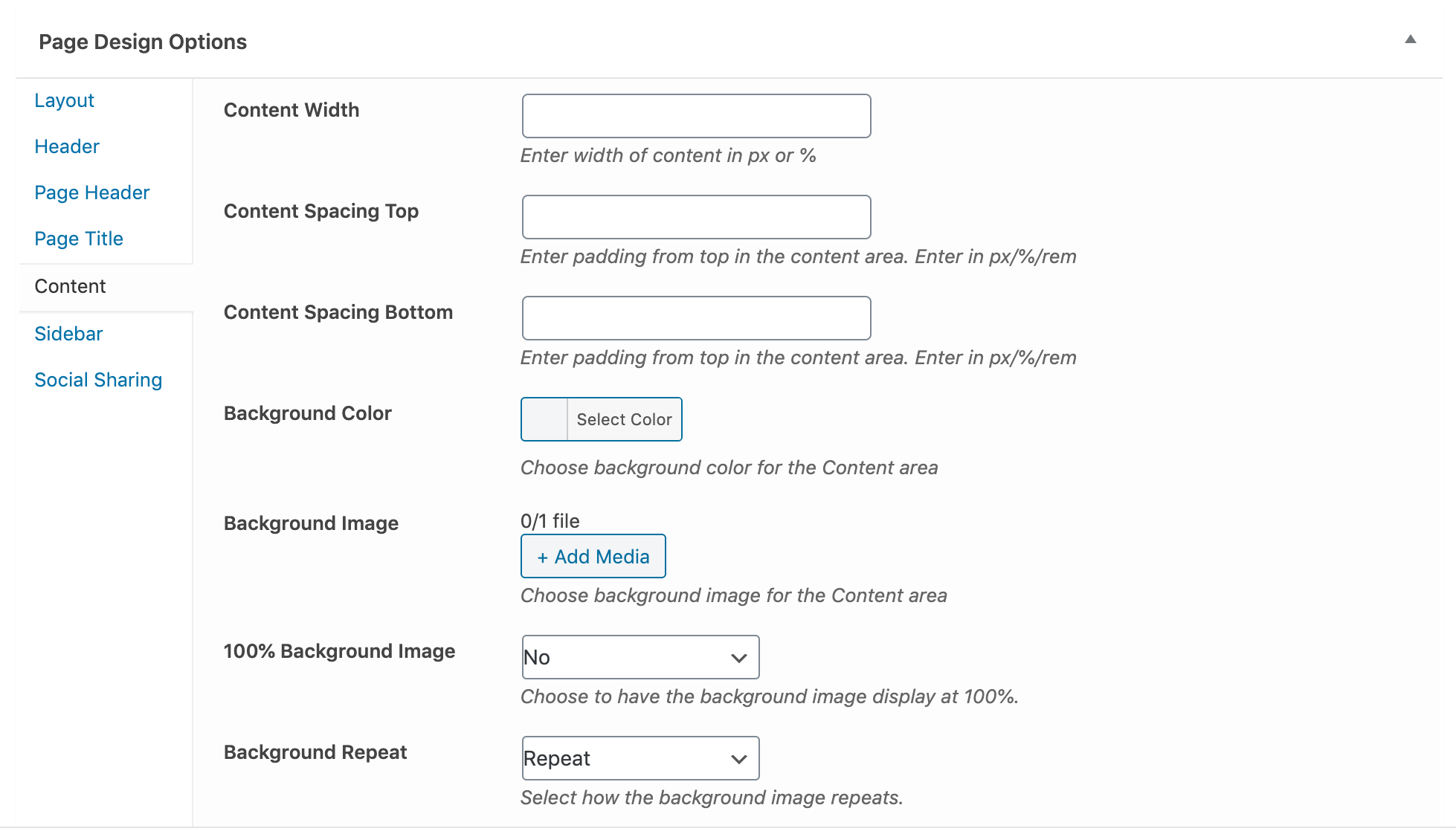
There are several options available page wise, these are available for both pages/posts. These options can be used to set a different header for the page/post. Choose sidebar of the page, set background image for the page/post, Choose style from the page/post header
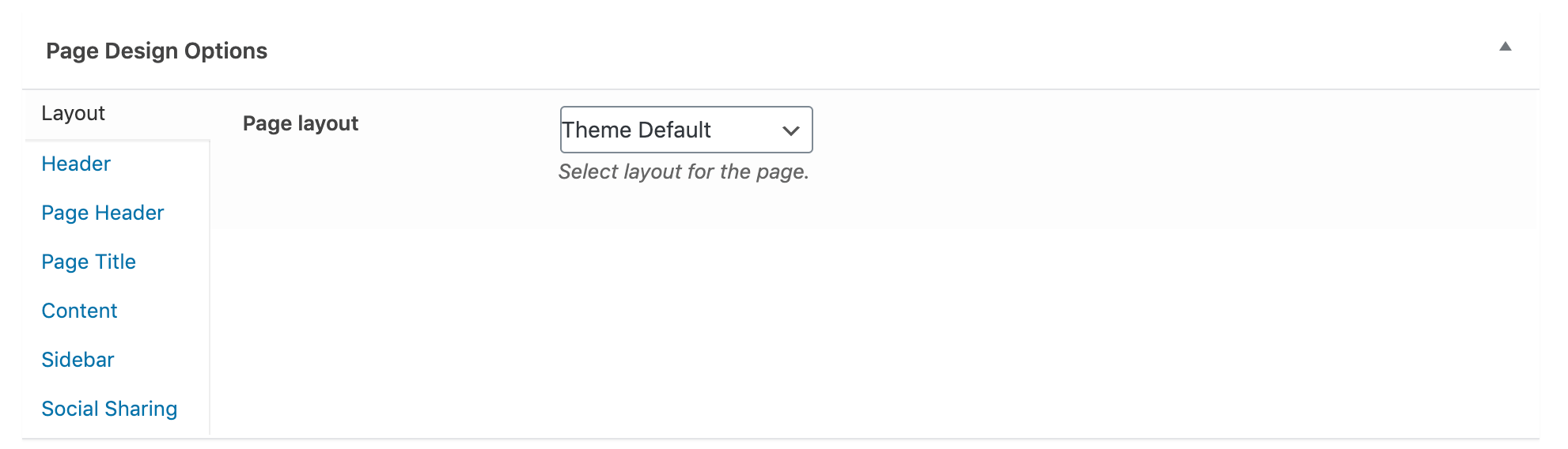
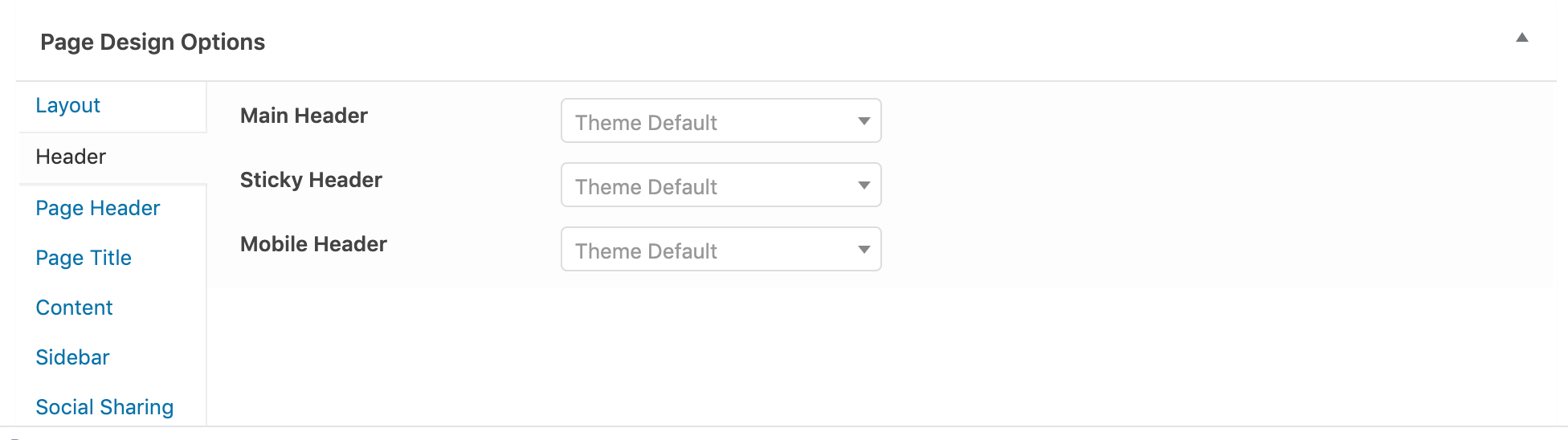
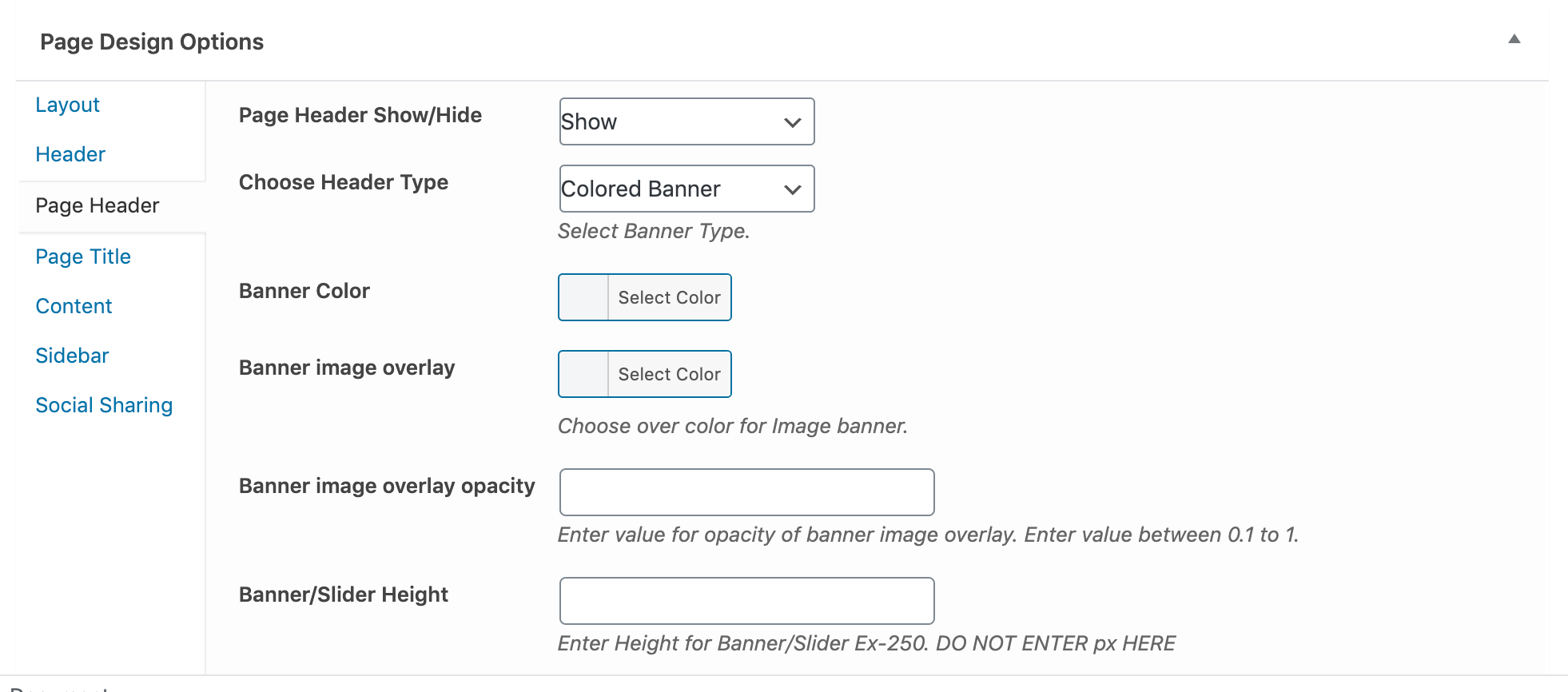
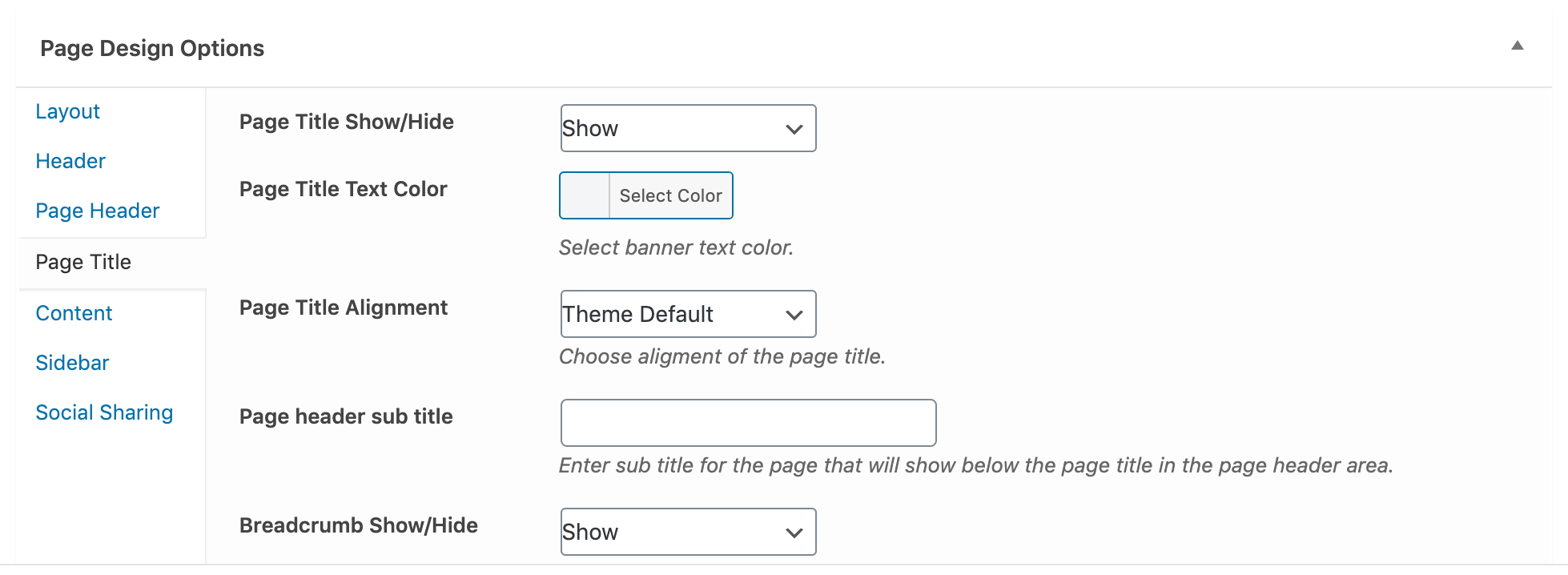
Page Builder #back to top
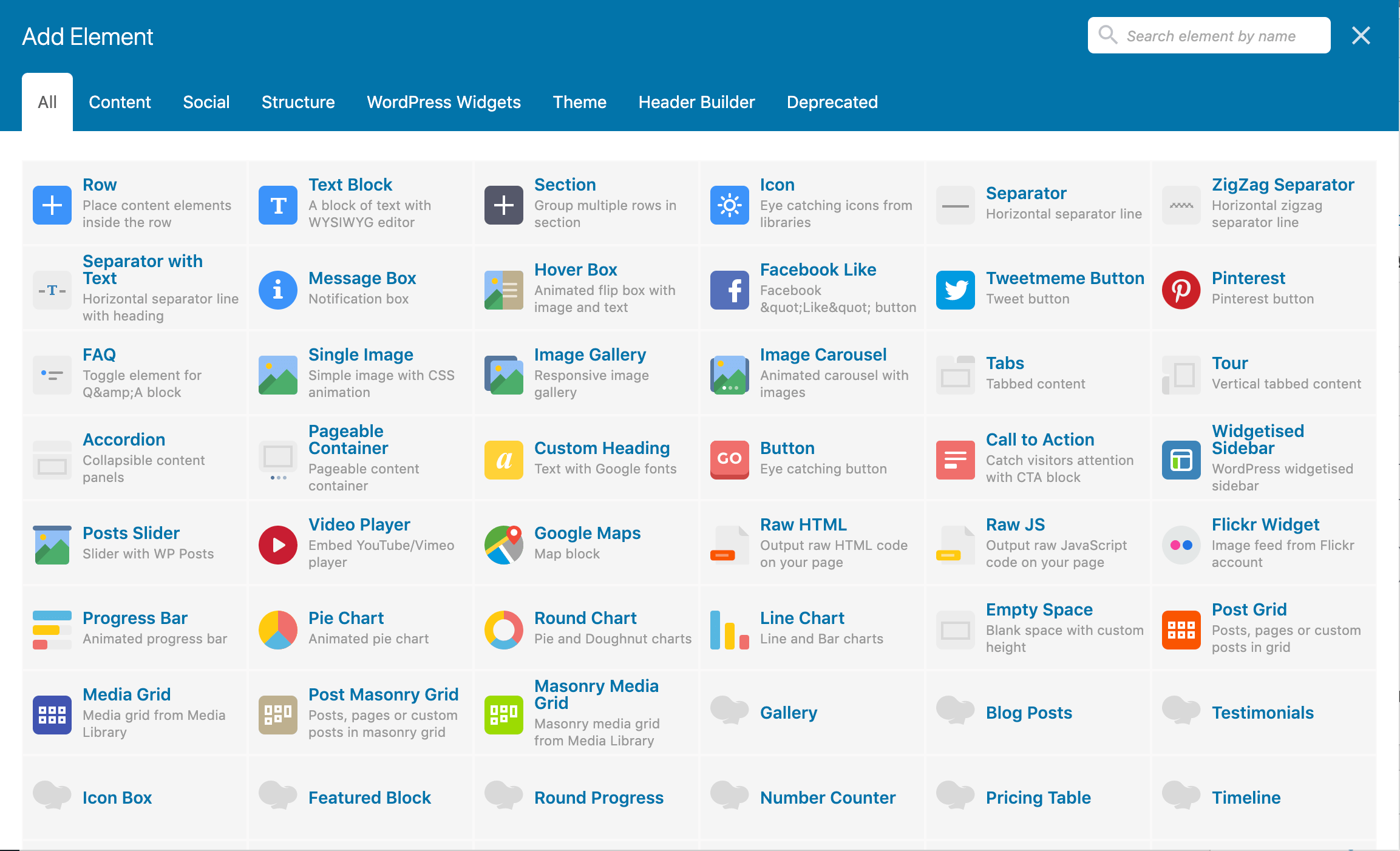
For this theme we are using WPBakery page builder, this is used for page/post creation along with creating headers, footers and mega menus
WPBakery page builder comes with a lot of shortcode elements which can be placed into your pages/posts content area. We have also extended this plugin further with some custom built shortcodes. All these shortcodes can be seen in while creating the pages.


Header Builder #back to top
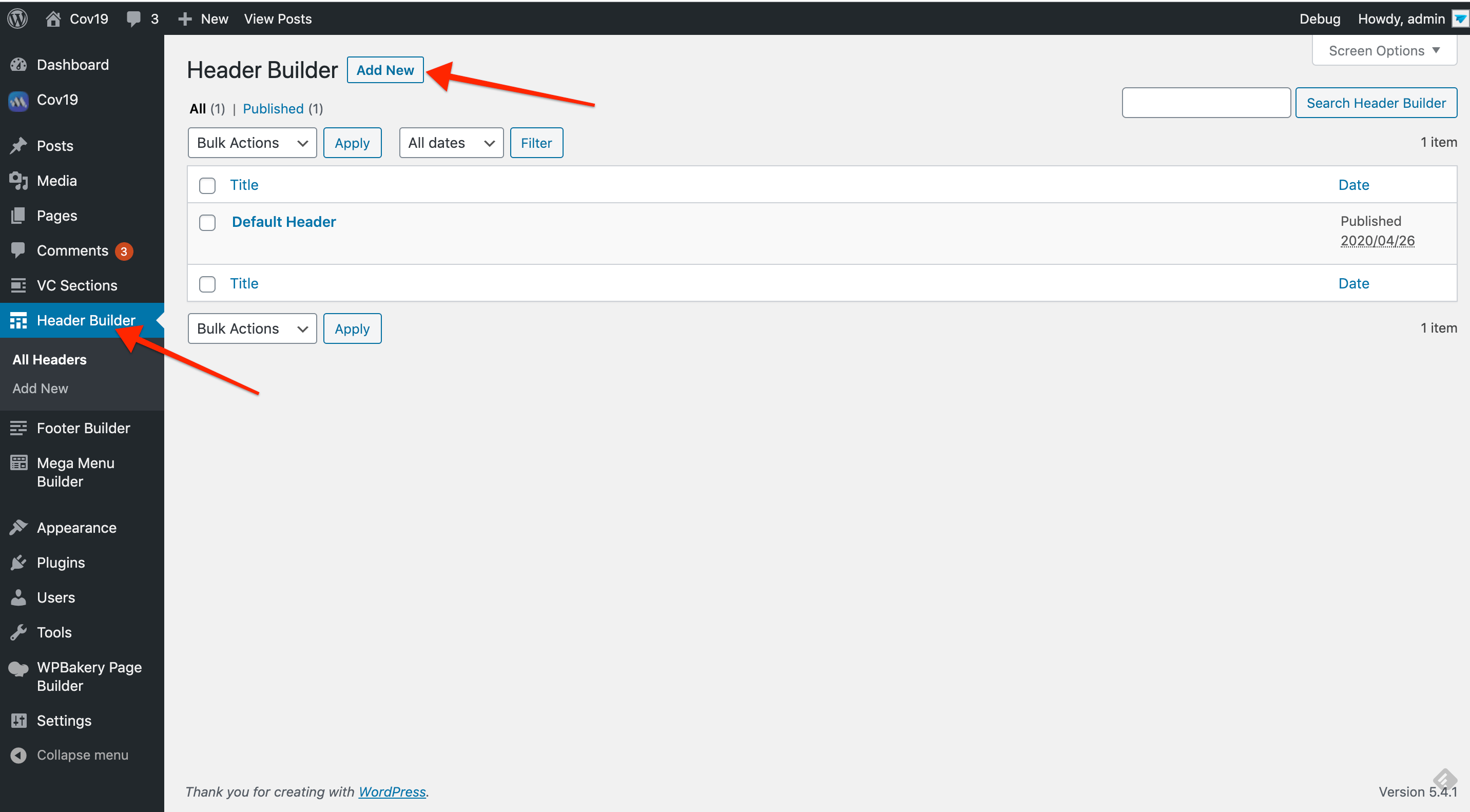
For this theme we are using WPBakery page builder, this is used for page/post creation along with creating headers, footers and mega menus
WPBakery page builder comes with a lot of shortcode elements which can be placed into your pages/posts content area. We have also extended this plugin further with some custom built shortcodes. All these shortcodes can be seen in while creating the pages.

Footer Builder #back to top
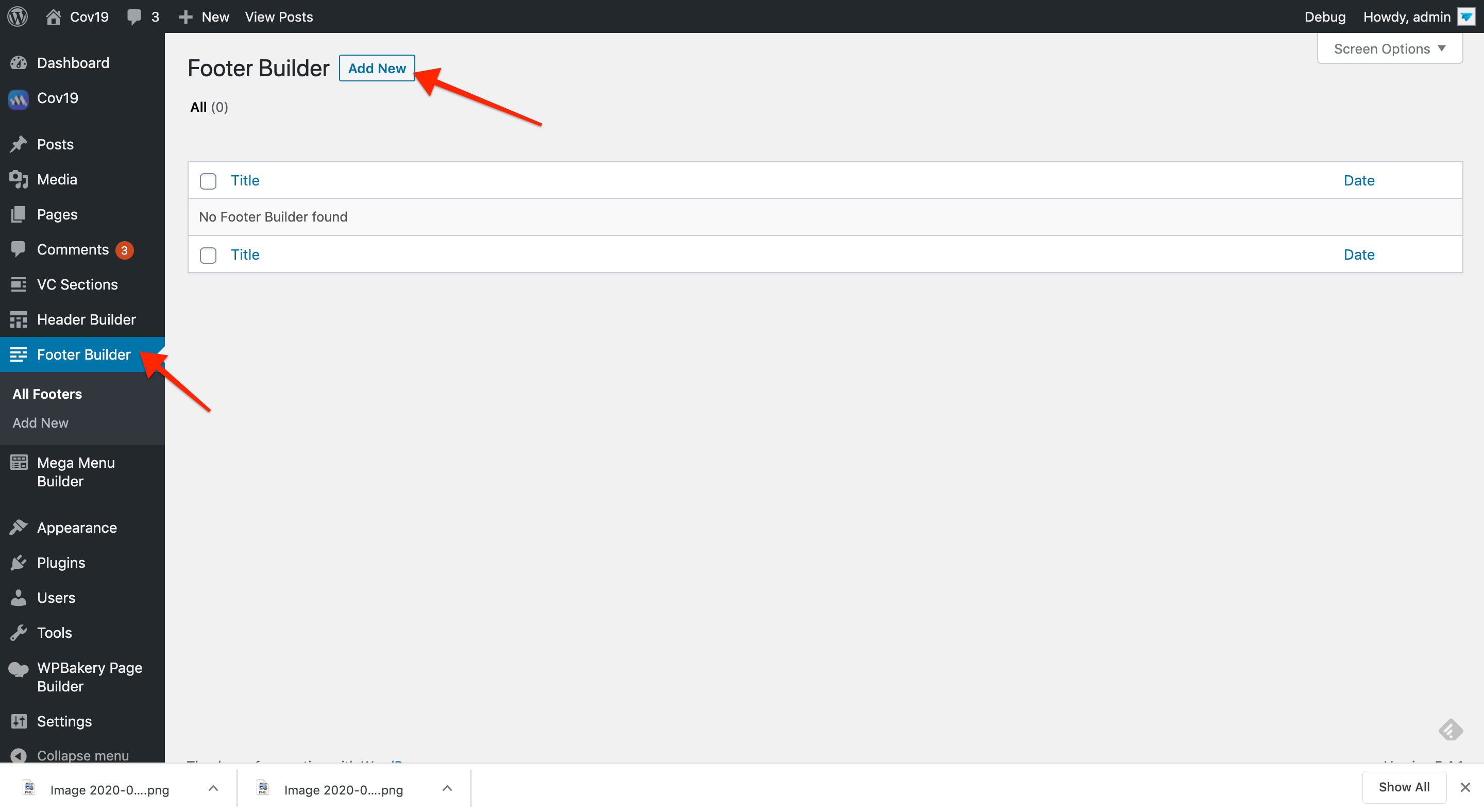
For this theme we are using WPBakery page builder, this is used for page/post creation along with creating headers, footers and mega menus
WPBakery page builder comes with a lot of shortcode elements which can be placed into your pages/posts content area. We have also extended this plugin further with some custom built shortcodes. All these shortcodes can be seen in while creating the pages.
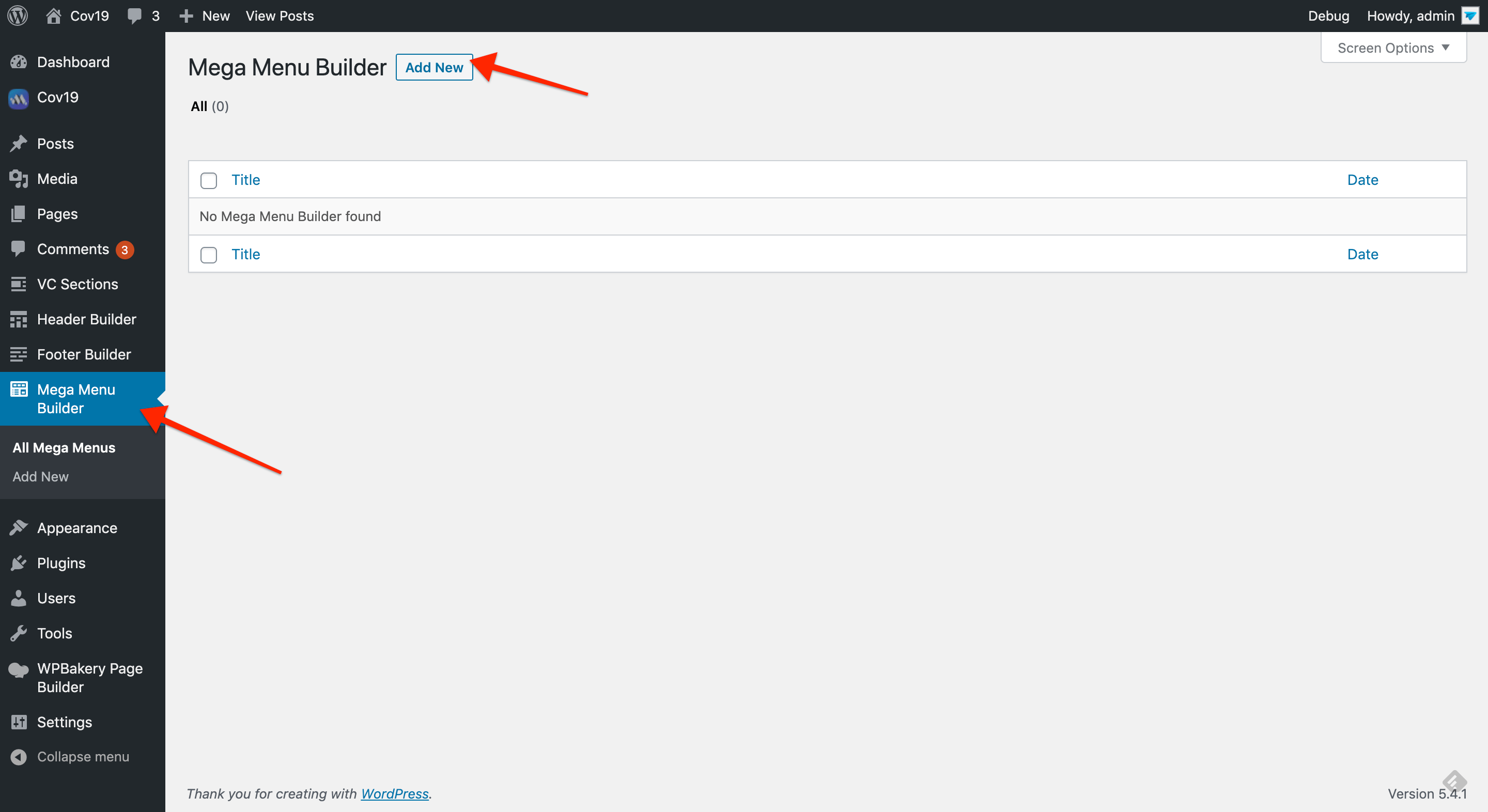
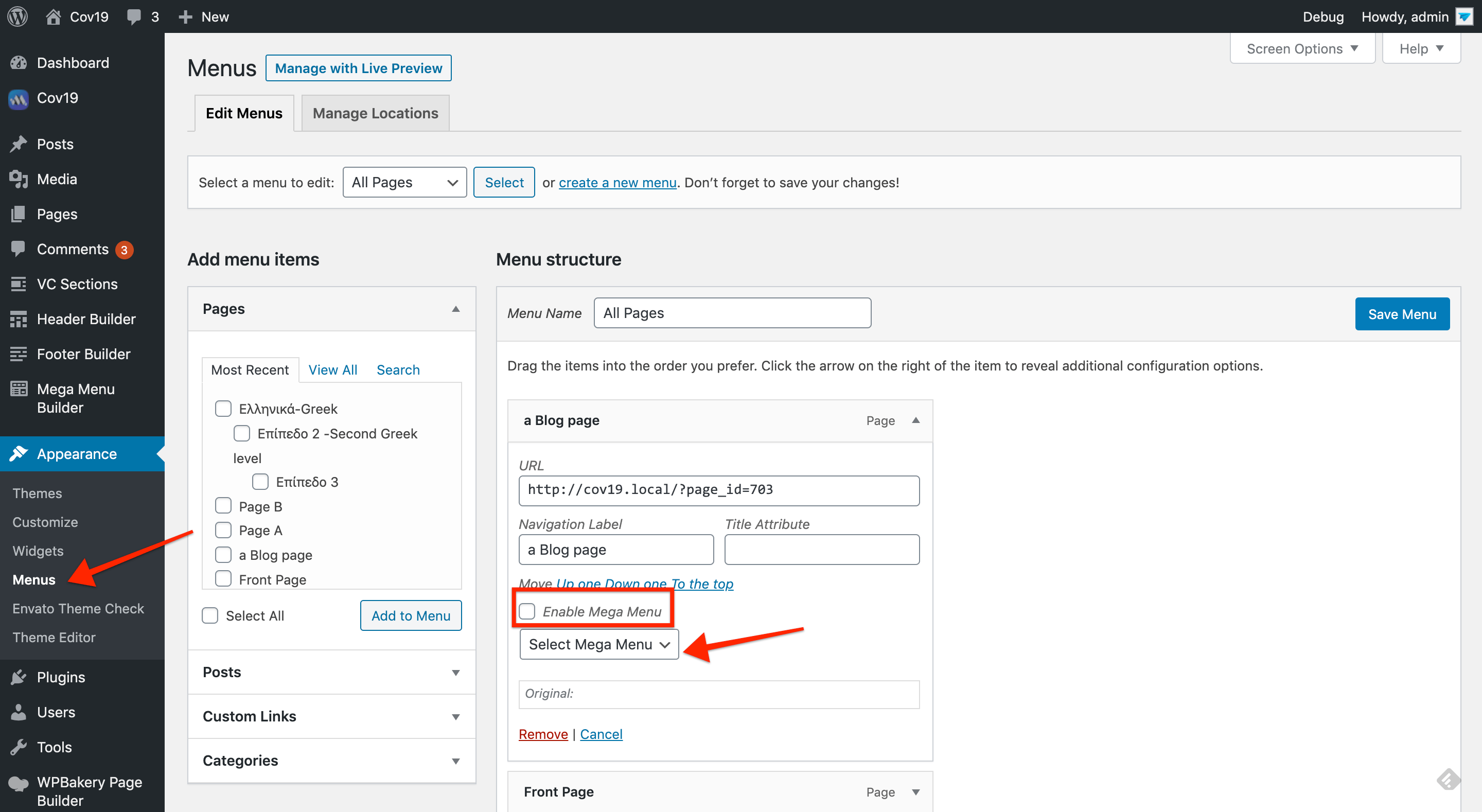
Mega Menu Builder #back to top
For this theme we are using WPBakery page builder, this is used for page/post creation along with creating headers, footers and mega menus
WPBakery page builder comes with a lot of shortcode elements which can be placed into your pages/posts content area. We have also extended this plugin further with some custom built shortcodes. All these shortcodes can be seen in while creating the pages.
How to Use One Page Menu #back to top
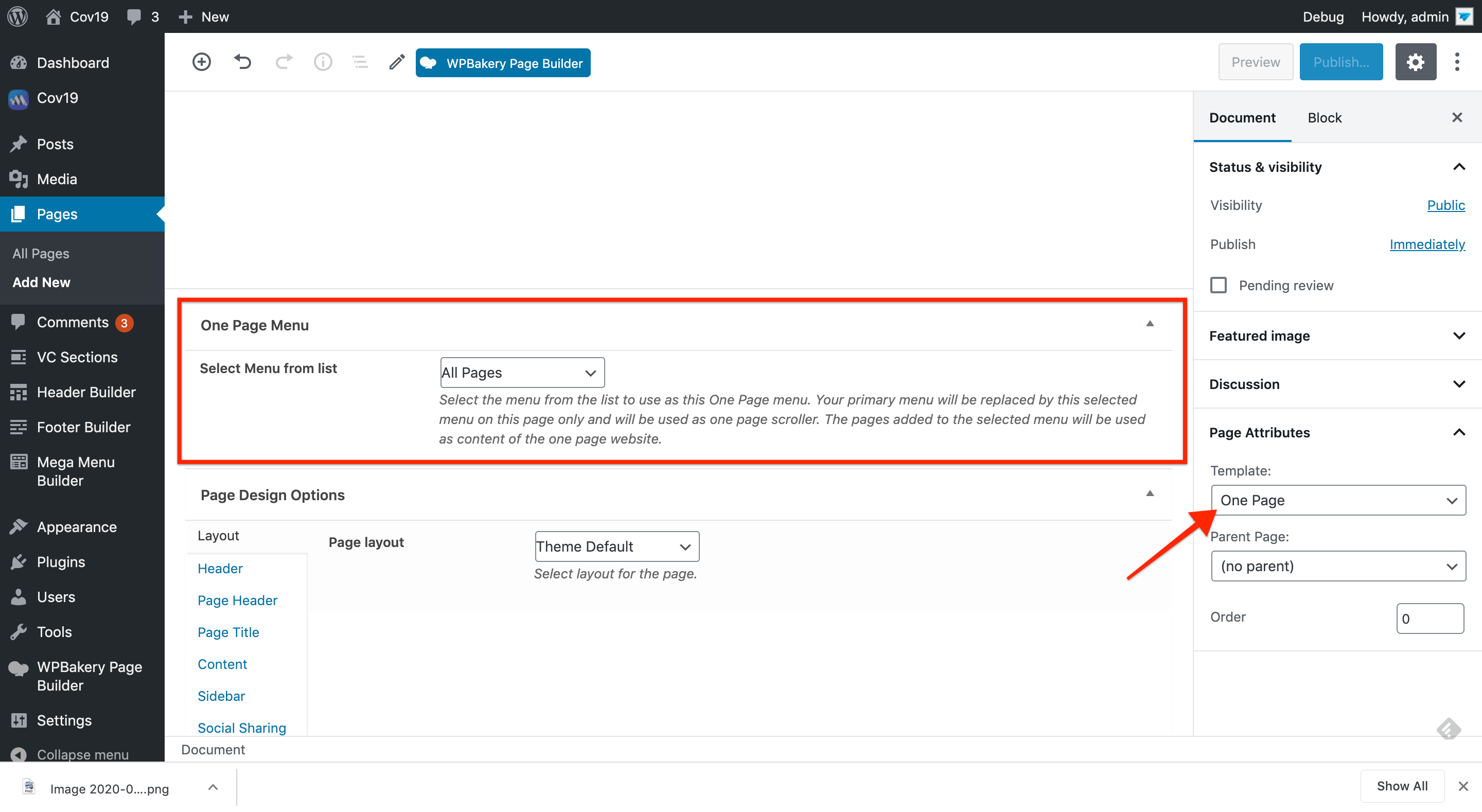
This theme comes with built in one page menu option. Using this option is very easy, you just need to create your pages like normally you do for multi page websites. Now to user those pages in a "One Page" menu system, create a new menu from Appearance => Menu. Add your pages in the menu as normal. Now this menu can be used as one page nav in a page. Create a new page and choose "One Page Template" for it. Also choose the same menu you created before, in this page. Now any header you have created for your website can use this menu in the menu shortcode.
By default one page menu intend to work only on a single page where you have chosen "One Page Template" as your page template but when you have a website where there is some other single pages as well along with a main one pager then the other pages should be linked to the same sections of the main page when visited from those single pages. To make this happen we have an option at Theme Options => General

Woocommerce #back to top
Veneno theme supports basic WooCommerce integration. Once WooCommerce is activated you will see this notice:
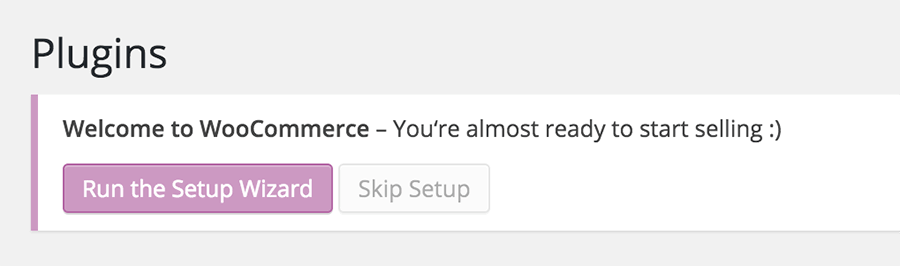
Click on Run the Setup Wizard button to begin the WooCommerce install. That will start the setup wizard, where you can set things like shop pages, store locale, shipping & tax and payments.
Tip: If you have already imported the demo content then the required WooCommerce pages should already been created.

If you want to change some settings, you can change them in WooCommerce => Settings. There are many tabs at the top, you can configure to fit your needs.
Next, you can install the demo products by WooCommerce. Go to Tools » Import => WordPress and import the demo XML file which can be found in the folder where WooCommerce was installed on your server. Usually this is in wp-content/plugins/woocommerce. Find the file dummy-data.xml there and upload it to the server. Also check the Download and import file attachments check-box, so that all product images will be downloaded as well.
Tip: All further information and documentation for WooCommerce can be found on the official WooCommerce website
Support Desk #back to top
Please remember you have purchased a very affordable theme and you have not paid for a full-time web design agency. Occasionally we will help with small tweaks, but these requests will be put on a lower priority due to their nature. Support is also 100% optional and we provide it for your connivence, so please be patient, polite and respectful.
Please check Support Policy of the Envato Market
Support for our items includes:- * Responding to questions or problems regarding the item and its features
- * Fixing bugs and reported issues
- * Providing updates to ensure compatibility with new software versions
- * Customization and installation services
- * Support for third party software and plug-ins
- * Make sure your question is a valid Theme Issue and not a customization request.
- * Make sure you have read through this documentation and any related video guides before asking support on how to accomplish a task.
- * Make sure to double check the theme FAQs.
- * Try disabling any active plugins to make sure there isn't a conflict with a plugin. And if there is this way you can let us know.
- * If you have customized your theme and now have an issue, back-track to make sure you didn't make a mistake. If you have made changes and can't find the issue, please provide us with your changelog.
- * Almost 80% of the time we find that the solution to people's issues can be solved with a simple "Google Search". You might want to try that before seeking support. You might be able to fix the issue yourself much quicker than we can respond to your request.
- * Make sure to state the name of the theme you are having issues with when requesting support via ThemeForest.
Version History (Changelog) #back to top
You can find the version history (changelog.php) file on veneno theme folder or you can check changelog on theme sale page.
Once again, thank you so much for purchasing this theme. As I said at the beginning, I'd be glad to help you if you have any questions relating to this theme. If you have a more general question relating to the themes on ThemeForest, you might consider visiting the forums and asking your question in the "Item Discussion" section.
Changelog
                                        -----------------------------------------------------------------------------------------
                                        Version 1.0 - May 21st, 2020
                                        -----------------------------------------------------------------------------------------

                                        - Initial Release
Copyright and license #back to top
Code released under the ThemeForest Split License for WordPress Themes
For more information about copyright and license check Split Licensing and the GPL.