Demo Import #back to top
This is optional step but highly recommended. This will make your website look like the demo you see while purchasing this theme. You should activate all the recommended plugins before importing the content file.
One Click Demo
This way of demo import is the most easy way but require your server to have minimum config as described here These settings can be changes easily by following the help available or you can ask your hosting provider to do it for you.
One click demo import option can be found under the “Veneno” welcome page in your WP Dashboard
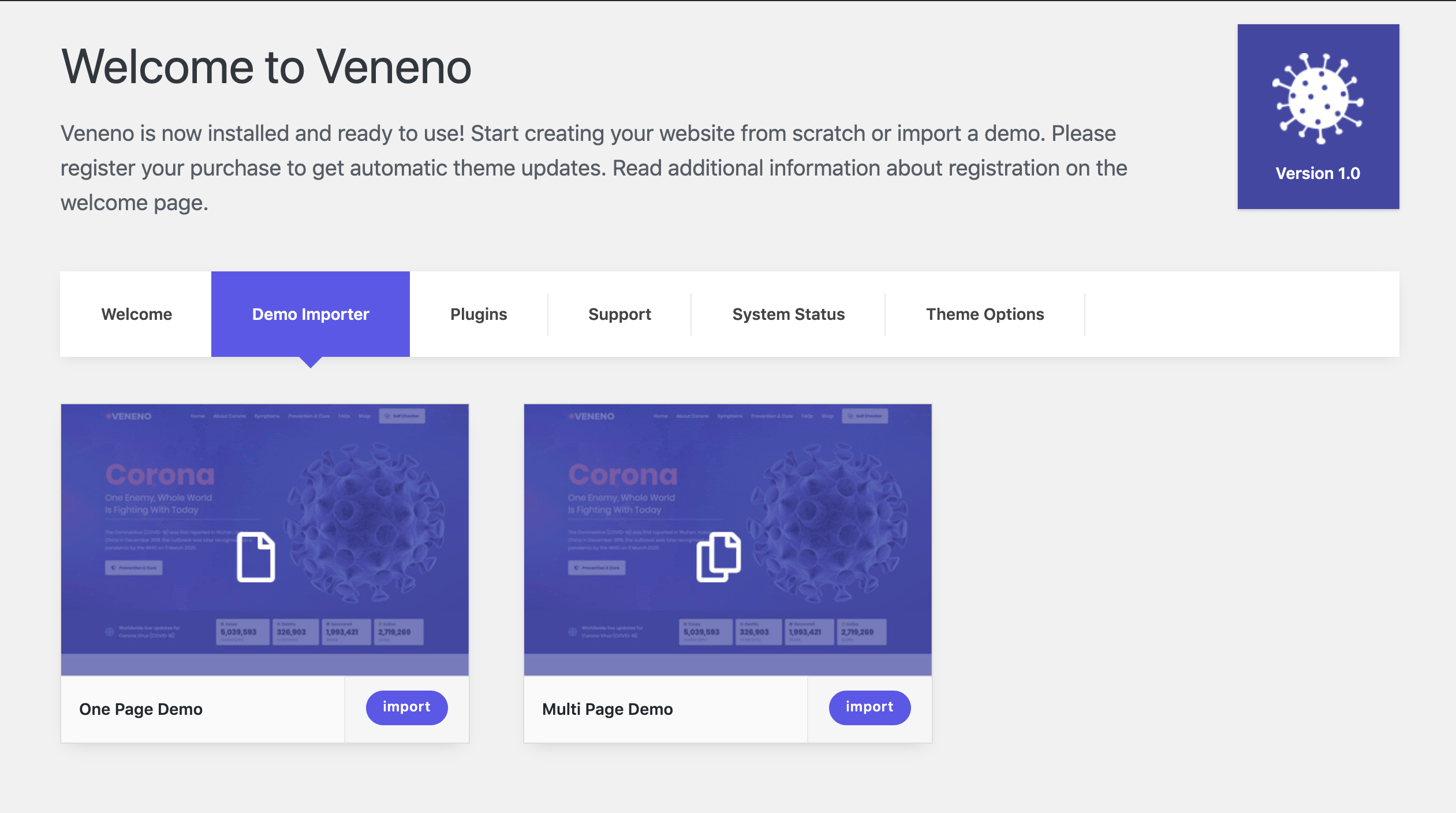
Once you click the “Import” button here, you will see the required plugins list and options for the import as seen here:
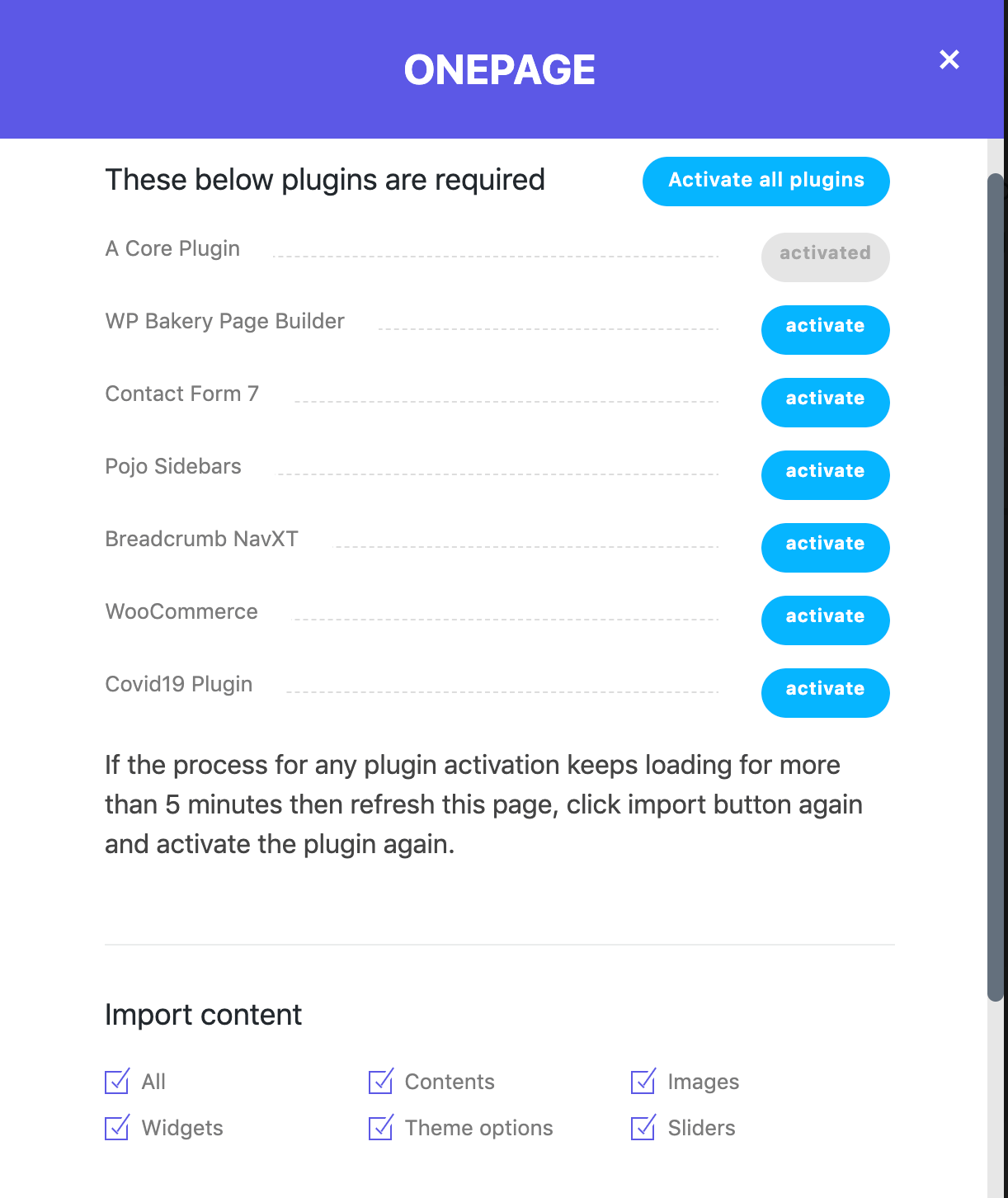
Make sure you activate all the required plugins before the import so it works smoothly. Once all plugins are installed, click the “Import” button and the process will start. It can take upto 15 minutes as per the chosen options and your server config.
Manual Import
If you wish to the demo content via WordPress importer plugin and using wp native import command. For this you need to have the WordPress importer plugin installed on your website.
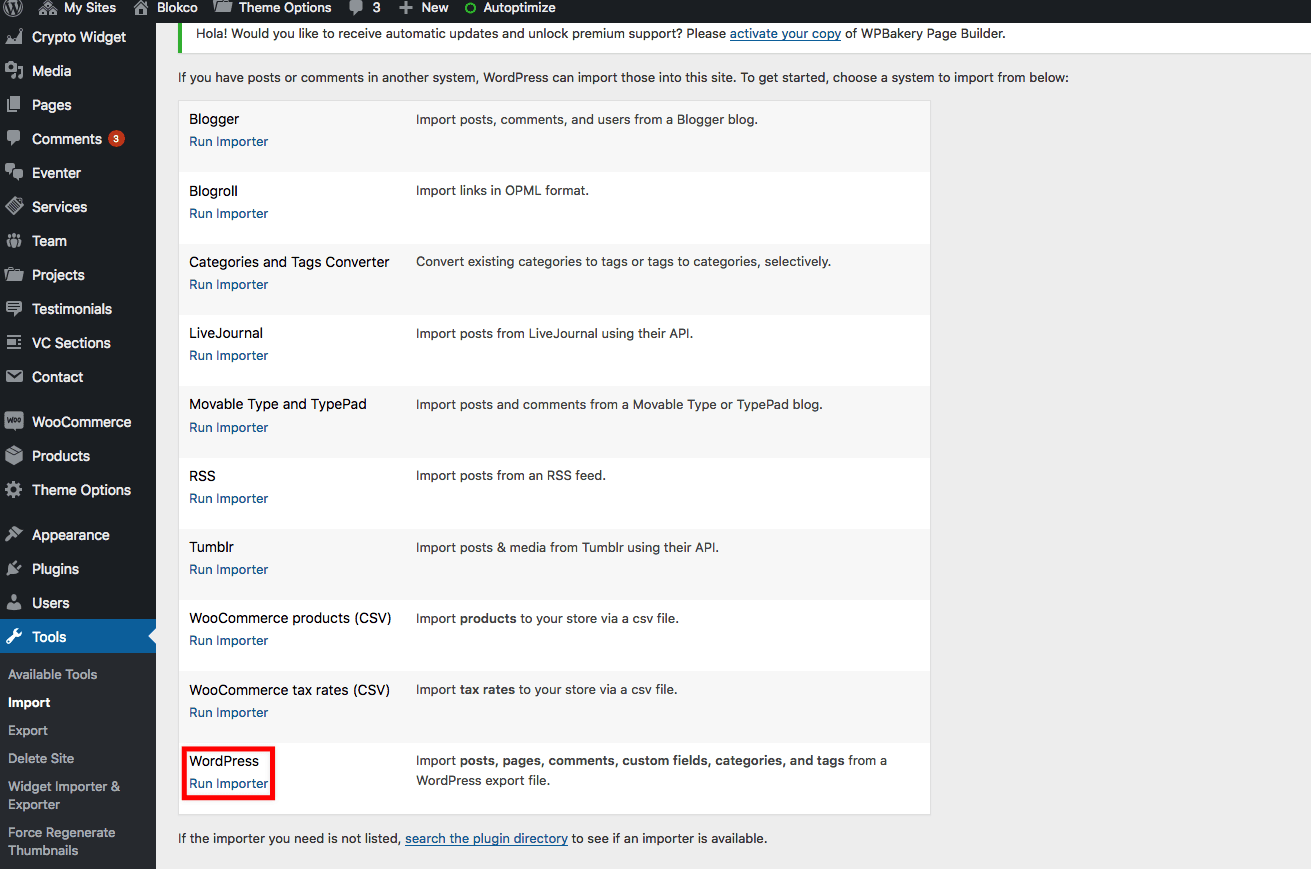
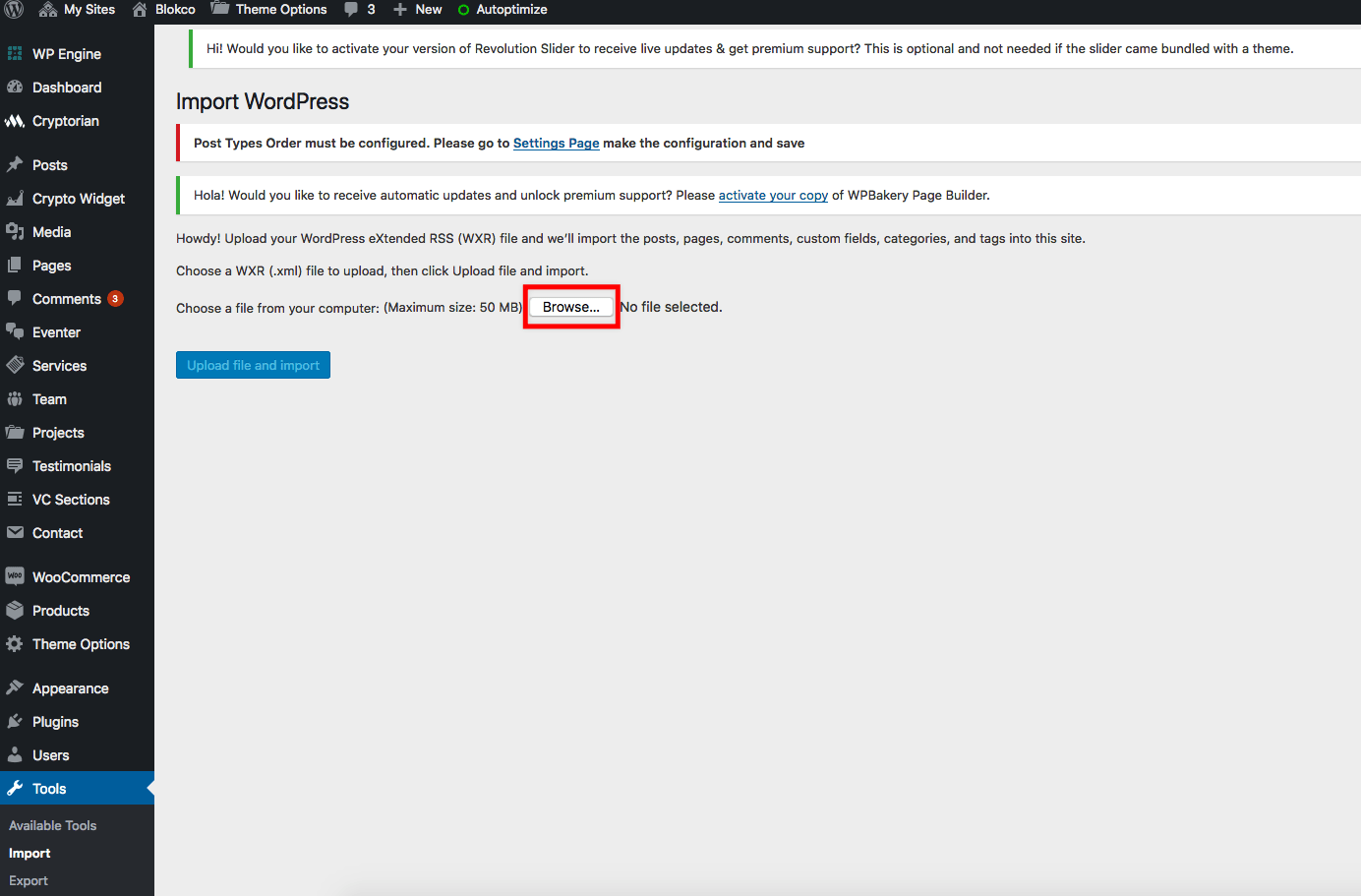
Step 1: Log into your WordPress Dashboard and navigate to Tools > Import. Then click on WordPress
Step 2: Install and Activate importer plugin. Then select the XML file from your theme download file “content.xml” , it will be in a folder called “Demo Content”.
Step 3: Once uploaded it will ask you to import the data into your WordPress user account select from the drop-down an existing user, also click on the check box that says “Download and import file attachments” Once complete all the data will be imported into your site. Do not interrupt/cancel the import process!
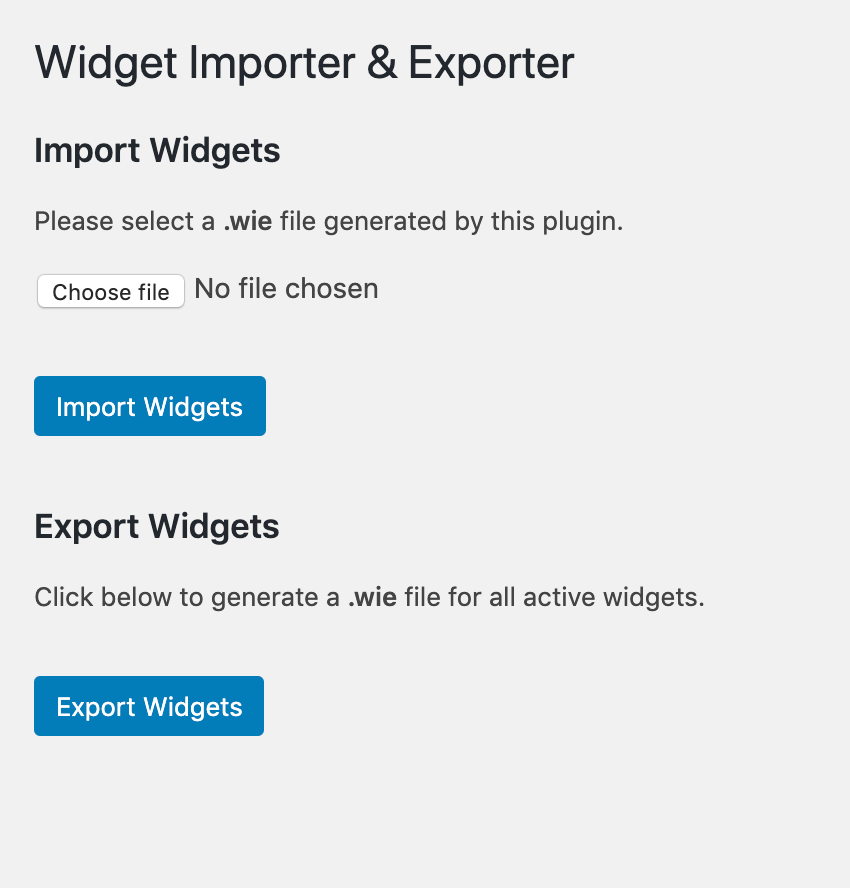
Step 4: Import the widgets used in the demo to your website. For this a plugin “Widgets Importer & Exporter” is required which is freely available and can be installed from your WP Dashboard => Plugins => Add New. Once the plugin is installed, move to Tools -> Widgets Importer & Exporter Page. In this page import the file widgets.wie which is available in the “Demo Content” folder of the package.
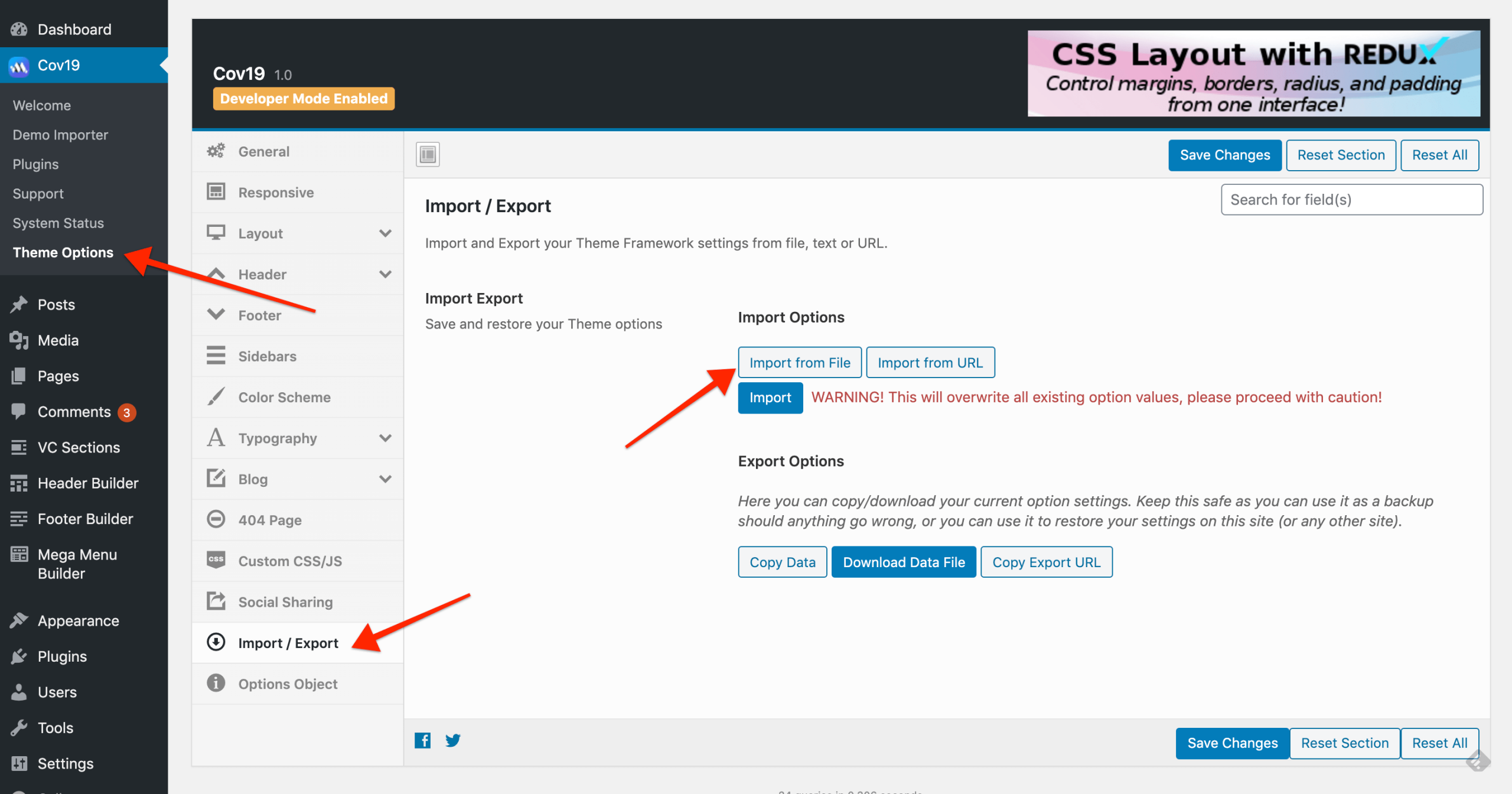
Step 5: Now you need to import the theme options data into so the styling can be same as the demo. For this move to “Theme Options” page in the “Veneno” dashboard page. Here, you will have option for Import/Export where a file needs to be imported. This file is available in the “Demo Import” folder of the package