After installation and license activation, open Facebook Feeds in the WordPress dashboard. The plugin has two main tabs: Sources for Facebook Page connections and Feeds for reusable feed configurations.
Connect a Facebook Page
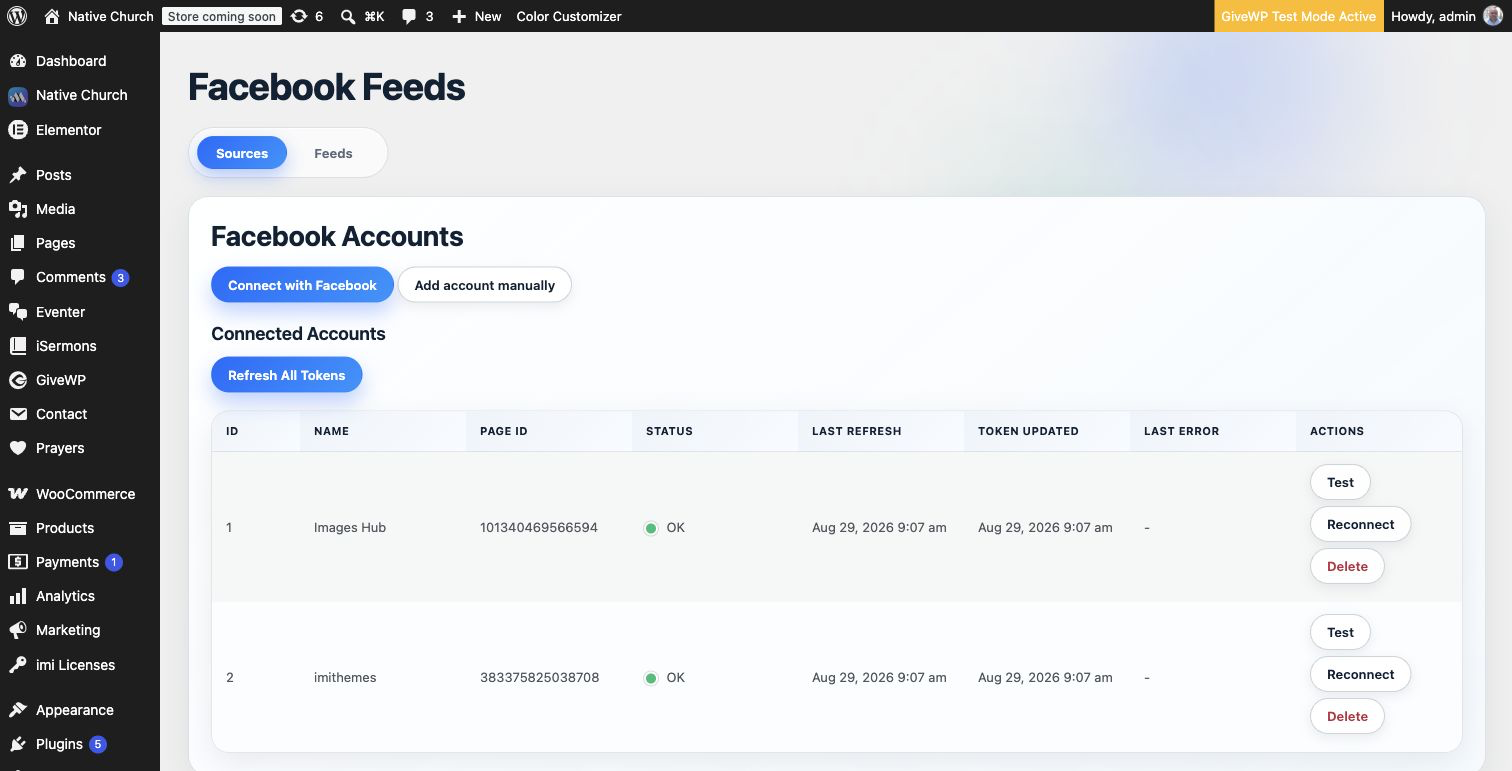
- Go to Facebook Feeds → Sources.
- Click Connect with Facebook.
- Complete the Facebook authorization process and select the Page or Pages you want to connect.
- After returning to WordPress, confirm that each Page appears under Connected Accounts with an OK status.
Use Test to verify a Page connection, Reconnect to repeat authorization, or Refresh All Tokens to refresh all connected accounts. The table also shows the last refresh time, token update time, and any connection error.
Add a source manually
Use Add account manually when the guided Facebook connection cannot be used. Enter:
- Page Name: A recognizable label used only inside WordPress.
- Page ID: The numeric Facebook Page ID, not the Page URL or username.
- User Access Token: A User access token with permission to access the Page. The plugin exchanges it for a Page token and uses it for future refreshes.
- App ID: The Meta developer app ID that issued the User access token.
- App Secret: The secret paired with the App ID.
Security note: Treat access tokens and the App Secret as credentials. Do not include them in screenshots, tickets, or other public messages.
Create a feed
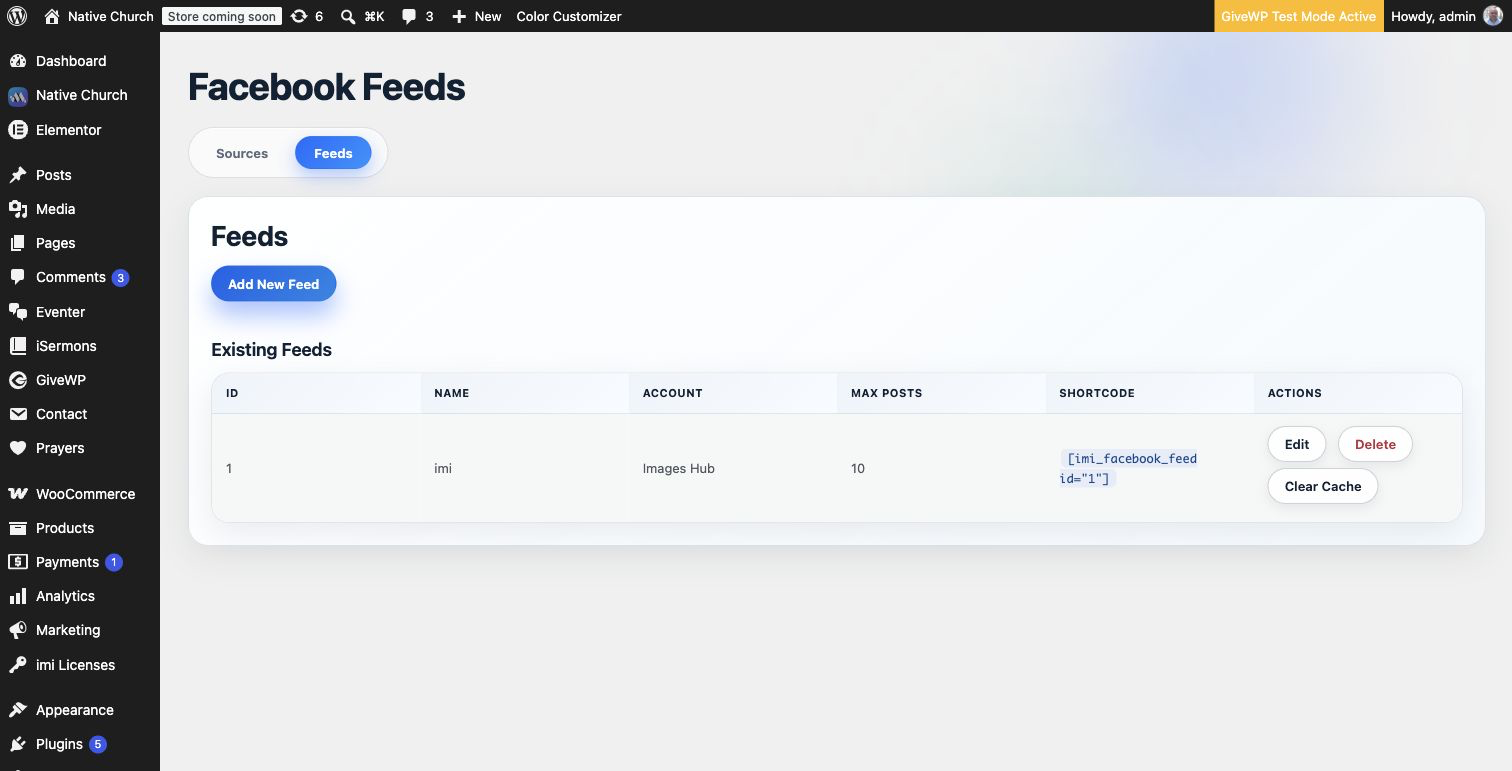
- Open Facebook Feeds → Feeds and click Add New Feed.
- On the Feed tab, enter a Feed Name, select a connected Facebook Account, and set the maximum number of posts.
- On Layout, choose a preset or configure the layout manually.
- Use Styling, Filters, and Cache to finish the feed.
- Check the live preview and click Save Feed.
Layouts and presets
Available presets include Classic List, Card Grid, Masonry Editorial, Photo Gallery, Video Gallery, Photo Carousel, Video Carousel, and Grid Carousel. Custom layouts include list, grid, masonry, photo/video grids, and photo/video/grid carousels.
Grid-based layouts support separate desktop, tablet, and mobile column counts plus a configurable gutter. Carousel layouts also provide arrows, dots, slides per click, autoplay, and autoplay speed controls. List, grid, and masonry layouts can display a Load More button.
Styling, filters, and cache
- Styling: Configure the feed dimensions, header, cover image position, cards, widget container, colors, typography, spacing, borders, shadows, and media radius.
- Filters: Choose whether text posts, photos, and videos should appear.
- Cache: Enable caching and choose how long Facebook data remains cached. Use Clear Cache beside a saved feed whenever fresh data is needed immediately.
Display the feed
After saving, copy the shortcode shown in the Existing Feeds table, for example:
[imi_facebook_feed id="1"]
Paste the shortcode into a post, page, shortcode block, widget, or Elementor shortcode widget. The frontend uses the saved layout, responsive settings, styling, filters, caching, and Load More configuration.
Full usage video
Troubleshooting
- The Facebook Feeds screen asks for activation: Activate the plugin from imi Licenses. Recognized local development sites are allowed without activation.
- A connected account reports an error: Click Test. If the token or permissions are no longer valid, click Reconnect.
- No posts appear: Confirm that the selected account is connected, increase Max Posts if necessary, and make sure at least one content type is enabled under Filters.
- Recent posts or style changes are missing: Click Clear Cache for the feed and clear any WordPress page cache or CDN cache.
- Load More does not respond: Confirm that the selected layout supports Load More and that the option is enabled.