Problem:
Some users have reported encountering an issue with the One-Click Demo Import plugin where the “Continue & Import” button becomes disabled during the plugin installation step, preventing the import process from proceeding.
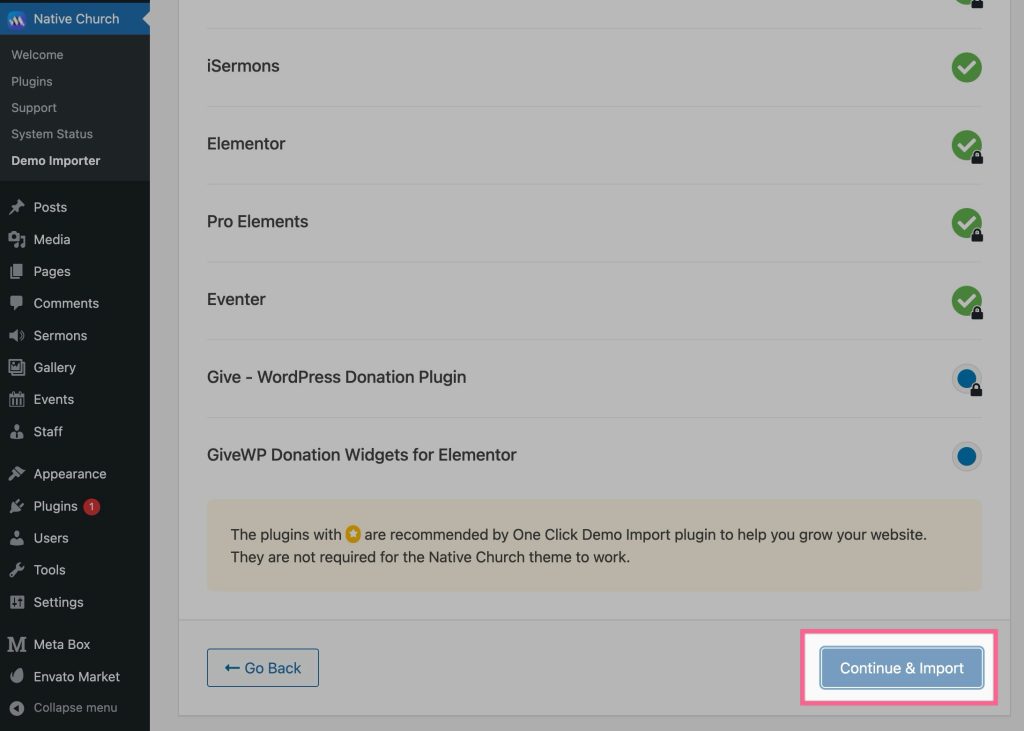
Solution:
-
Refresh the Page:
- This is often the quickest solution. Simply refresh your browser page by pressing the F5 key or clicking the reload button.
- Once the page reloads, the “Continue & Import” button should be enabled again.
-
Check for Browser Issues:
- Ensure that your browser is up-to-date. Outdated browsers can sometimes cause compatibility problems.
- Try using a different web browser to see if the issue persists.
-
Disable Browser Extensions:
- Certain browser extensions can interfere with website functionality. Try disabling them temporarily to see if it resolves the problem.
-
Clear Browser Cache and Cookies:
- Accumulated cache and cookies can sometimes cause unexpected behavior. Clear your browser’s cache and cookies and try again.
-
Check Website Connectivity:
- A poor internet connection can interrupt the import process. Verify that you have a stable internet connection.
Additional Tips:
- Be patient during the import process. It may take some time to complete, depending on the size of the demo content.
- Avoid closing the browser window or navigating away from the import page while the process is in progress.
By following these steps, you should be able to successfully resolve the button disabled issue and complete the One-Click Demo Import process.