This template will display a home page template
Step 1 : Log into your WordPress Dashboard and navigate to Pages > Add New
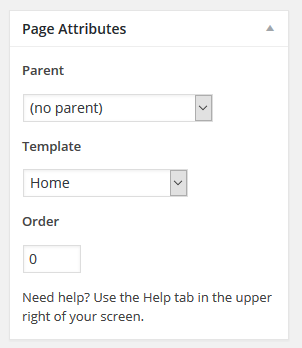
Step 2 : Locate the Template and in the dropdown menu, select Home.
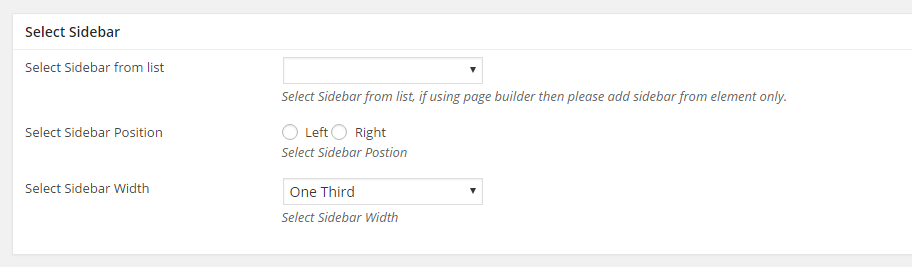
Step 3 : Select your preferred sidebar in the dropdown list and layout for the sidebar and content.
Step 4 : To customize the Page/Post Header Options. Please check Page / Post Header Options for more information.
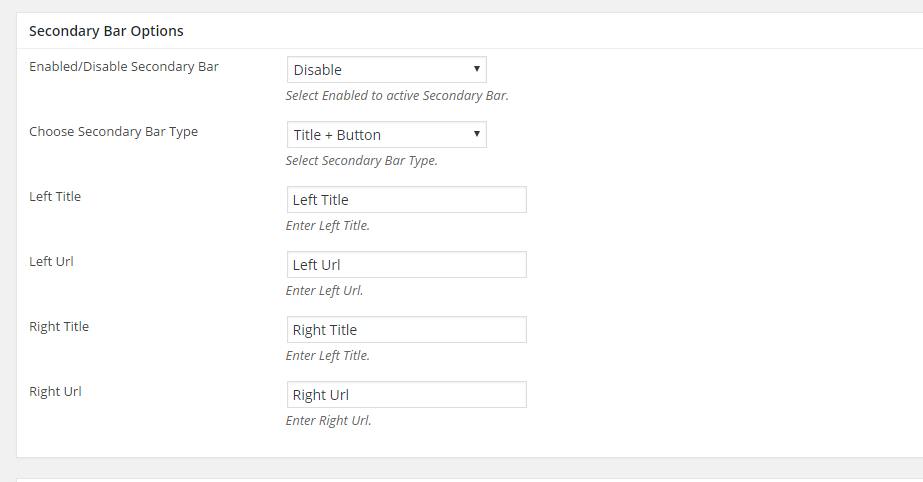
Step 5 : Secondary Bar Options
Enabled/Disable Secondary Bar : Select Enabled to active Secondary Bar.
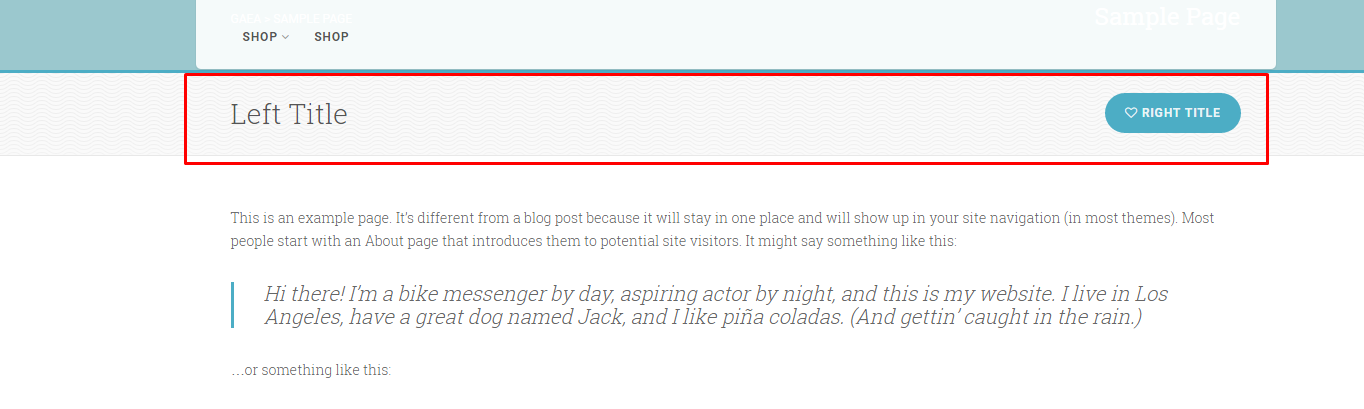
Choose Secondary Bar Type : Title + Button
Left Title : Enter Left Title.
Left Url : Enter Left Url.
Right Title : Enter Left Title.
Right Url : Enter Right Url.
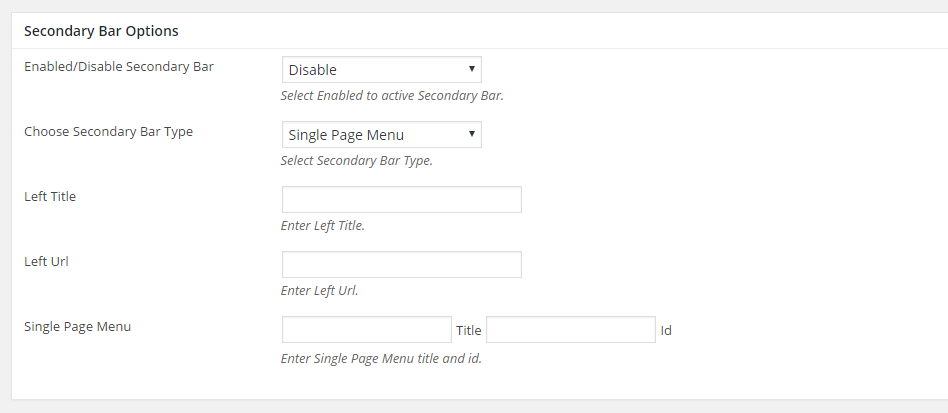
Choose Secondary Bar Type : Single Page Menu
Left Title : Enter Left Title.
Left Url : Enter Left Url.
Single Page Menu : Enter Single Page Menu title and id.
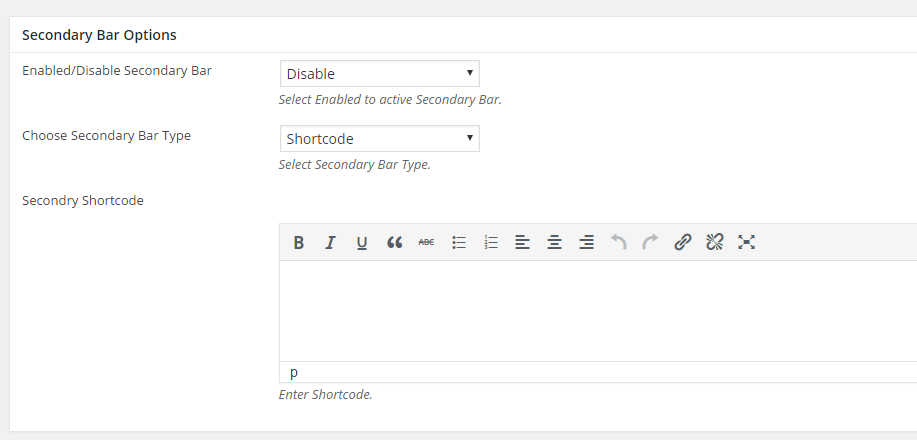
Choose Secondary Bar Type : Shortcode
Secondry Shortcode : Enter Shortcode.
Step 6 : Latest Post Metabox
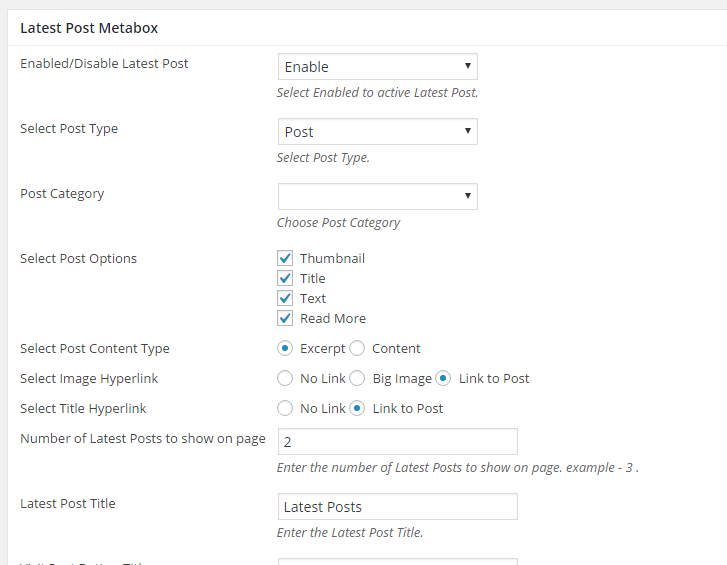
Enabled/Disable Latest Post : Select Enabled to active Latest Post.
Select Post Type : Select Post Type.
Post Category : Choose Post Category
Select Post Options : Select your preferred options
Select Post Content Type : Select your preferred options
Select Image Hyperlink : Select your preferred options
Select Title Hyperlink : Select your preferred options
Number of Latest Posts to show on page : Enter the number of Latest Posts to show on page. example – 3 .
Latest Post Title : Enter the Latest Post Title.
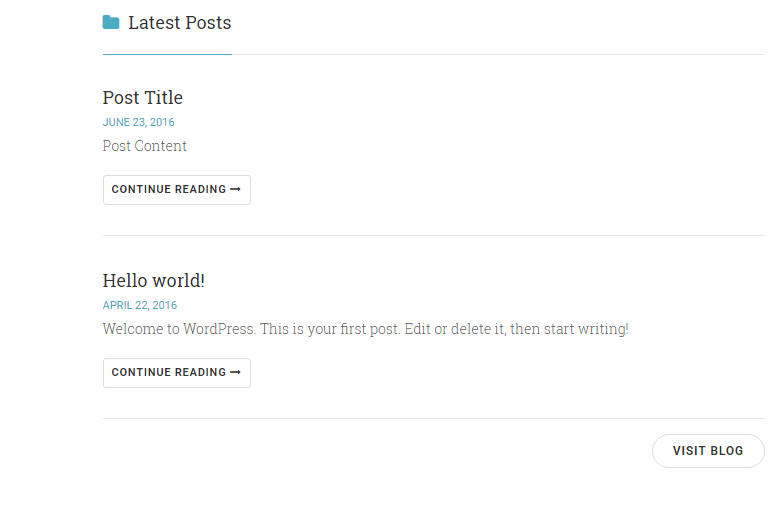
Visit Post Button Title : Enter Visit Post Title.
Visit Post Button Url : Enter Visit Blog Url.
Shortcode Editor : Insert your preferred shortcode
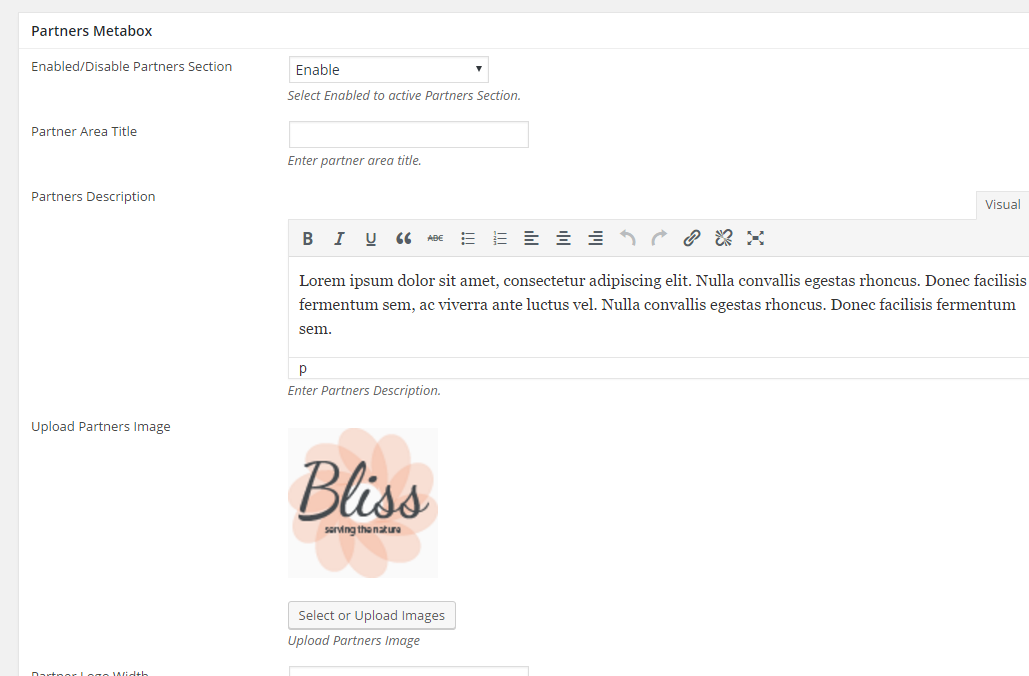
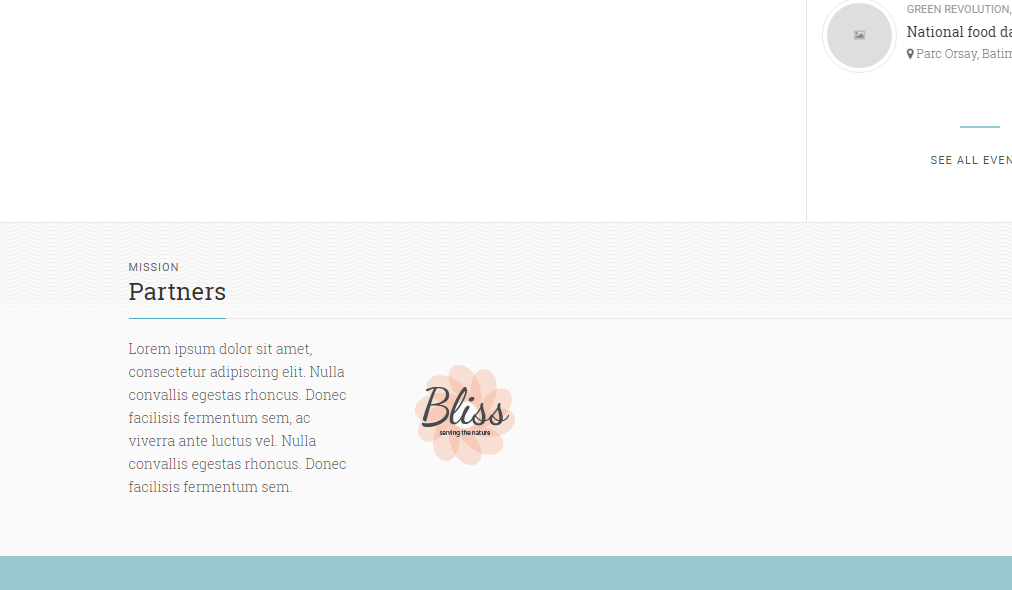
Step 7 : Partners Metabox
Enabled/Disable Partners Section : Select Enabled to active Partners Section.
Partner Area Title : Enter partner area title.
Partners Description : Enter Partners Description.
Upload Partners Image : Upload Partners Image
Partner Logo Width : Enter width in px. This will be for all logo images, leave blank to show full size images.
Partner URL : Enter links for logos. First one is for the first image and so on..
Step 8 : Featured Projects Metabox
Enabled/Disable Featured Projects : Select Enabled to active Featured Projects Section.
Projects area Title : Enter projects area title.
All Projects Url : Enter All Projects Url.
Projects Category : Choose Projects Category
Columns Layout : Select Columns Layout .