This section of the documentation will guide you on how to create an Event.
Step 1 : Log into your WordPress Dashboard and navigate to Events > Add New
Step 2 : Enter your Event title in the upper field, and enter your Event body content in the main page editing box below it.
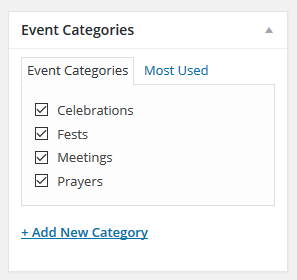
Step 3 : Create a category for your Event
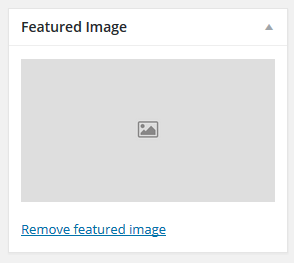
Step 4 : Upload an image for your Event
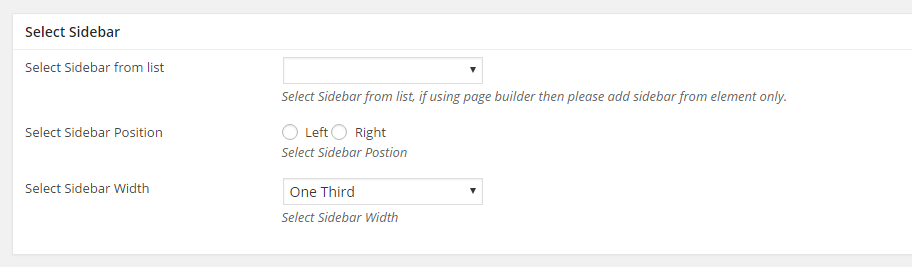
Step 5 : Select your preferred sidebar in the dropdown list and layout for the sidebar and content.
Step 6 : Event Details Meta Box
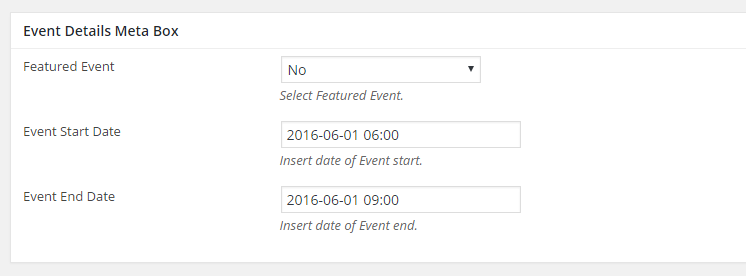
Featured Event : Select Featured Event.
Event Start Date : Insert date of Event start.
Event End Date : Insert date of Event end.
Step 7 : Event Address Box
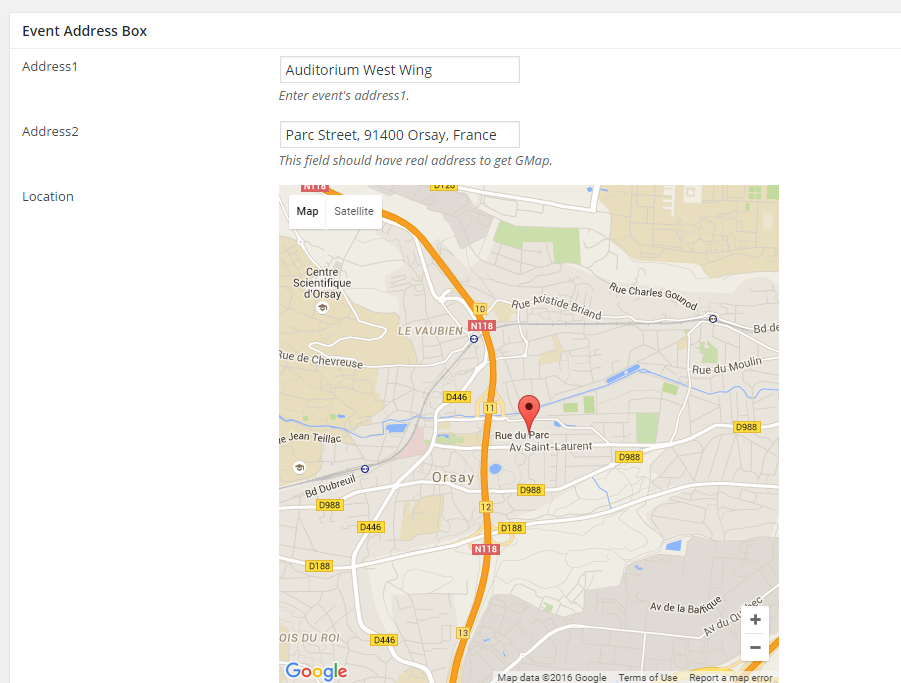
Address1 : Enter event’s address1.
Address2 : This field should have real address to get GMap.
Location : Select your Location
Enable Registration : Select Enabled to active Event Registration.
Event Registration Fee : Enter event’s registration fee, Leave blank for free Registration(This field will work only when Event Registration Plugin activated.)
Guest Registration : Select Yes or No
Step 8 : Event Featured Image Type
Event Image Type : Select Image Type.
Slider Image : Upload Slider images for slider.
Step 9 : Event Sponsors
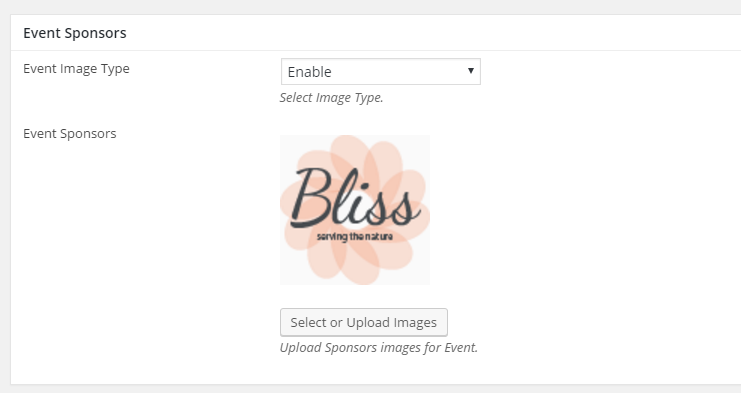
Event Image Type : Select Image Type.
Event Sponsors : Upload Sponsors images for Event.
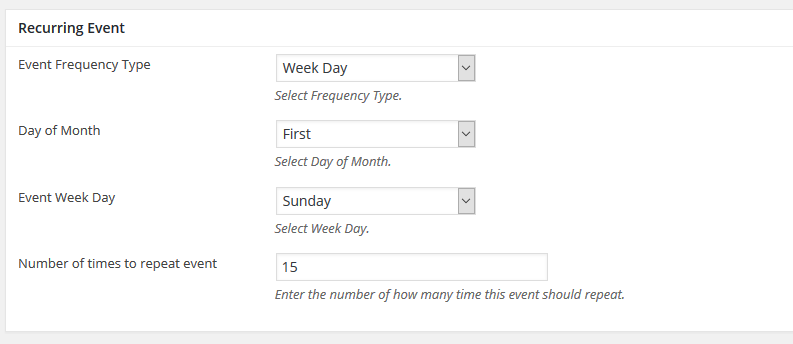
Step 10 : Event Recurrence Box
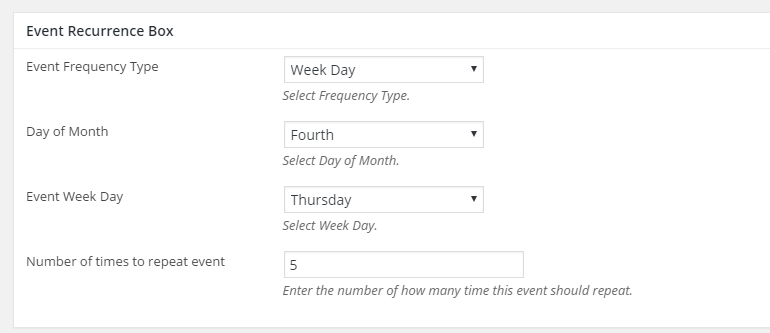
Event Frequency Type : Select Frequency Type.
Day of Month : Select Day of Month.
Event Week Day : Select Week Day.
Number of times to repeat event : Enter the number of how many time this event should repeat.
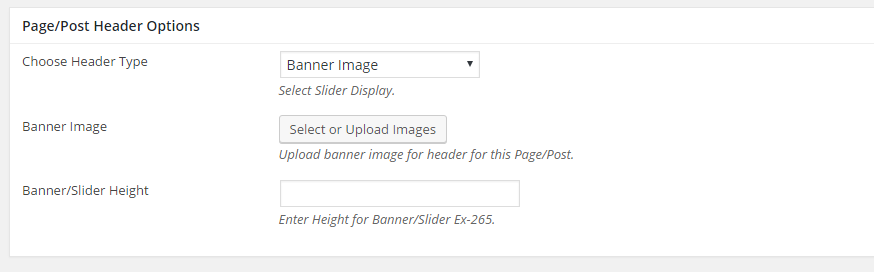
Step 11 : To customize the Page/Post Header Options. Please check Page / Post Header Options for more information.
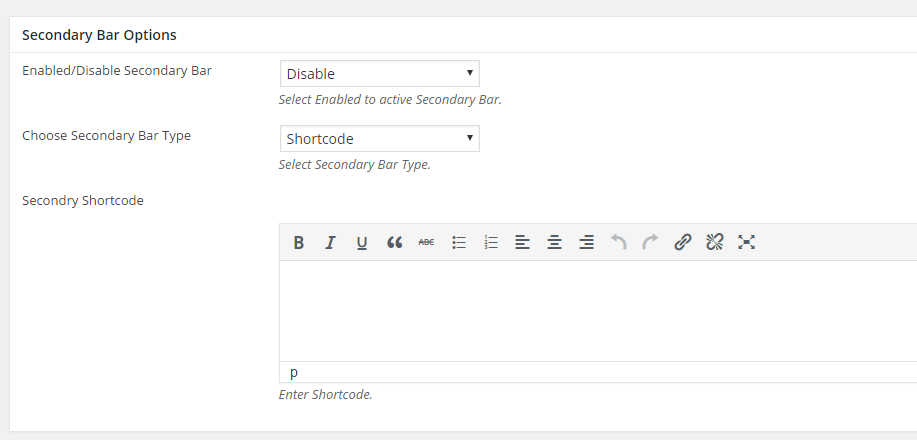
Step 12 : Secondary Bar Options
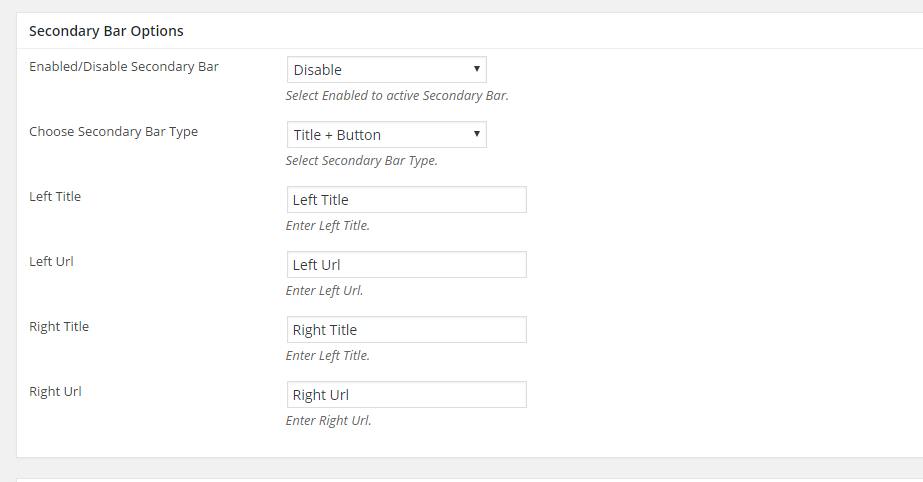
Enabled/Disable Secondary Bar : Select Enabled to active Secondary Bar.
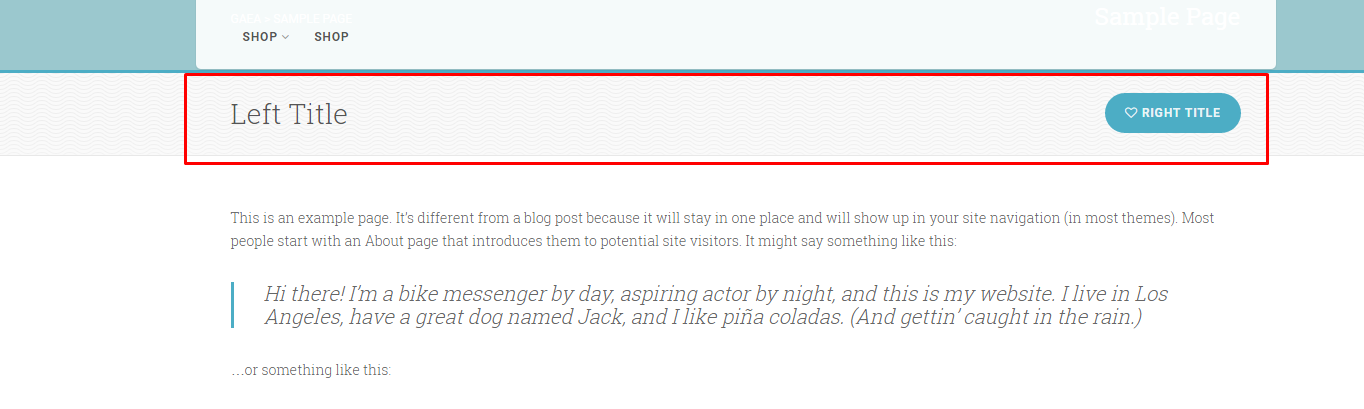
Choose Secondary Bar Type : Title + Button
Left Title : Enter Left Title.
Left Url : Enter Left Url.
Right Title : Enter Left Title.
Right Url : Enter Right Url.
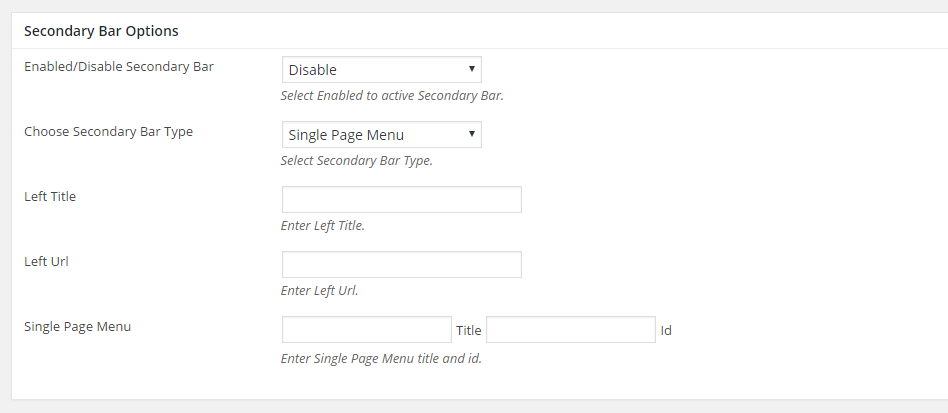
Choose Secondary Bar Type : Single Page Menu
Left Title : Enter Left Title.
Left Url : Enter Left Url.
Single Page Menu : Enter Single Page Menu title and id.
Choose Secondary Bar Type : Shortcode
Secondry Shortcode : Enter Shortcode.
Step 13 : Insert your optional excerpt
Display the event by creating a Event Page.