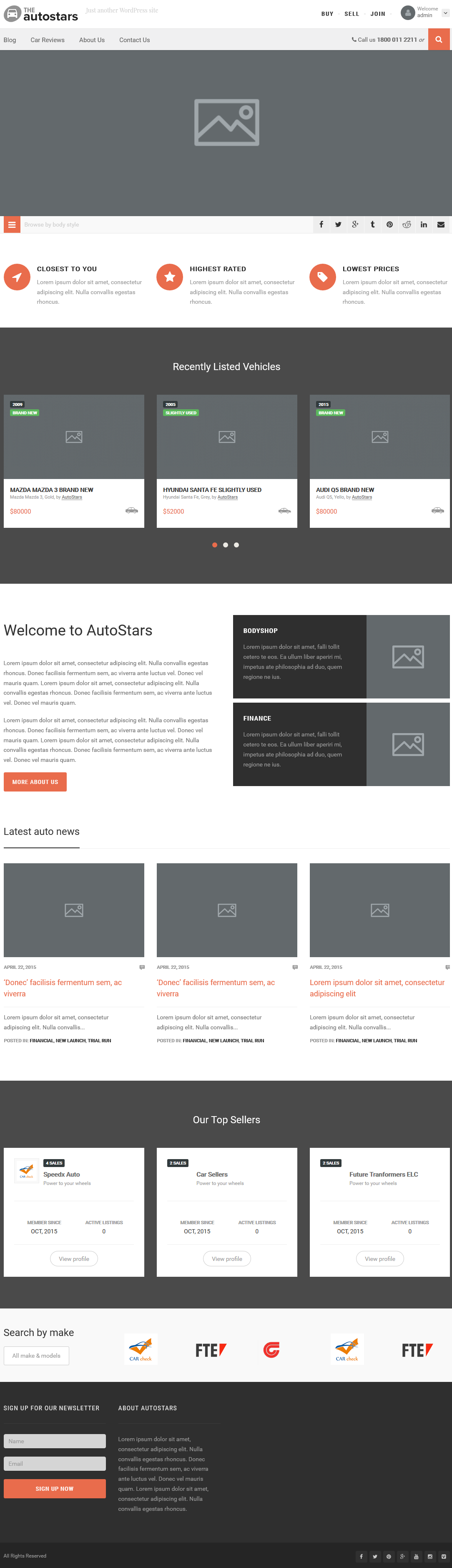
This template will display a custom home layout
Step 1 : Log into your WordPress Dashboard and navigate to Pages > Add New
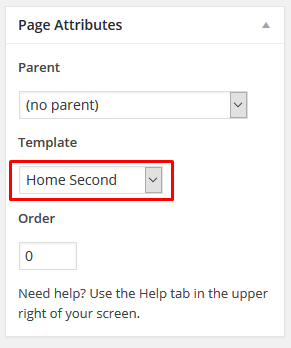
Step 2 : Locate the Template and in the dropdown menu, select Home Second.
Step 3 : Vehicle Section
Please check Create Listings for more information.
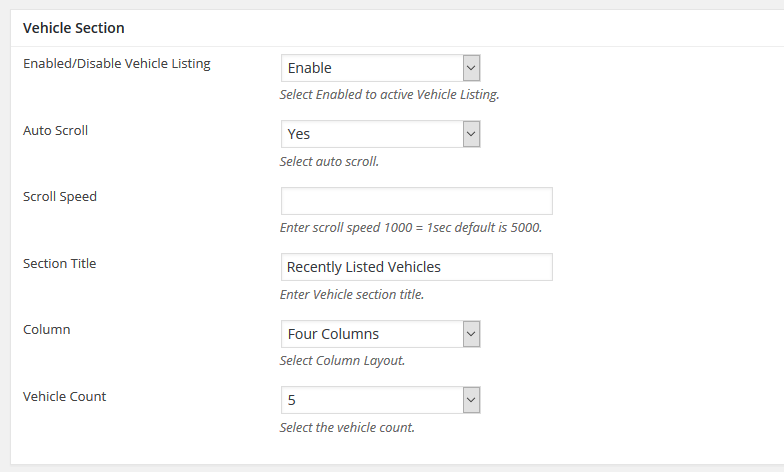
Enabled/Disable Vehicle Listing : Enable or disable Vehicle listing section.
Auto Scroll : Enable or disable Vehicle listing auto scroll.
Scroll Speed : Insert the scroll speed. Leave empty for default.
Section Title : Insert the section title
Column : Select how many columns to display per scroll
Vehicle Count : Limit Vehicles to be displayed.
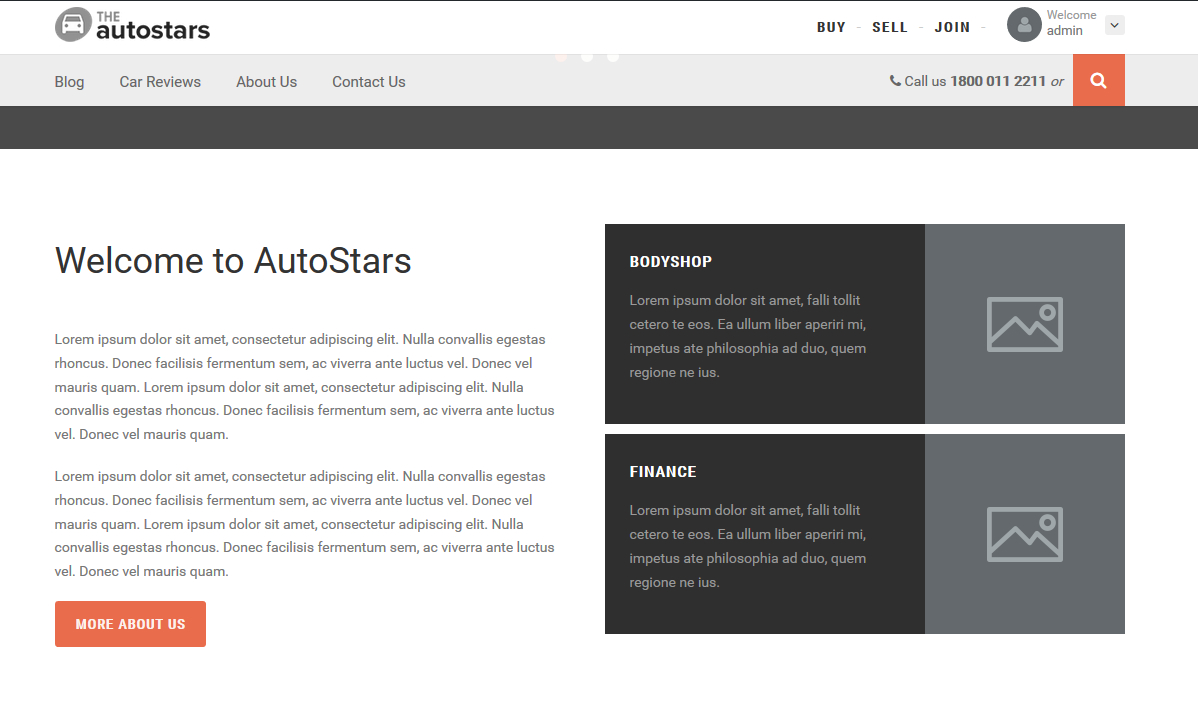
Step 4 : Details
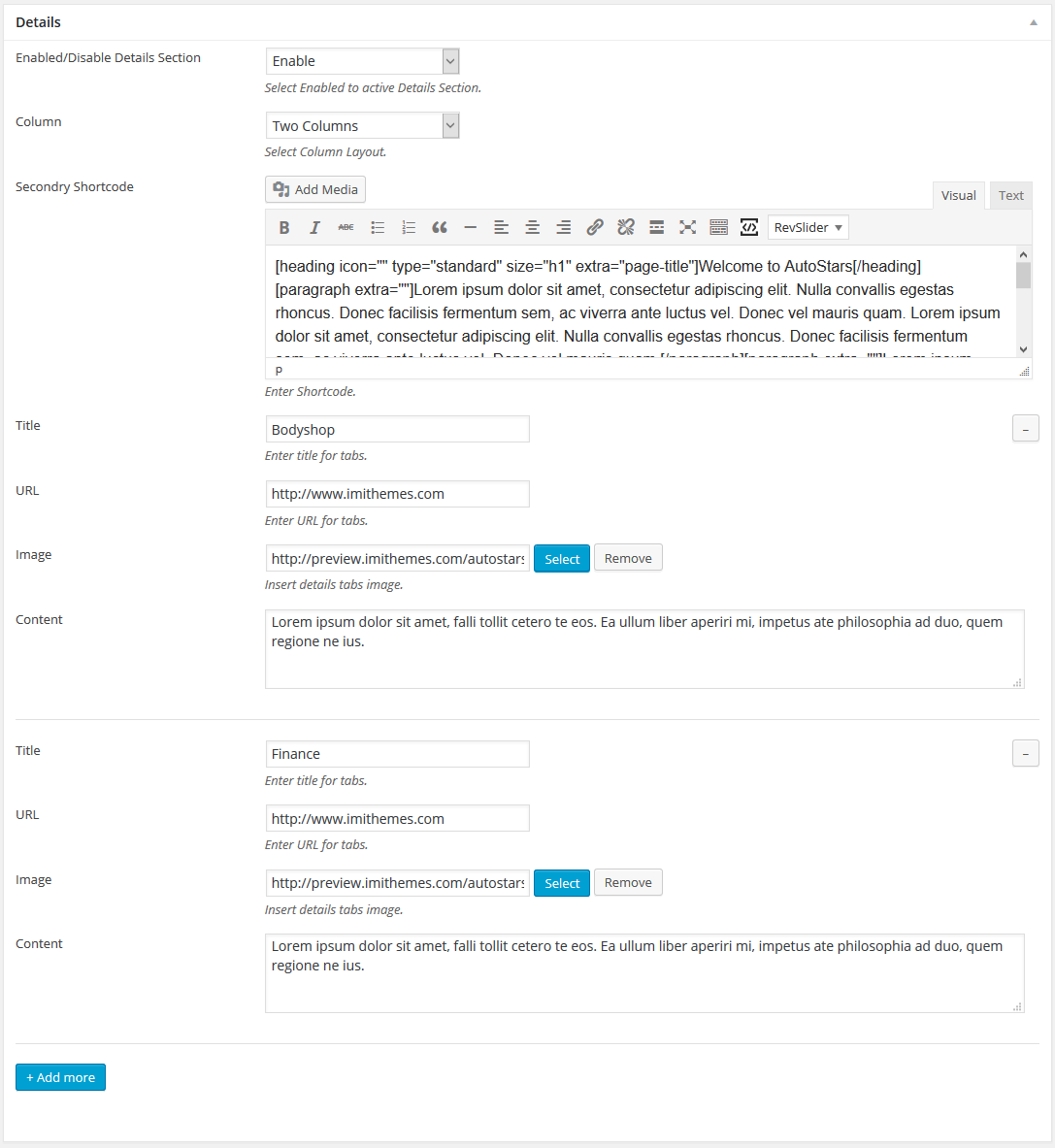
Enabled/Disable Details Section : Enable or disable Details section.
Column : Select your preferred column layout.
Secondry Shortcode : Insert Shortcodes.
Title : Insert a title for tabs
URL : Insert an URL for tabs
Image : Insert details tabs image
Content : Insert a content to display in tabs
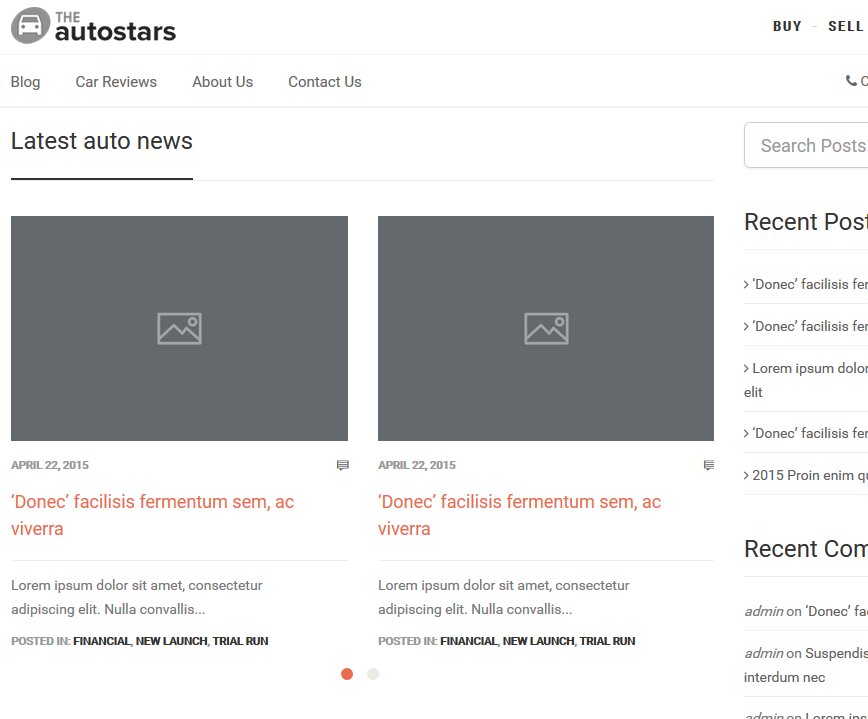
Step 5 : Latest News Section
Please check Create Blog Post for more information.
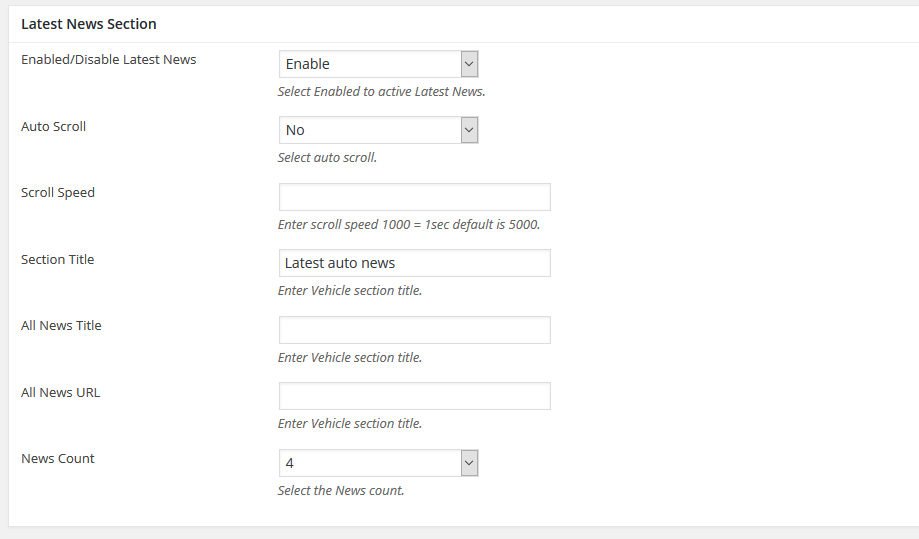
Enabled/Disable Latest News : Enable or disable Latest News section.
Auto Scroll : Enable or disable Latest News auto scroll.
Scroll Speed : Insert the scroll speed. Leave empty for default.
Section Title : Insert the section title
All News Title : Insert title for All News Title
All News URL : Insert URL for All News Title
News Count : Select the amount of news to display
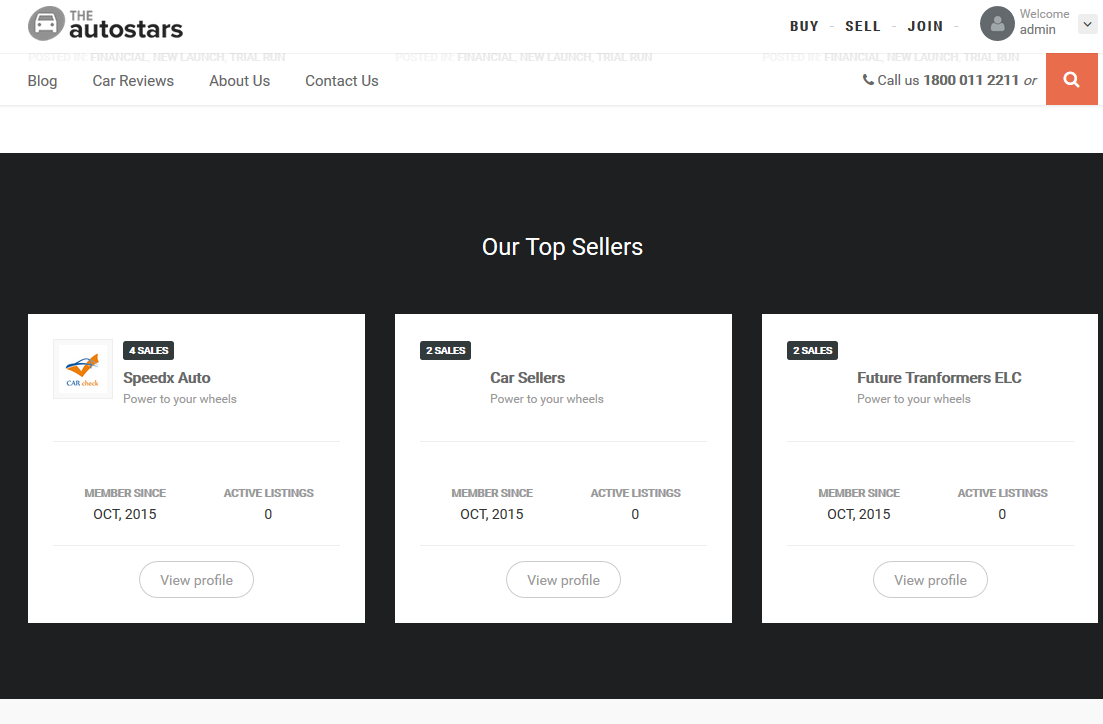
Step 6 : Top Seller Section
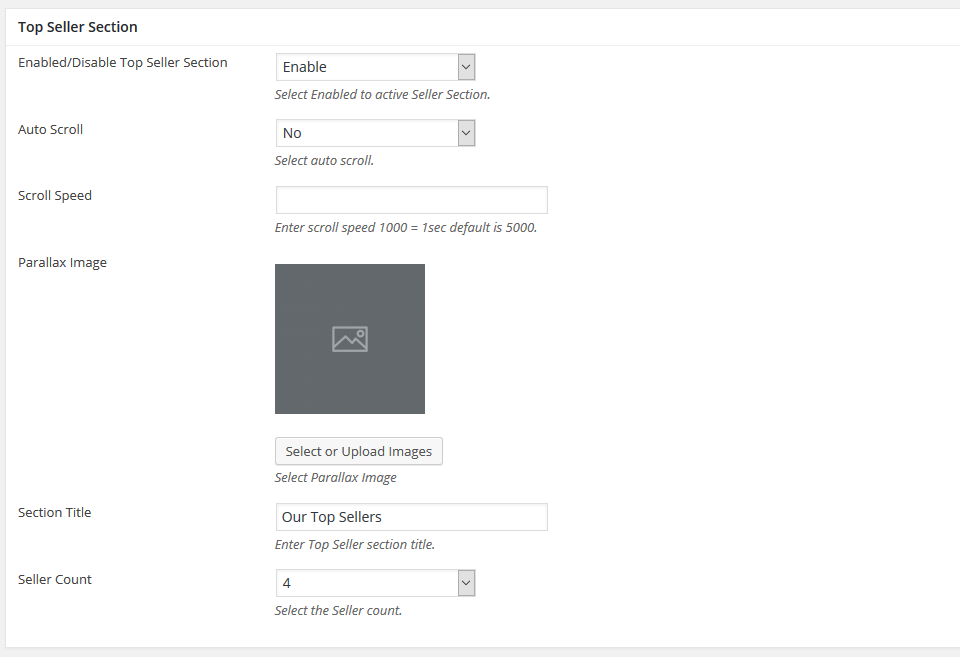
Enabled/Disable Top Seller Section : Enable or disable Top Seller section.
Auto Scroll : Enable or disable Top Seller auto scroll.
Scroll Speed : Insert the scroll speed. Leave empty for default.
Parallax Image : Upload a parallax background image.
Section Title : Insert title for this section
Seller Count : Select the amount of sellers to display.
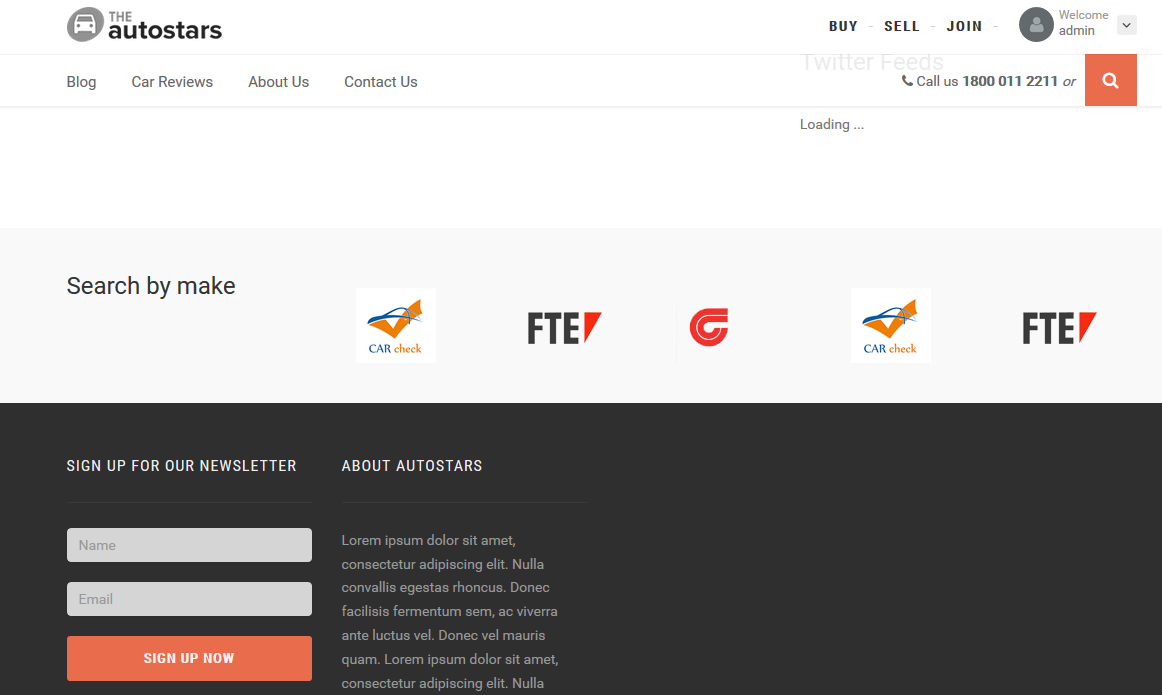
Step 7 : Search by Specification
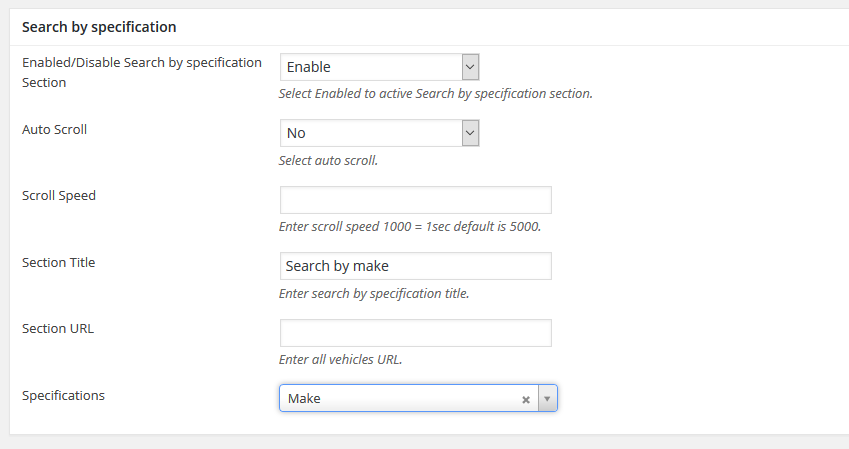
Enabled/Disable Search by specification Section : Enable or disable Search by specification Section section.
Auto Scroll : Enable or disable Search by specification Section auto scroll.
Scroll Speed : Insert the scroll speed. Leave empty for default.
Section Title : Insert the section title
Section URL : Insert URL for this section
Specifications : Select Specifications
Step 8 : Select your preferred sidebar in the dropdown list and layout for the sidebar and content.

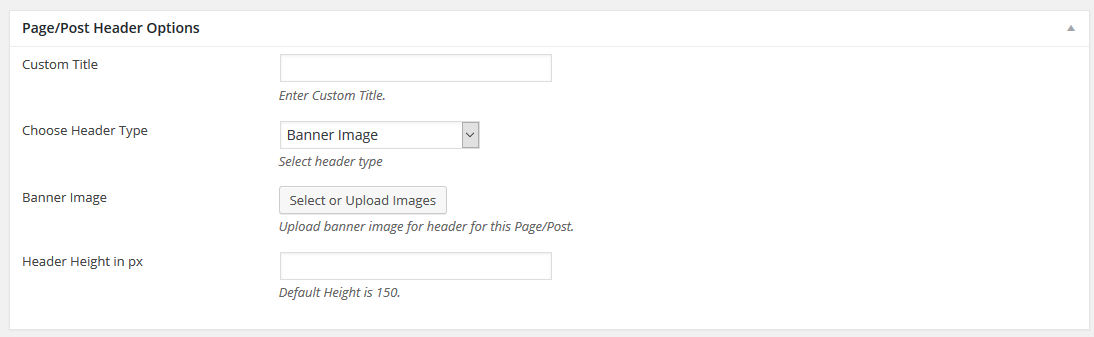
Step 9 : To customize the Page/Post Header Options. Please check Page / Post Header Options for more information.
Step 10 : To customize the Secondary Bar. Please check Secondary Bar for more information.
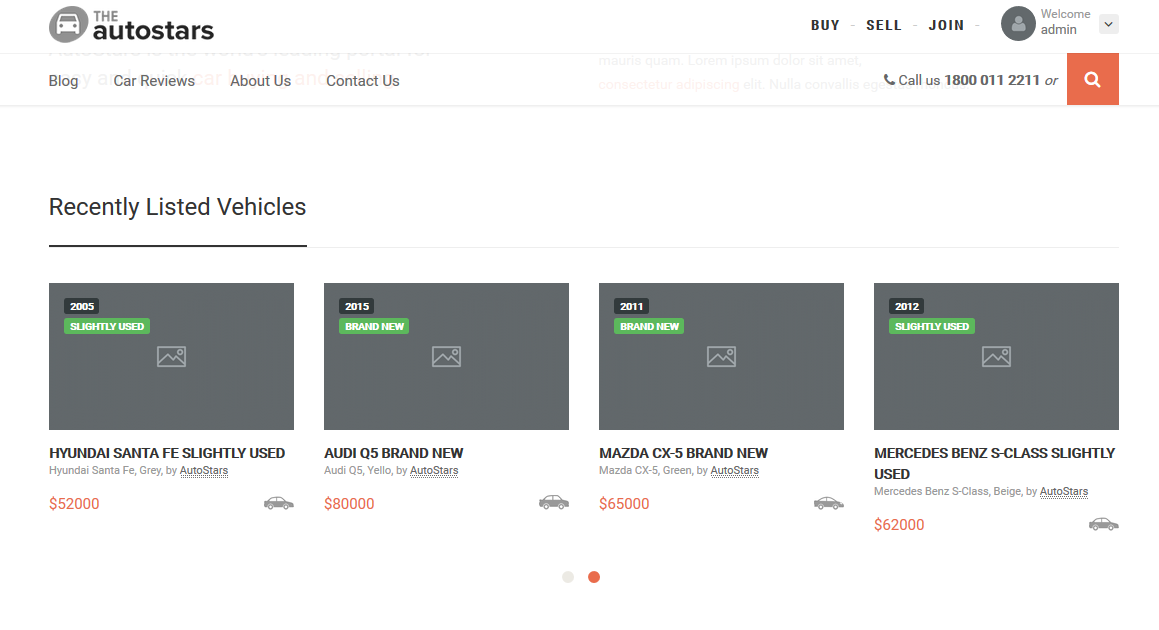
Step 11 : When you are finished, Update your page, it should looks like this.