Tip: You should first install the recommended plugin “Paid Property imithemes” in order to use paid property listing feature. Pricing table shortcode will not be working in this case.
The first thing in the process of setting paid listing for your real estate website is to create 2 new pages with names like “Payments” and “Pricing” with page templates “payment” and “Price Listing” respectively. These pages will be used for showing the paid listing plans and page for making the payments.
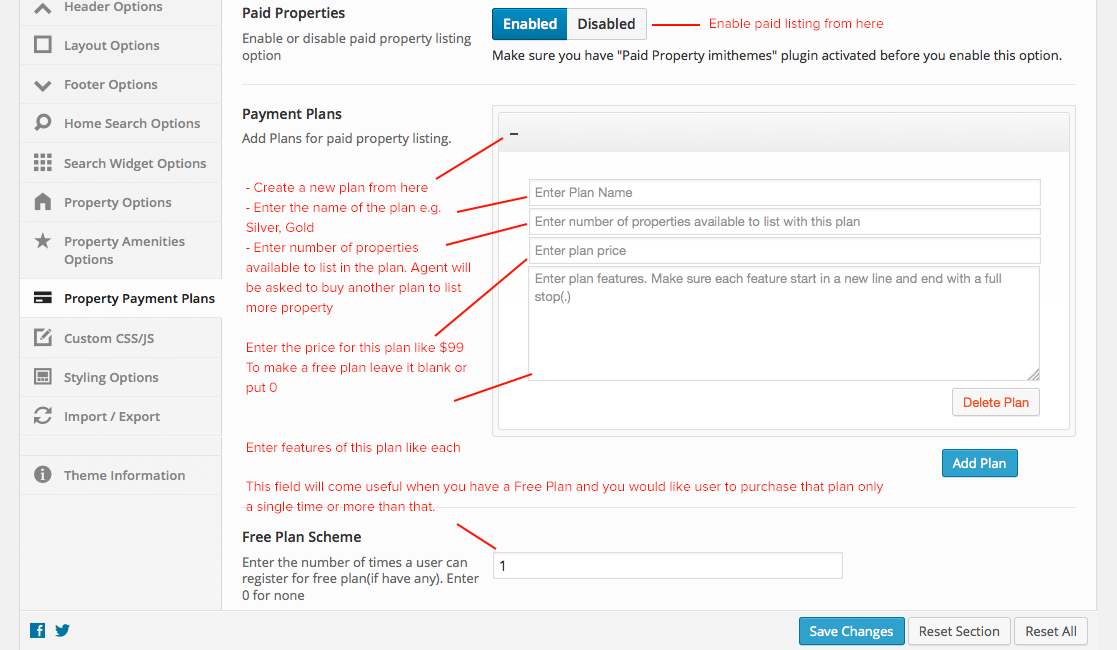
Second thing in the process is creating pricing plans and to do this move to Theme Options > Property Payment Plans. Now create new plans like described below
Third step here is to setup your PayPal account for the payments receiving. To go to this page go Appearance > Payment Options See below image:
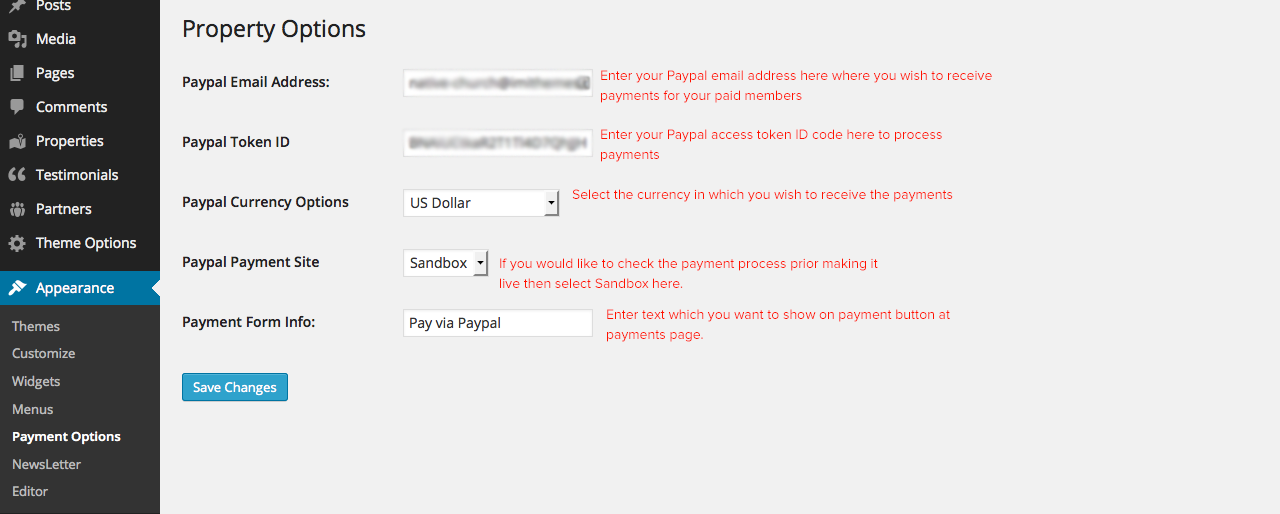
Here is how to get your PayPal token ID:
To obtain a token, you need to have a PayPal Premier or Business account. In your account, you need to enable Payment Data Transfer. To do so, please follow the steps below:
- Step 1) Log into your PayPal account.
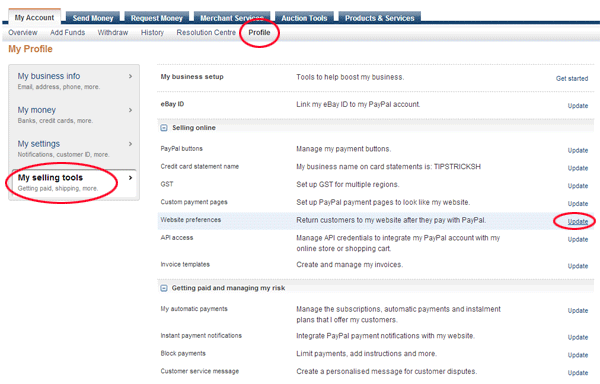
- Step 2) Go to My Account -> Profile
- Step 3) Click on selling tools link.
- Step 4) Check the selling online section.
- Step 5) Look for “Website Preferences” and click the “Update” link on the far right hand corner of this row.
The following image shows you where to click in your PayPal account to get to the Website Preferences menu:
Step 6) You are now on the “Website Preferences” menu.
- a) Turn on the “Auto Return” for Website Payments
- b) Enter a URL in the Return URL field (your thank you page URL)
- c) Scroll down to Payment Data Transfer and enable it.
- d) Scroll to the bottom of the page and click the Save button
- e) PayPal will give a success message and show you your PDT ID Token
- f) Copy the paypal PDT ID token and use it where you need to specify it.