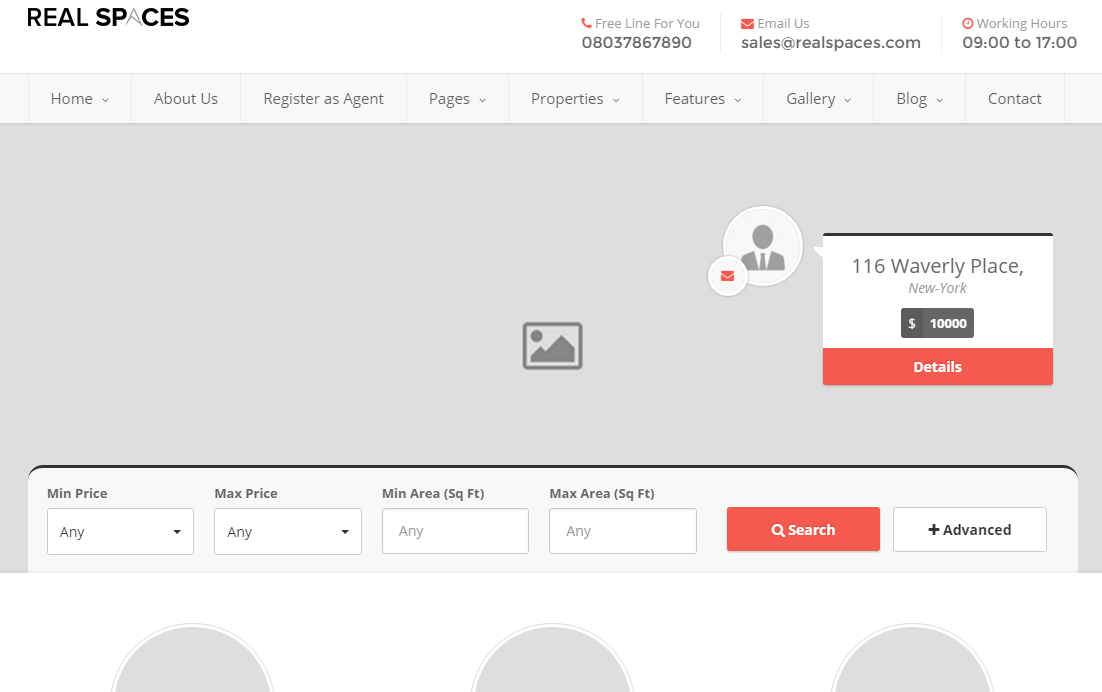
This template is used for creating a Home page with options to show listed, partners and featured properties. Home second comes with a sidebar.
Step 1 : Log into your WordPress Dashboard and navigate to Pages > Add New
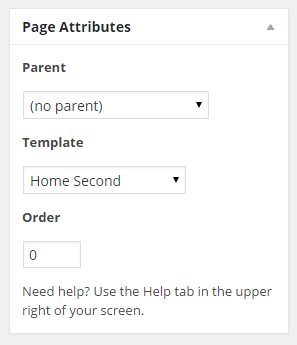
Step 2 : Locate the Template and in the dropdown menu, select Home Second.
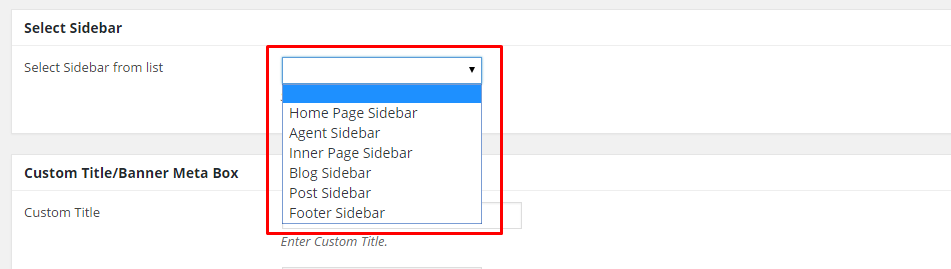
Step 3 : Select your preferred sidebar in the dropdown list and position to show on your post. Leave empty for default settings
Step 4 : Home Page Slider Options
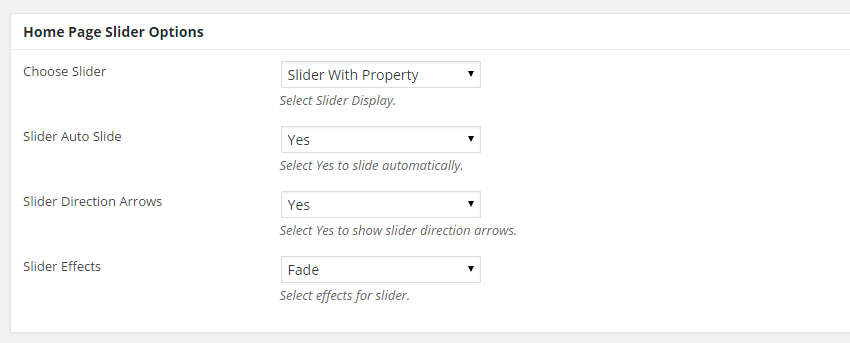
Choose Slider : Select Slider to display
Choose Slider : Slider With Property
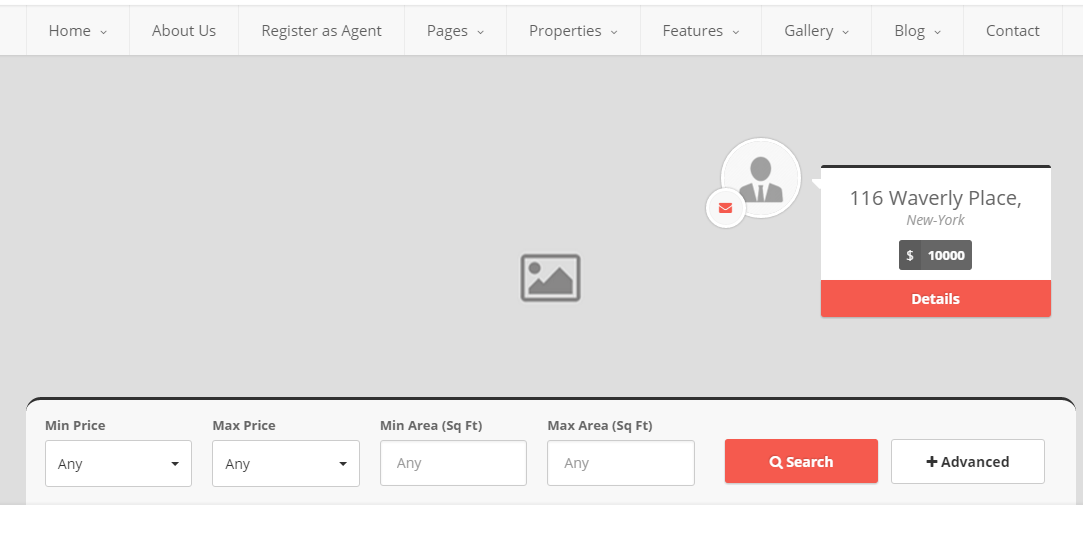
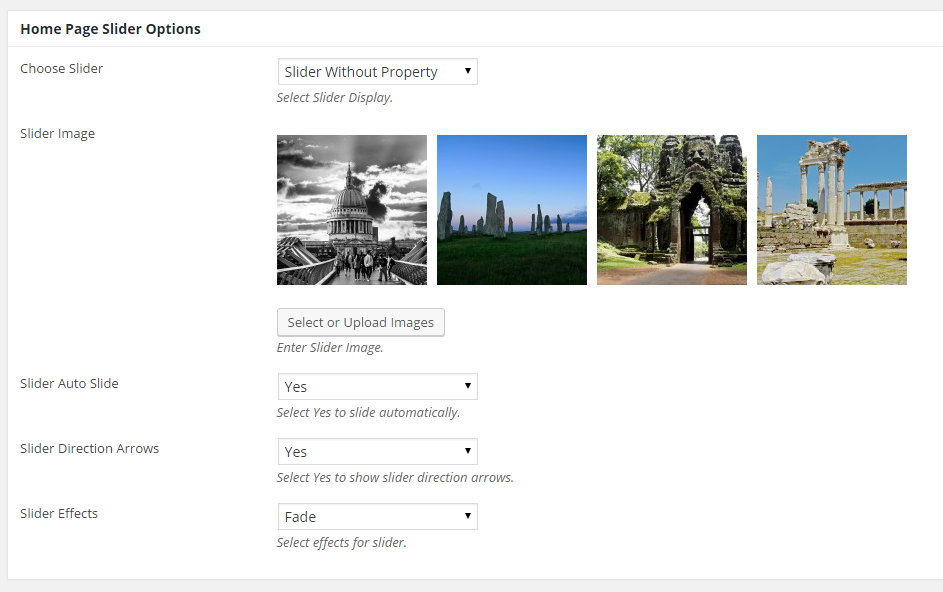
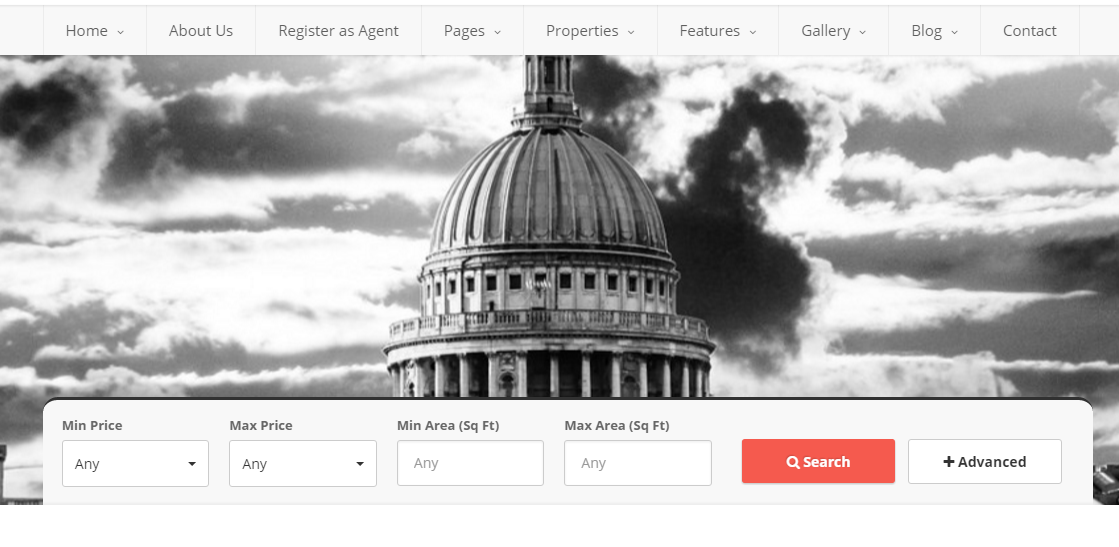
Choose Slider : Slider Without Property
Slider Image : Upload slider images
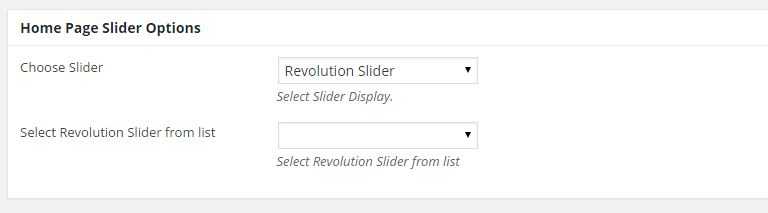
Choose Slider : Revolution Slider
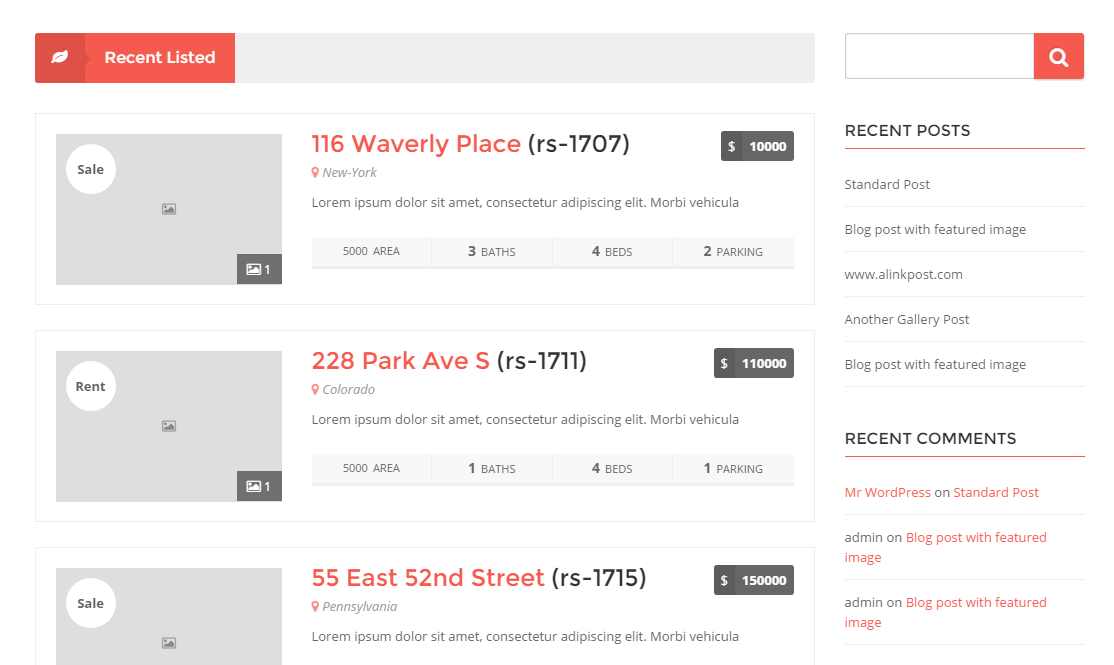
Step 5 : Recent Listed Section Options
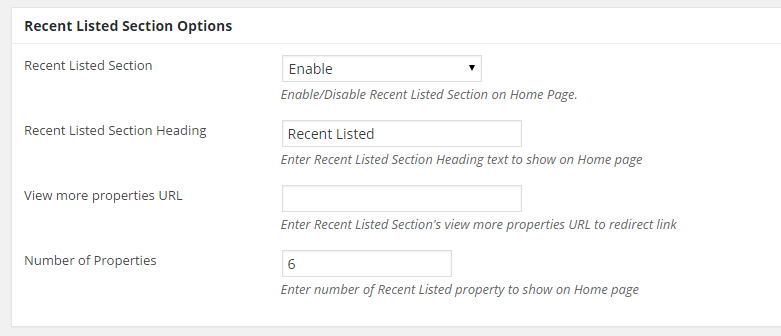
Recent Listed Section : Disable or enable section
Recent Listed Section Heading : Insert Recent Listed Section Heading text to show on Home page
View more properties URL : Insert Recent Listed Section’s view more properties URL to redirect link
Number of Properties : Enter number of Recent Listed property to show on Home page
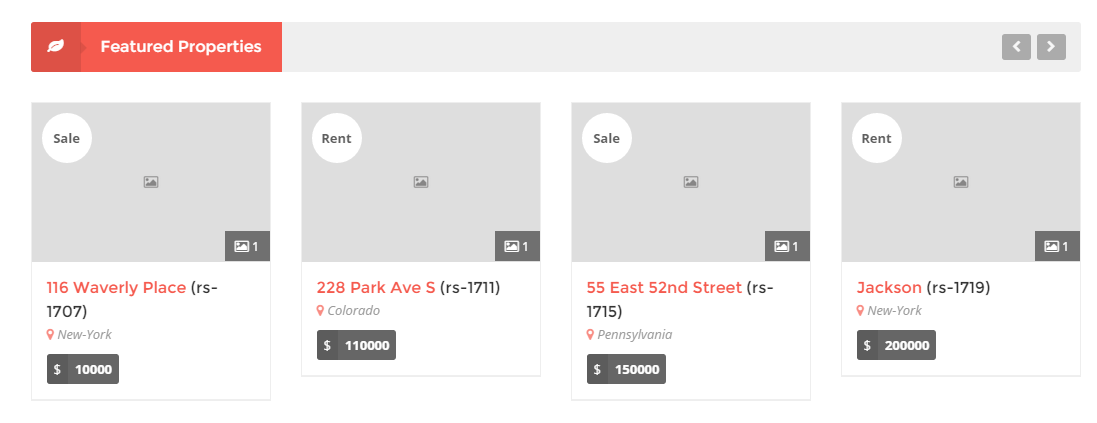
Step 6 : Featured Properties Section Options
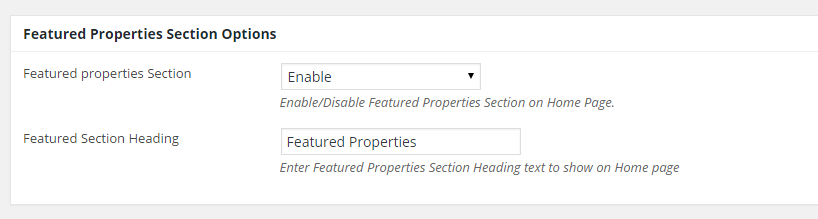
Featured properties Section : Enable/Disable Featured Properties Section on Home Page.
Featured Section Heading : Insert Featured Properties Section Heading text to show on Home page
Step 7 : Partner Section
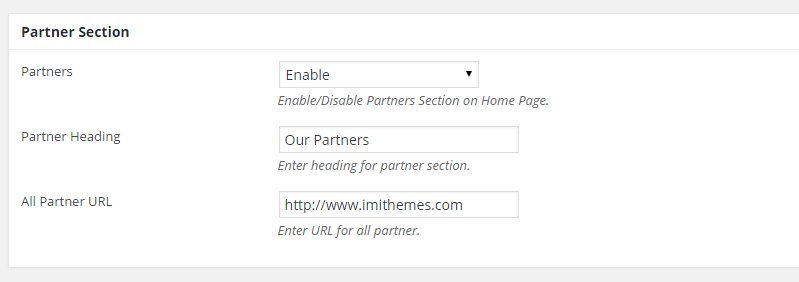
Partners : Enable/Disable Partners Section on Home Page.
Partner Heading : Enter heading for partner section.
All Partner URL : Enter URL for all partner.

Step 8 : When you are done, go ahead and update your page and it should look like this.