
This is optional but highly recommended step. This will make your website look like the demo you see while purchasing this theme. You should activate all the recommended plugins before importing the content file.
One Click Demo
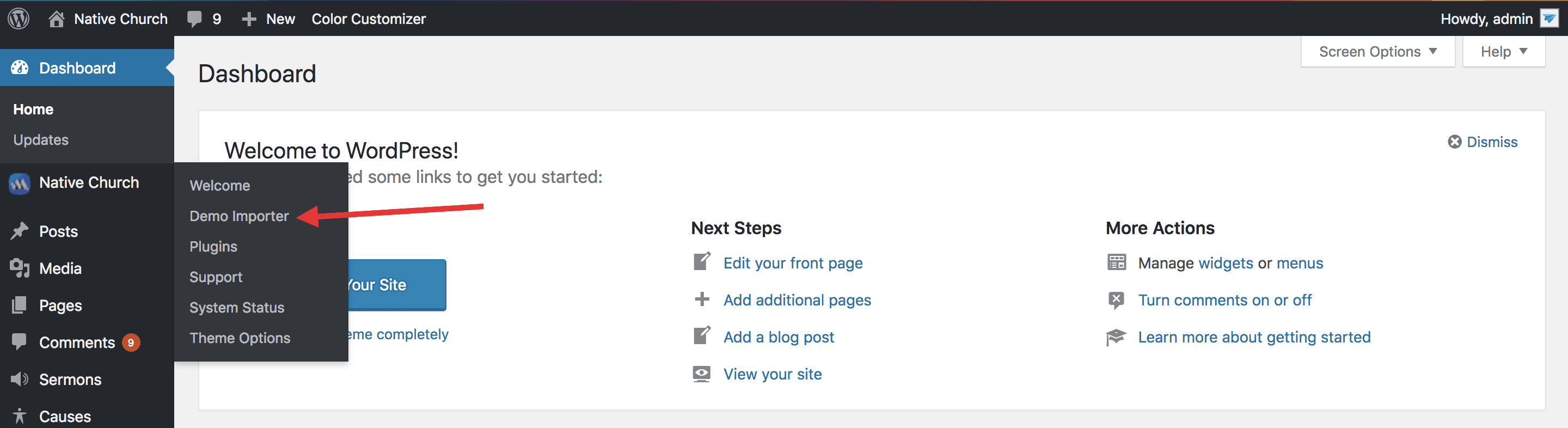
This theme comes with a “One Click” Demo install interface which is located at Native Church -> Demo Importer. This option works great on a fresh WordPress install and it is recommended as well. Just click the “Demo Importer” link and follow the steps described in the video below to import the demo from out data server.
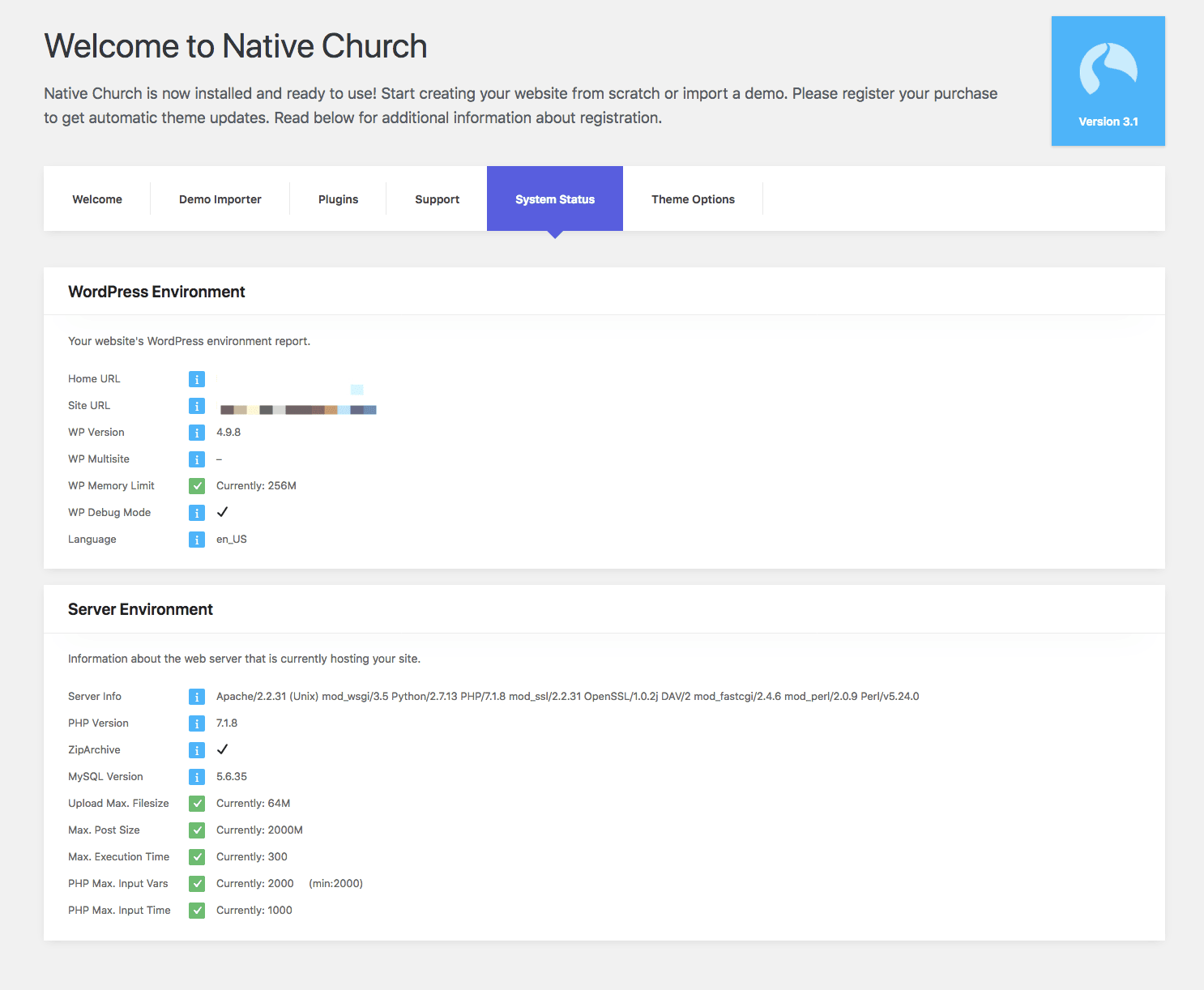
Before importing the demo, make sure you have activated all the required plugins beforehand and your server settings is as per the recommendation stated at Native Church -> System Status
Your system status page should look like this:
Log into your WordPress Dashboard and navigate to Native Church -> Demo Importer
There are 2 types of demo available for you. One is ‘Classic’ demos and all other are Elementor demos. Classic demo use WordPress old page templates or SiteOrigin page builder for the page layout/structure. Events/Sermons/Causes used in the Classic demos are part of the theme itself. The major difference between the 2 classic demos are the content built. In the ‘Page Templates’ demo all the pages are built using the customised page templates available in the theme. These templates have a prefixed structure of the page’s content which can’t be changed without changing the code itself. Whereas the ‘Page Builder’ demo is way more flexible in terms of changing layouts as all the pages are built using the theme’s recommended page builder ‘SiteOrigins Page Builder’. We recommend importing the ‘Page Builder’ demo when you need to change the page’s layout as per your liking.
On the other hand Elementor demos use elementor page builder for everything including the header/footer/theme options etc.

Demo import video tutorial
If for some reason this one click demo import doesn’t work on your website or you have limited resources in your hosting which can not fulfil the recommendations stated at Native Church -> System Status then you can try importing the demo using the traditional way. See guide here