New sermons can be created from your WP Dashboard => Sermon => Add New Sermon. Below video describes every aspect of the sermon creation process. Watch now
Important points
Youtube/Vimeo/Soundcloud URLs
Make sure that the third party video/audio URLs you are adding for the sermon video must be enabled for public view and allow embedding. These settings can be accessed in your Youtube/Vimeo/Soundcloud (if the media has been created/added by you)
Custom Videos
If you are adding your own video into the sermon then only MP4 video file is required. The .webm and .ogv files are only required by some old version of the browsers.
Also make sure that the MP4 you are uploading has been properly optimised to keep your website fast while accessing the sermon posts.
Taxonomies
Sermon Categories
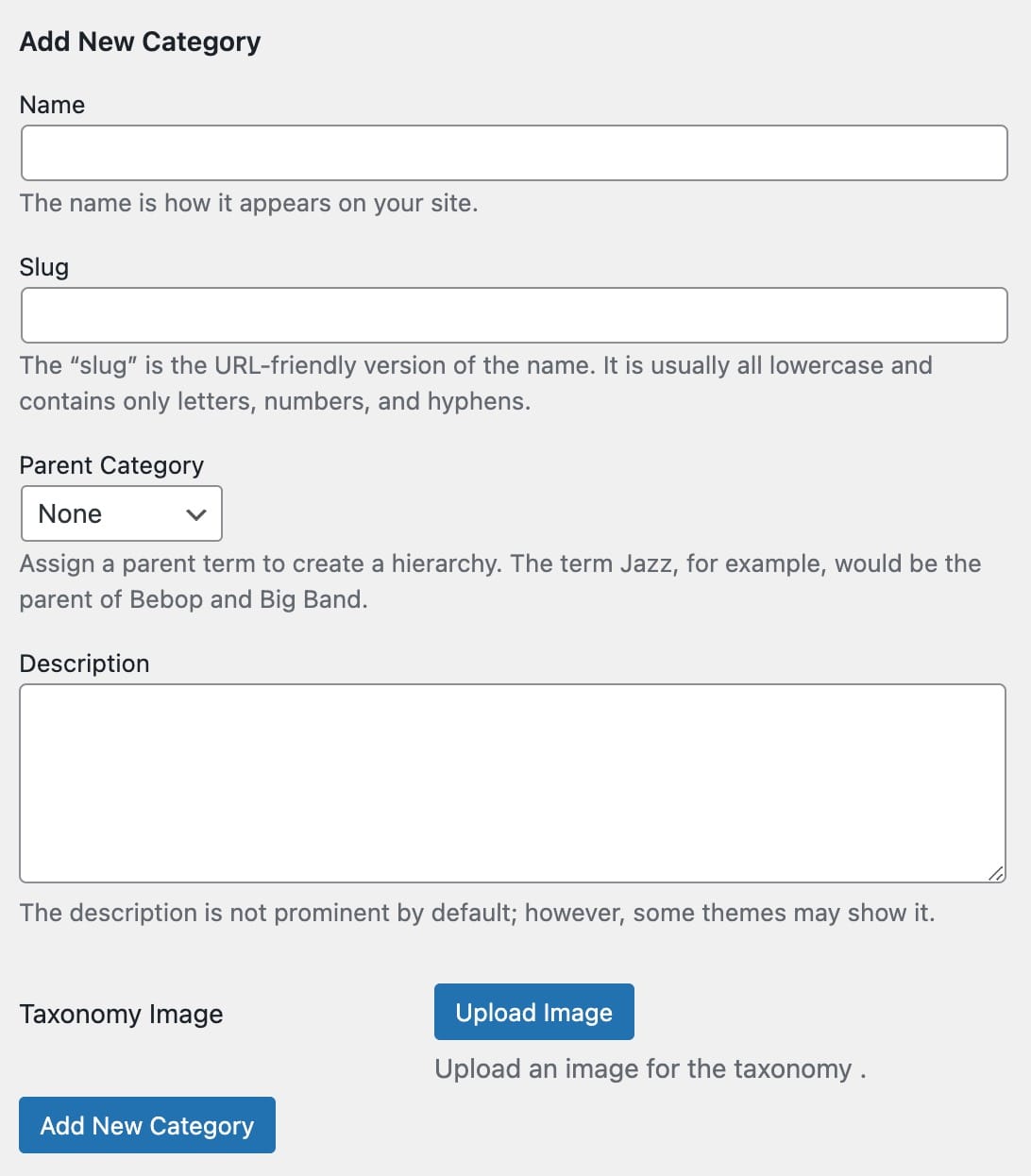
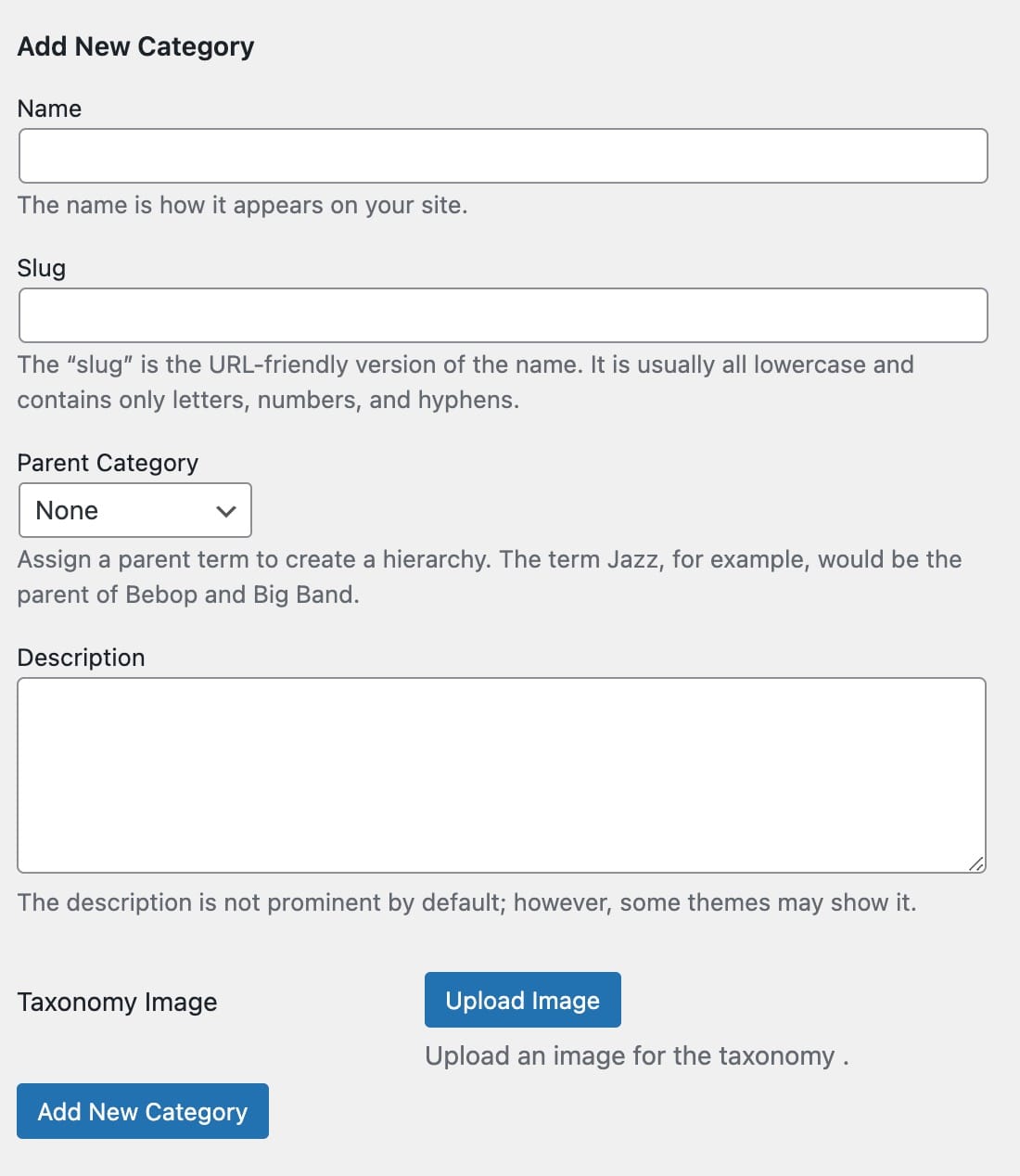
Sermon categories are treated as Sermon Albums in this theme. New categories can always be created while adding a new sermon or from your WP Dashboard => Sermons => Sermon Categories. Along with regular fields for any other taxonomy, sermon category come along with a separate field; “Taxonomy Image” which is used as header image for the sermon category archive page and as thumbnail for the Sermon Album cover.
Sermon Tags
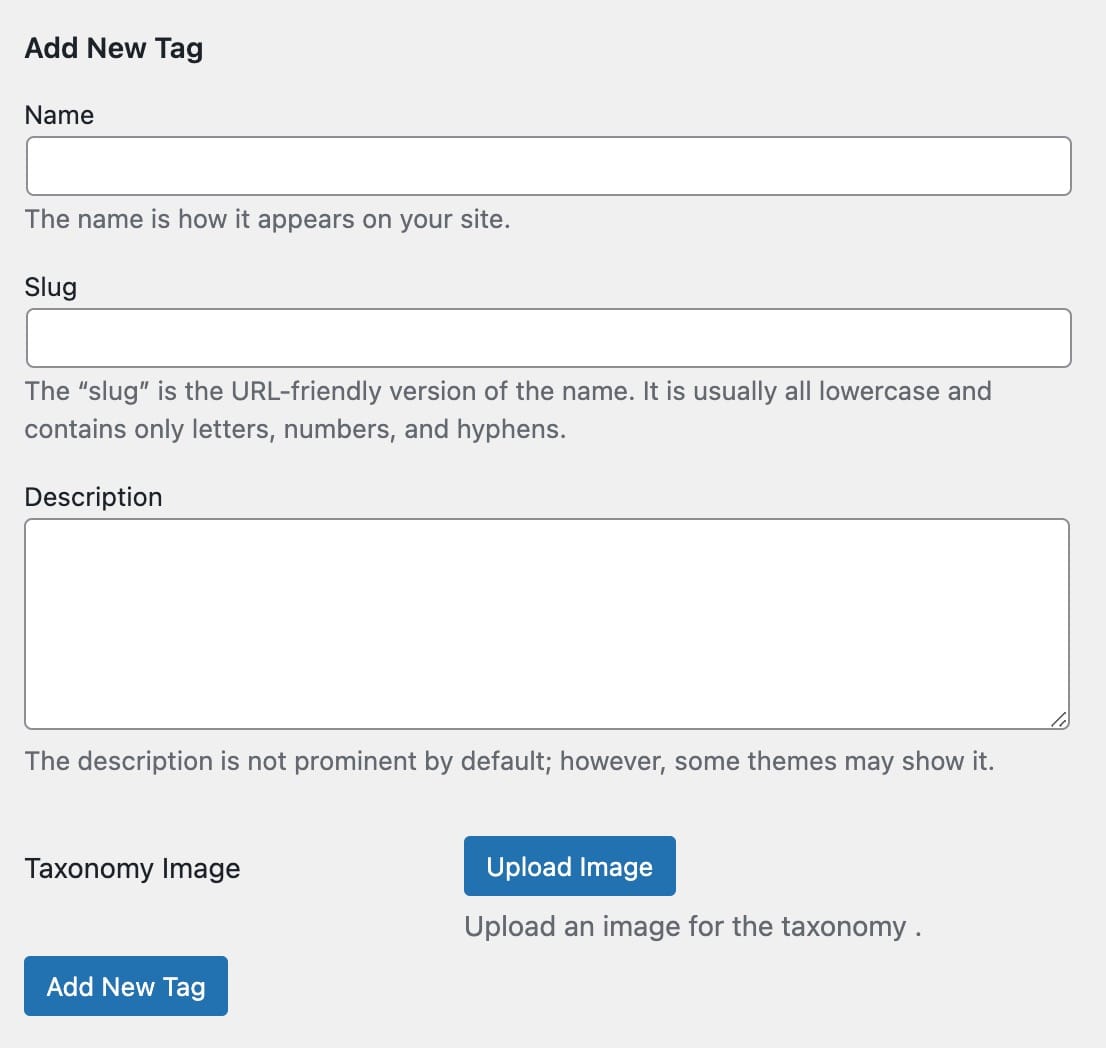
New categories can always be added while adding a new sermon or from your WP Dashboard => Sermons => Sermon Tag. Along with regular fields for any other taxonomy, sermon tag come along with a separate field; “Taxonomy Image” which is used as header image for the sermon tag archive page.
Sermon Speakers
New speaker can always be added while adding a new sermon or from your WP Dashboard => Sermons => Sermon Speakers. Along with regular fields for any other taxonomy, sermon speaker come along with a separate field; “Taxonomy Image” which is used as header image for the sermon speaker archive page.