This template will display a home page template
Step 1 : Log into your WordPress Dashboard and navigate to Pages > Add New
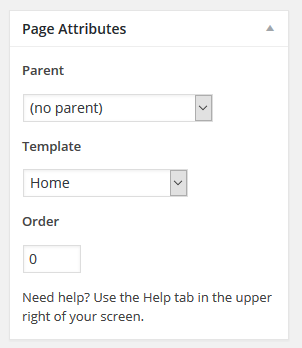
Step 2 : Locate the Template and in the dropdown menu, select Home.
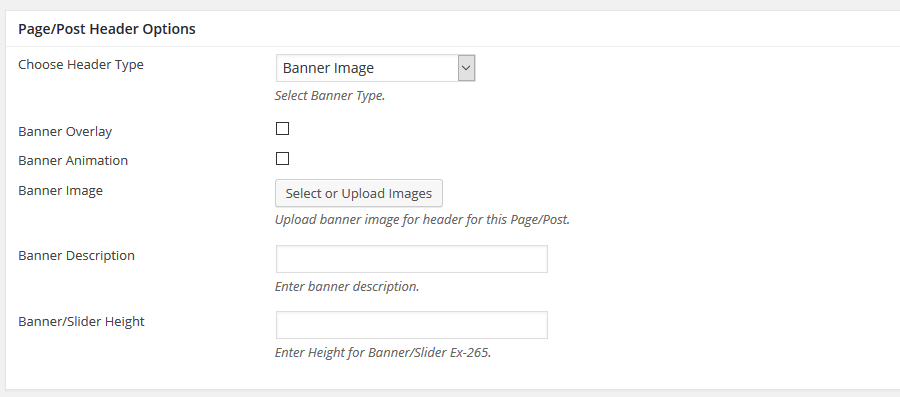
Step 3 : To customize the Page/Post Header Options. Please check Page / Post Header Options for more information.
Step 4 : Featured Area Settings
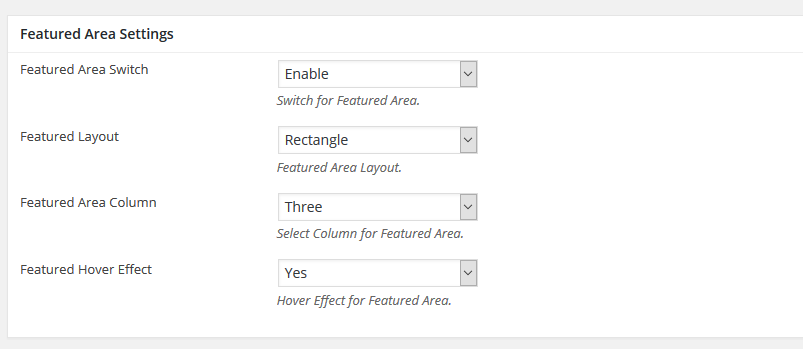
Featured Area Switch : Switch for Featured Area.
Featured Layout : Featured Area Layout.
Featured Area Column : Select Column for Featured Area.
Featured Hover Effect : Hover Effect for Featured Area.
Featured Section : Manually create sections using the options provided.
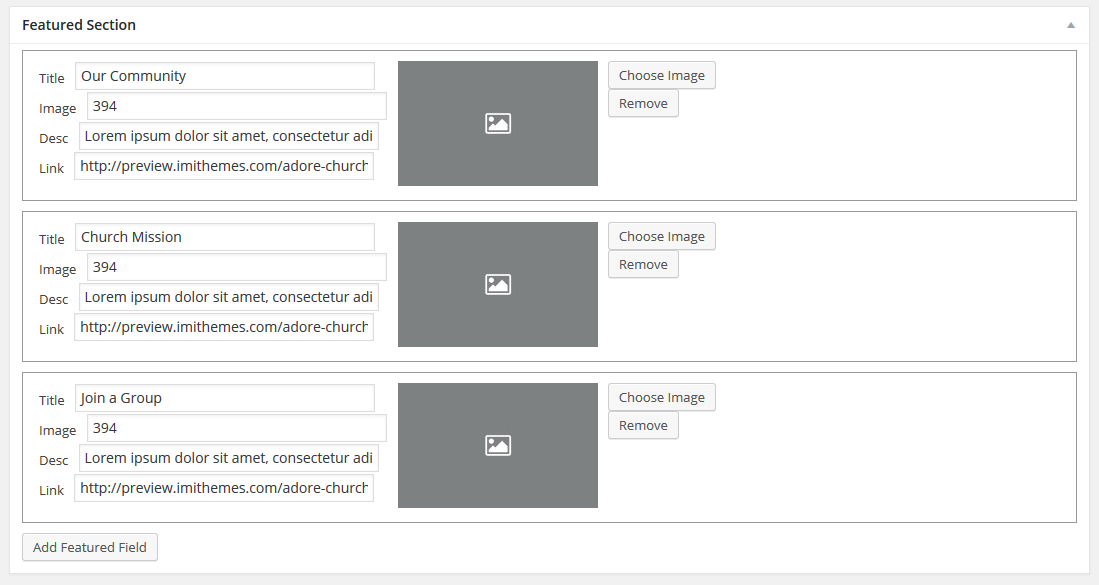
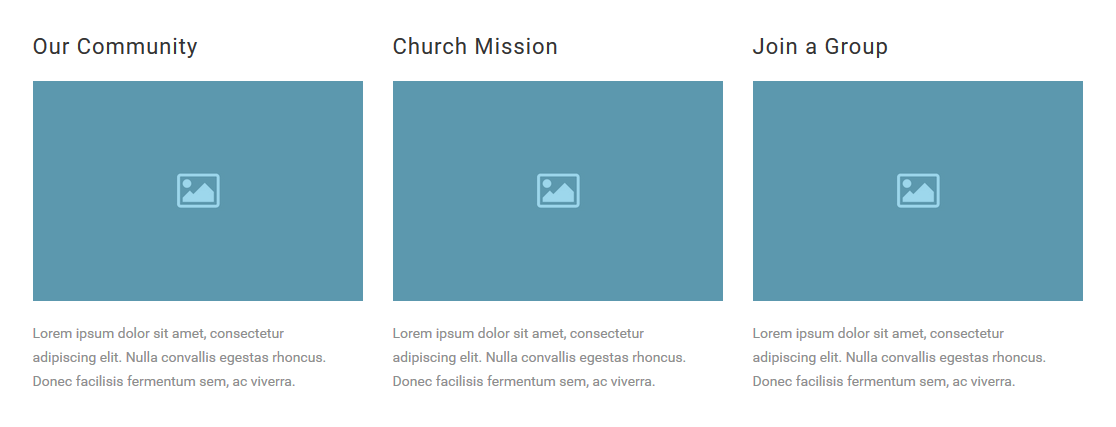
Step 5 : Event Counter Section
Please check Create Events for more information.
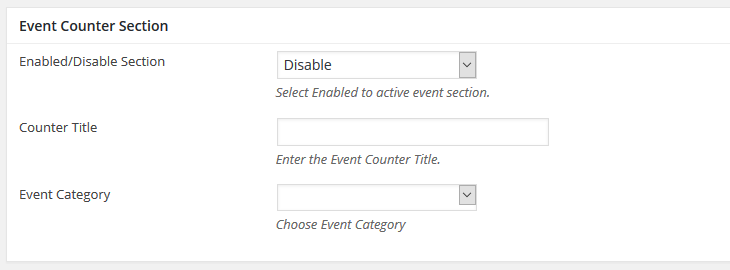
Enabled/Disable Section : Switch for Featured Area.
Counter Title : Featured Area Layout.
Event Category : Select Column for Featured Area.

Step 6 : Post Section 1
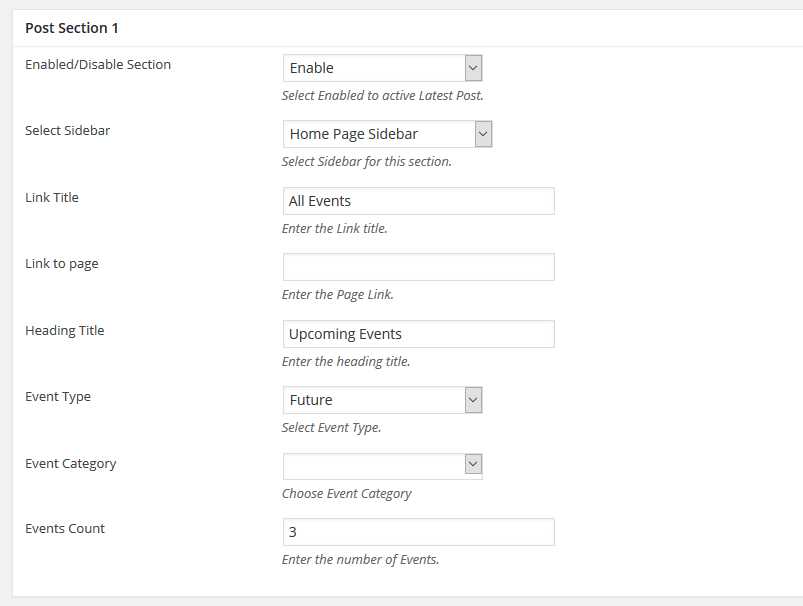
Enabled/Disable Section : Select Enabled to active Latest Post.
Select Sidebar : Select Sidebar for this section.
Link Title : Enter the Link title.
Link to page : Enter the Page Link.
Heading Title : Enter the heading title.
Event Type : Select Event Type.
Event Category : Choose Event Category
Events Count : Enter the number of Events.
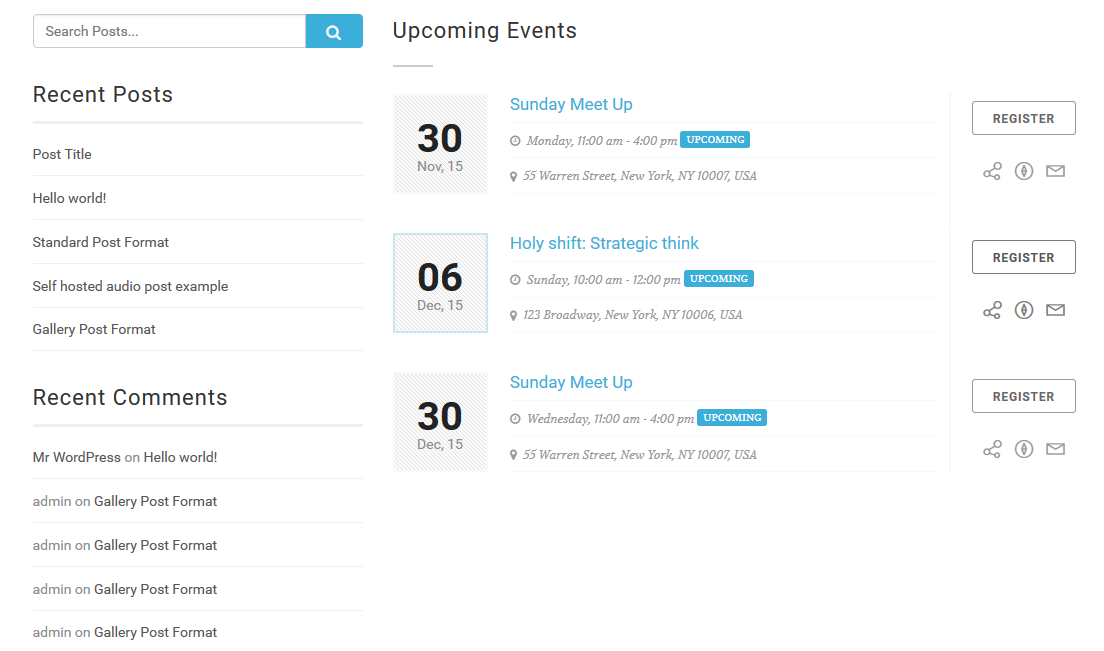
Step 7 : Post Section 2
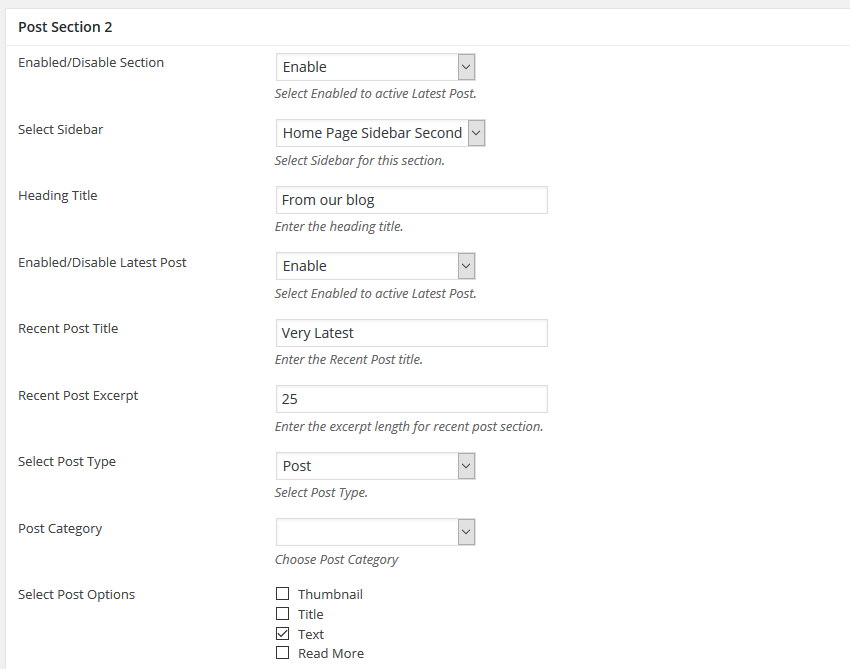
Enabled/Disable Section : Select Enabled to active Latest Post.
Select Sidebar : Select Sidebar for this section.
Heading Title : Enter the heading title.
Enabled/Disable Latest Post : Select Enabled to active Latest Post.
Recent Post Title : Enter the Recent Post title.
Recent Post Excerpt : Enter the excerpt length for recent post section.
Select Post Type : Select Post Type.
Post Category : Choose Post Category
Select Post Options : Select Post Options Type
Select Post Content Type : Select Post Content Type
Post Excerpt : Enter the excerpt length for post section.
Select Image Hyperlink : Select Image Hyperlink
Select Title Hyperlink : Select Title Hyperlink
Number of Latest Posts to show on page : Enter the number of Latest Posts to show on page. example – 3 .

Step 8 : Gallery Section
Please check Create Gallery for more information.
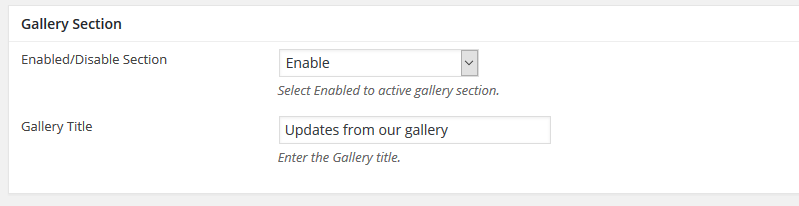
Enabled/Disable Section : Select Enabled to active gallery section.
Gallery Title : Enter the Gallery title.