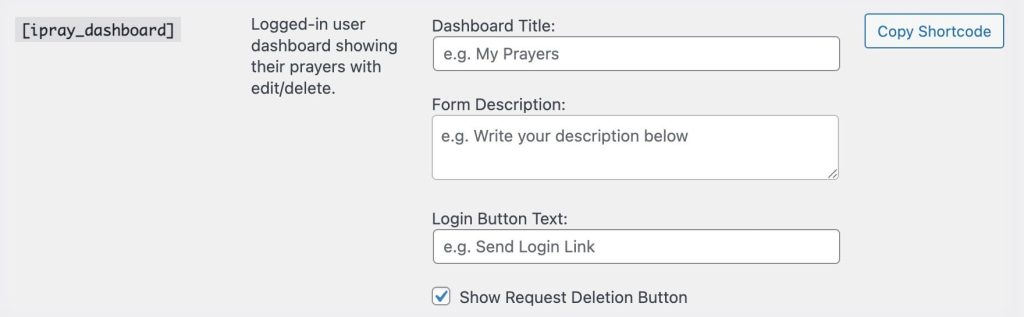
The Prayer Dashboard is displayed using the shortcode:
[ipray_dashboard]
You can add this shortcode to any page—commonly titled “My Prayers”, “Prayer Dashboard”, or “My Submissions.”
How the Dashboard Login Works
When users visit the page containing the dashboard shortcode:
1. They see a simple login form
The form asks only for their email address.
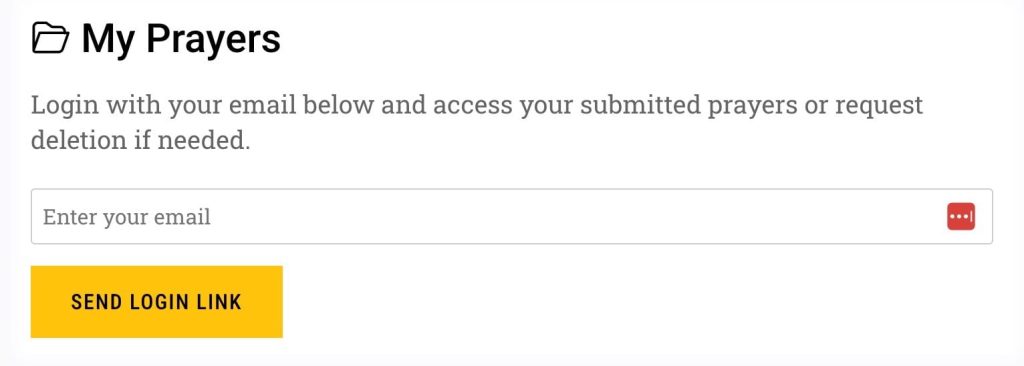
2. User enters their email and clicks “Send Login Link”
This triggers:
-
Validation of the email
-
A secure magic login link being generated
-
An email sent to the user with the link
3. User receives an email with a secure login link
The email includes:
-
A button or link
-
Expiration notice (based on your settings)
-
Your site’s name and styling (from Email Template settings)
4. Clicking the link logs them in automatically
Once logged in, the user:
-
Is redirected to the dashboard page
-
Sees all their previously submitted prayers
-
Remains logged in until the magic link session expires
The system does not require WordPress accounts, passwords, or user registration.
Security Notes
-
Each link is single-use
-
Each link has a time limit
-
Links cannot be shared or reused
-
Users can only see their own submissions
Customizing Login Text
Go to:
Prayers → Settings → Shortcodes → Dashboard
You can customize:
-
Dashboard Title
- Description text
-
Login Button Text
- Whether to show delete request links
These changes apply immediately to the [ipray_dashboard] shortcode output.