Eventer plugin comes with many different type of list, grid, carousel, slider styles to fulfil needs of different website styles. You can use simple shortcodes to display your list of events on your website using any theme or can use widget for Elementor. Eventer shortcodes works with all themes using a page builder or using the default ‘Block’ or ‘Classic’ editor of WordPress.
How to generate shortcodes
Please be noted that Google event type option available in any shortcode except ‘Calendar’ will not work now due to Google’s CORS Policy.
There is a built in shortcode generator in the Eventer plugin which you can use to create a unique shortcode as per your need. Shortcodes have multiple options to display events in terms of style or displaying some selected events.
Shortcode generator can be accessed from your WP Dashboard => Eventer => Settings

To generate a new shortcode, the first thing is type of the shortcode.

Each shortcode has it’s own set of options, which are self explanatory with the help description you see just below the fields.
See Preview
To preview your shortcode with the selected options use the available button.

Copy & Use Shortcode
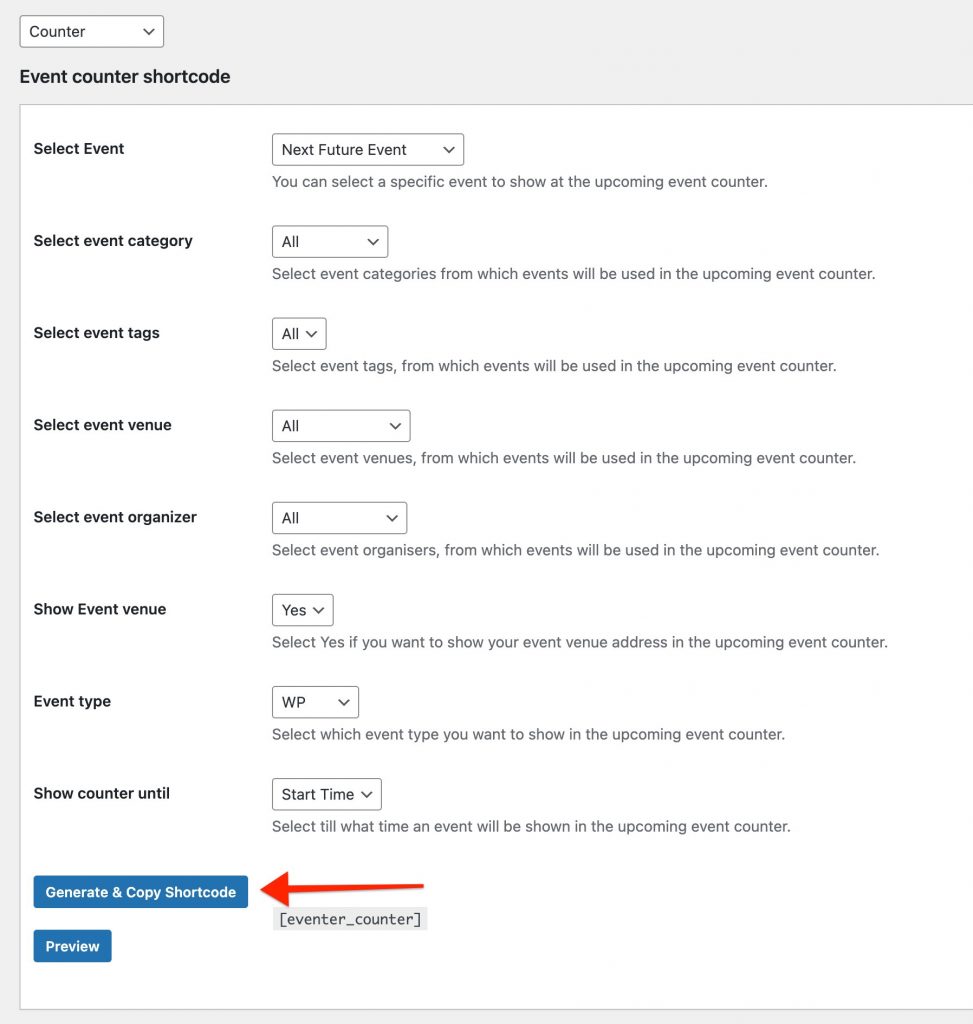
Once you are satisfied with your selected option and have previewed the shortcode, click on the ‘Generate & Copy Shortcode’ button to copy the shortcode to clipboard. Now you can paste the shortcode in any of your page using either the ‘Classic Editor’ block or any page builder’s HTML or Shortcode widget.
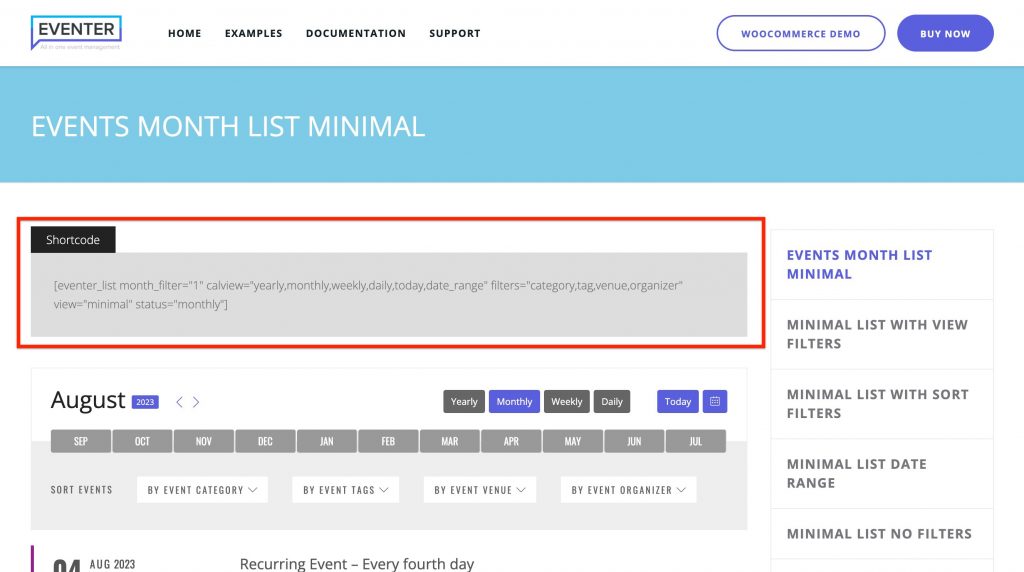
Do you know that you can copy shortcode for any view style from our demo site examples section Just click on any link and you will see the shortcode at the top of the following page
List of Shortcodes
Here is a quick description about each of the shortcodes
Counter(Countdown Timer)
Counter shortcode displays your website’s next upcoming event in a beautiful way. It includes a functioning countdown timer counting to the start time of your event. You may select a choice of event as well to create a counter shortcode to display on any page of your website.

Events List
Eventer comes bundled with multiple styles to list your events. The style can be selected from the shortcode generator

- Filters: Event lists can show a search and filter bar at the top of the events. The filters comes handy for your website visitors to find the events of their choice. You can choose multiple calendar view filters like(Daily, Monthly etc.) along with taxonomy filters.
- Status: The status option is very important to show daily, weekly, monthly, years, future and past events, means you can show all the events happening on a day/week/month/year OR can show all the upcoming events or past events.
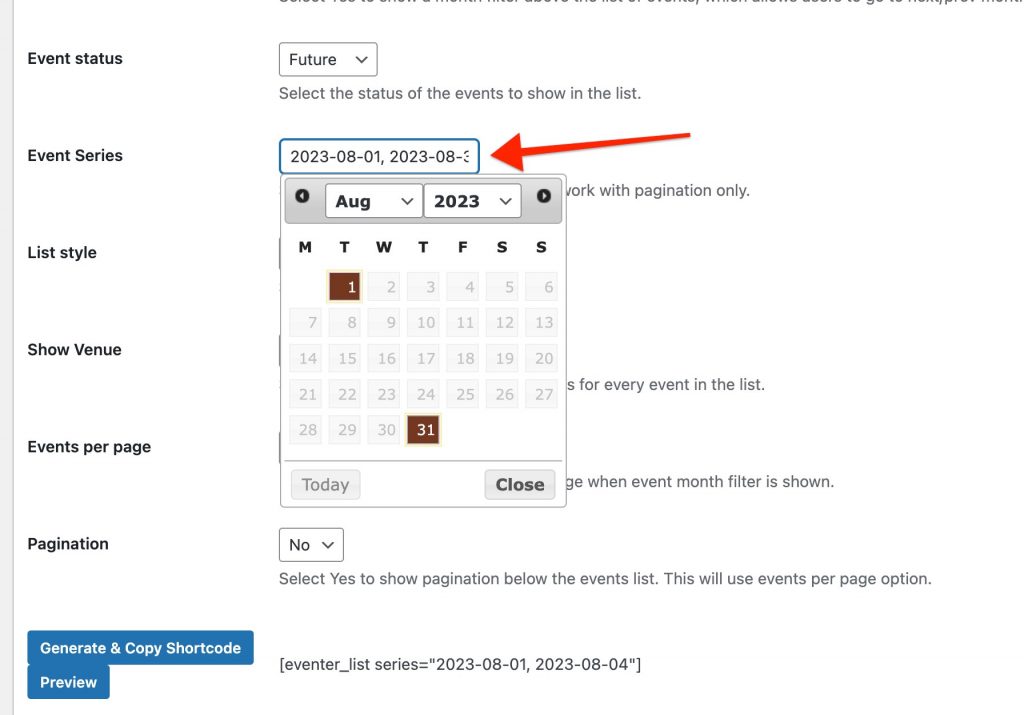
- Series: Sometimes we want to show events only from between a selected date range instead of full month, year etc. For this we have an option to input 2 dates using the date picker. Once you enter it, the events list will show only the events upcoming in between the chosen dates. You should not enable view filters when using series since the next/previous arrows will not work within the range of series date.

- Event Taxonomy Filters: With view filters you have choice to show different taxonomies list as well for the users to see events like for a selected venue or category. Be noted that you must have enabled the taxonomies and have some attached with your event posts.
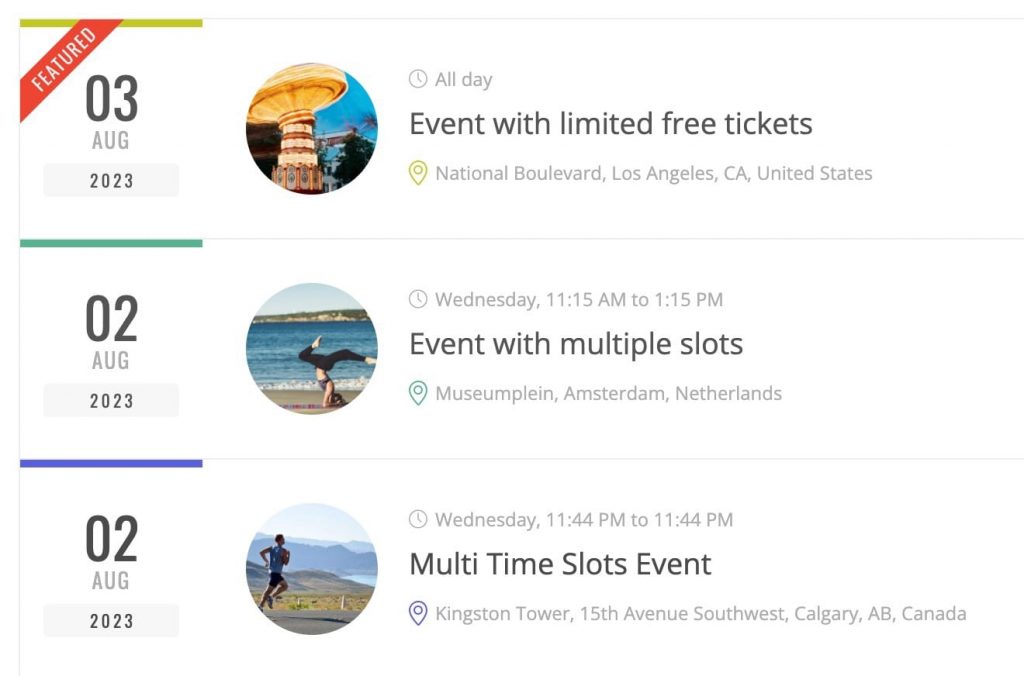
- Featured Events: Enable this option to show your featured events in the events list. Featured events always remain at the top of the list irrespective of their date.
Be noted that if you enable Filters for your events list or grid, the pagination option will not be available.
For the ‘View Filters’ to work, you must select ‘Monthly’, ‘Weekly’, ‘Yearly’, ‘Daily’ as ‘Events Status‘
Events Grid
There are many styles for the grid view which helps you get a unique look for your website’s events page.

- Filters: Event grid can show a search and filter bar at the top of the events. The filters comes handy for your website visitors to find the events of their choice. You can choose multiple calendar view filters like(Daily, Monthly etc.) along with taxonomy filters.
- Status: The status option is very important to show daily, weekly, monthly, years, future and past events, means you can show all the events happening on a day/week/month/year OR can show all the upcoming events or past events.
- Series: Sometimes we want to show events only from between a selected date range instead of full month, year etc. For this we have an option to input 2 dates using the date picker. Once you enter it, the events grid will show only the events upcoming in between the chosen dates. You should not enable view filters when using series since the next/previous arrows will not work within the range of series date.
- Event Taxonomy Filters: With view filters you have choice to show different taxonomies list as well for the users to see events like for a selected venue or category. Be noted that you must have enabled the taxonomies and have some attached with your event posts.
- Event Grid Background: For default grid layout, you have multiple option for the grid block background. Where one option is to keep the white background(plain), Category color background(you can assign different color to every category of the event) or event posts featured image.
- Event Column: There are 4 options for grid columns. Use as required.
- Carousel: You have an option to convert a conventional grid to carousel with the same ‘eventer_grid’ shortcode. To activate this, first you must keep the ‘Filter Bar’ to ‘No’ in the shortcode. Now for the Event Pagination option choose ‘Carousel’.Now you can add/edit the carousel setting by clicking the ‘Add carousel settings’
 Now you can add/edit the carousel setting by clicking the ‘Add carousel settings’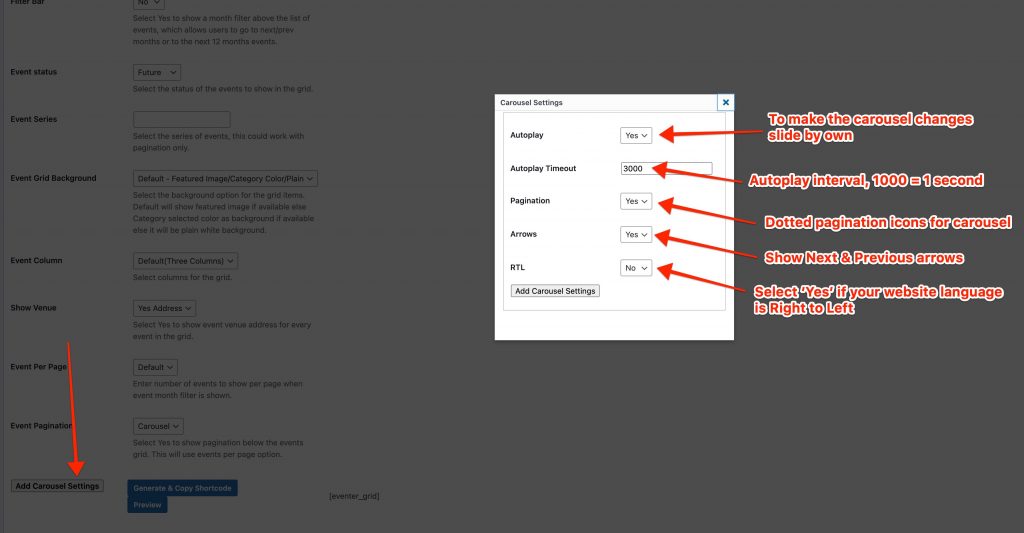
Events Slider
Show a full width slider of your events in 3 different available styles.
- Slider Style: Choose the style type of your slider from the first option. Checkout slider types with shortcodes: https://eventer.imithemes.com/slider-styles/
- Generic Options: There are options like other shortcodes to show selected events, by category, tags, venues, organisers etc.
- Slider Controls: You can add/edit the carousel setting by clicking the ‘Add carousel settings’
Event Calendar
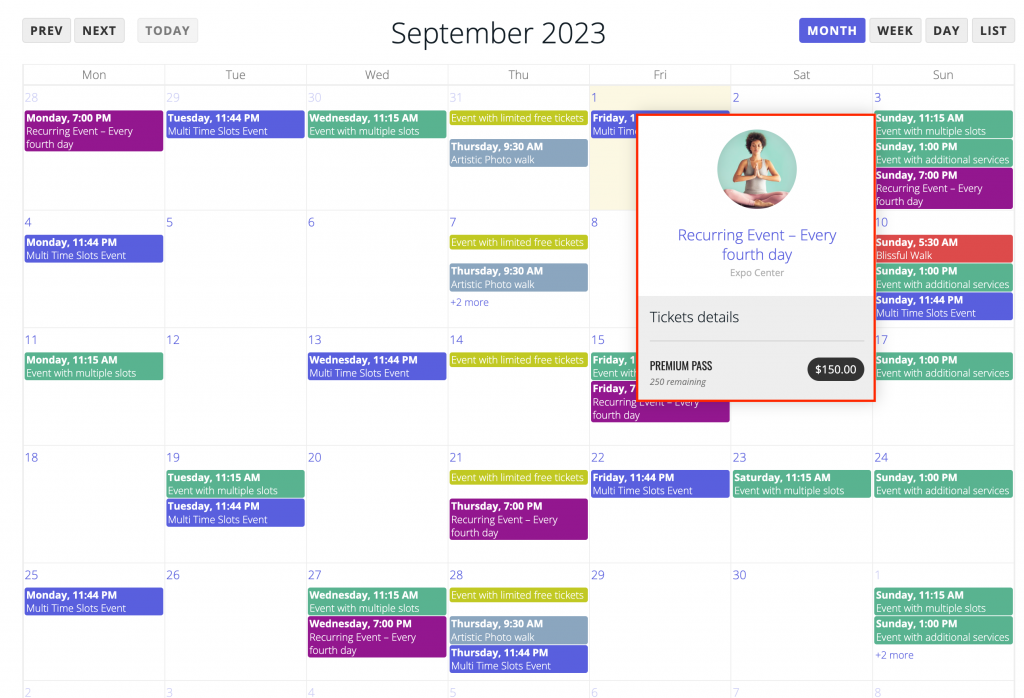
This is a shortcode to display a full calendar of your events. Calendar has different views like Monthly, Weekly etc. Most of the calendar shortcode settings can be managed from Eventer => Settings => General(Calendar)
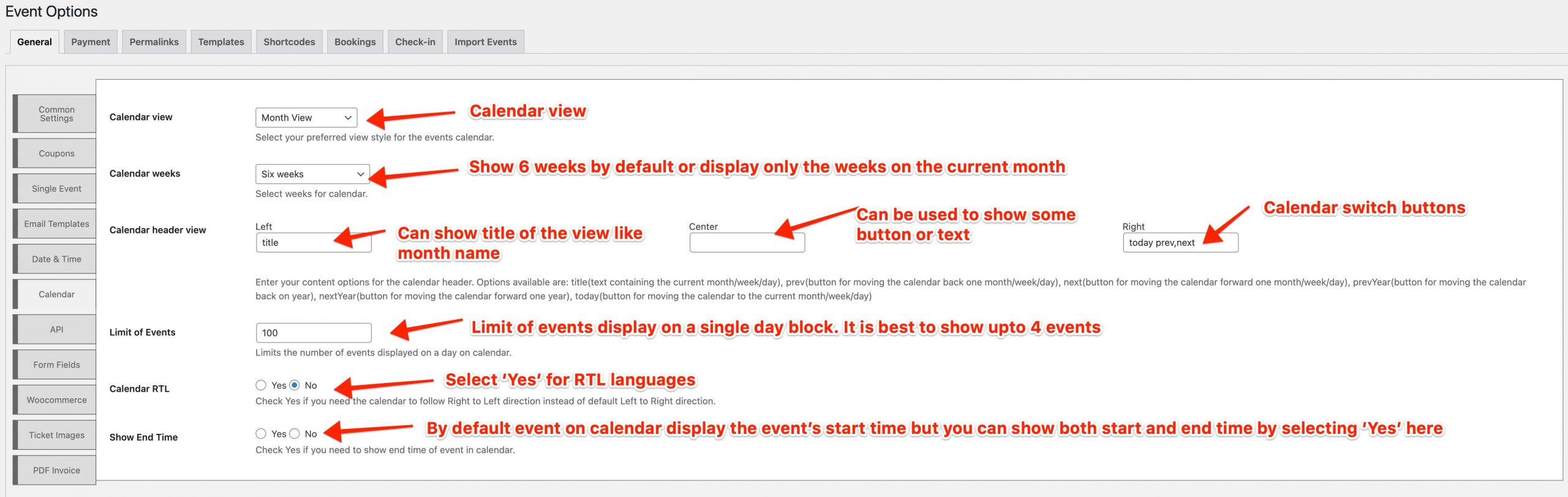
- Events on Calendar: In the shortcode settings you may choose to display some selected events, or events from a selected category, tag, venue or organiser.
- Events Preview: Select yes for this option to show a tooltip with preview of the event
Elementor Widget
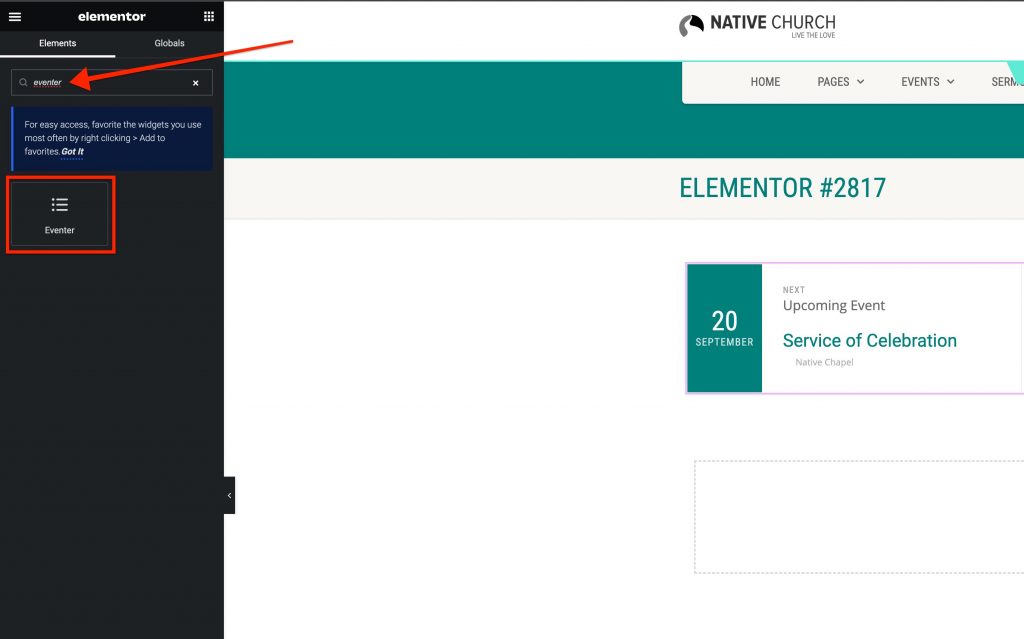
Eventer plugin comes a custom built widget to be used with the Elementor page builder. This widget helps you to add any style of the events on any page easily with options to change values anytime without regenerating the shortcode every time.
You can search for ‘Eventer’ in your Elementor widgets section on any page.
Select your shortcode type:
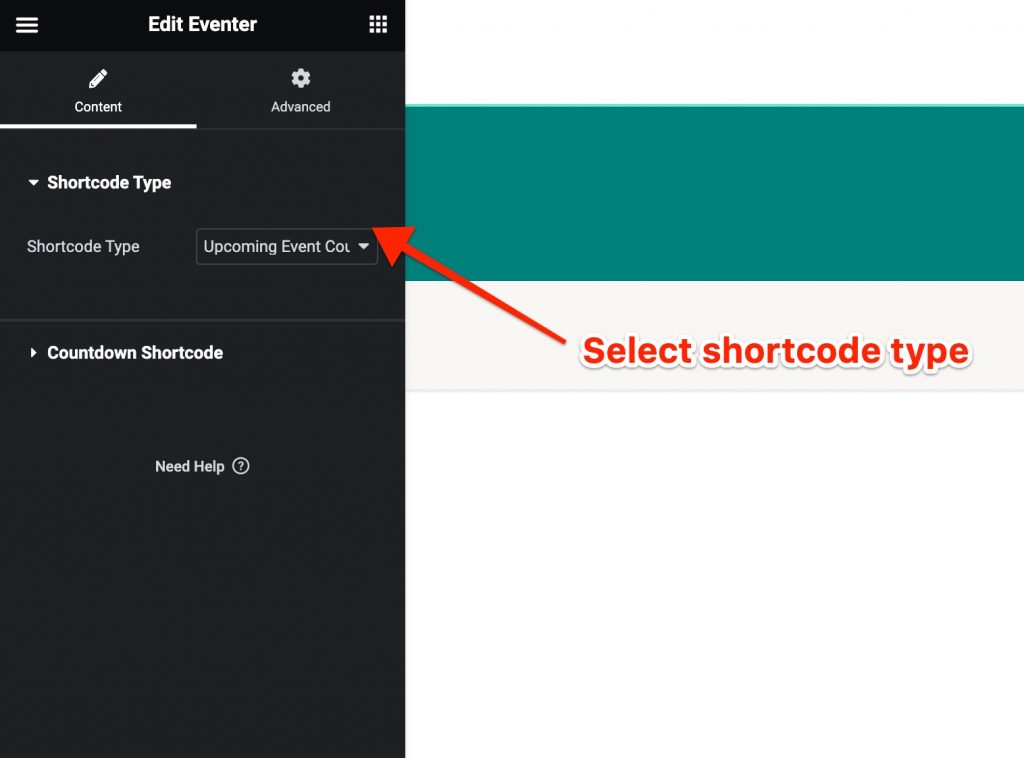
Configure your shortcode in the below panel as per the features/attributes described above