Eventer can send multiple emails at different time when someone book a ticket on your website. All the email templates can be managed from your WP Dashboard => Eventer => Settings
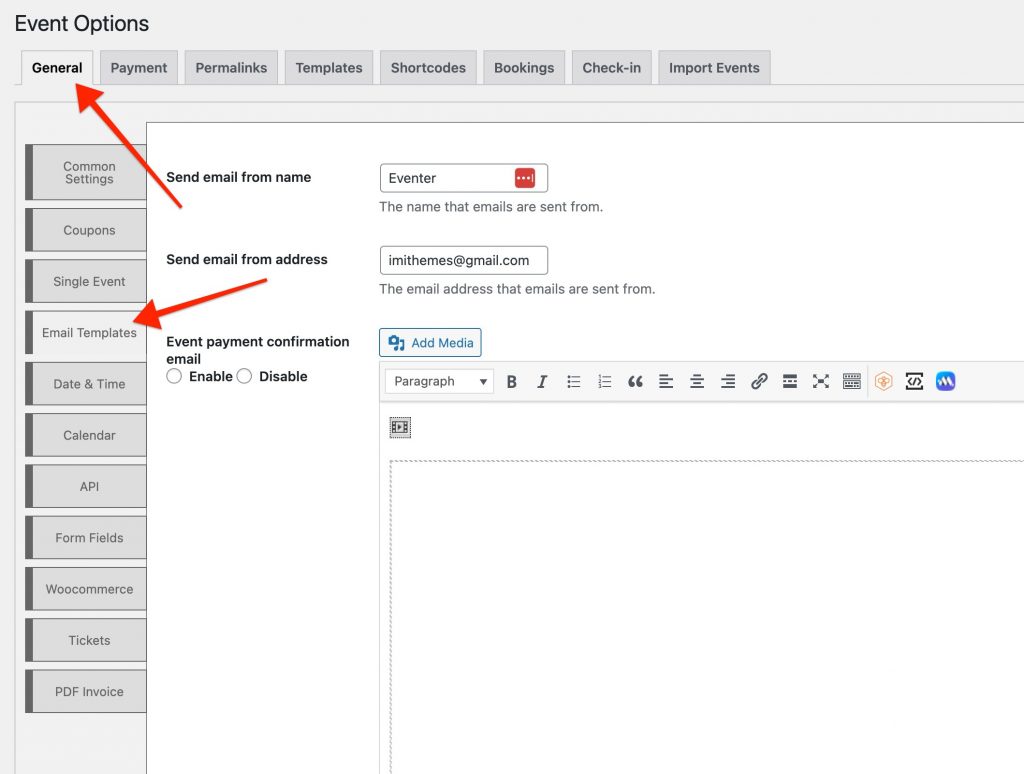
First thing you can do here is to enter your email sender information. You can enter a name with which emails are sent to ticket registrants and an email address as sender.
If you do not input the email sender information then your website(Blogname) will be used as the name of the sender and admin email address set at your WP Dashboard => Settings => General will be used as the email of the sender.
Email Templates
There are 4 emails templates which you can configure for the ticket bookings.
You can use any HTML code to create your email layout along with different shortcodes available for different type of emails.
All the emails can be enabled or disabled as required.
1. Pre Payment email for Organizers
This is the email sent to event organisers when a ticket is booked even when the payment is not completed. Event organiser must have an email defined in order to receive this email.
Here is a list of shortcodes you can use for this email.
{reg_id} -> Registrant ID
{reg_email} -> Registrant Email
{tx_id} -> Transaction ID
{pmt_st} -> Payment Status
{amt_pd} -> Amount Paid
{evt_title} -> Event Title
{evt_date} -> Event Date
{evt_url} -> Event URL
{tkt} -> Tickets Info
{user_details} -> Registrant personal details
{services} -> Selected additional services
{time_slot_title} -> Time slot of event
2. Event payment confirmation email
This email is sent when a ticket booking or Woocommerce booking order is complete wither free or paid(on payment completion)
This email is sent to both ticket registrant and the event organiser.
Here is a list of shortcodes you can use for this email.
{reg_id} -> Registrant ID
{reg_email} -> Registrant Email
{tx_id} -> Transaction ID
{pmt_st} -> Payment Status
{amt_pd} -> Amount Paid
{evt_title} -> Event Title
{evt_date} -> Event Date
{evt_url} -> Event URL
{tkt} -> Tickets Info
{user_details} -> Registrant personal details
{services} -> Selected additional services
{time_slot_title} -> Time slot of event
[eventer_free data="YOUR CUSTOM CONTENT OR ATTRIBUTES"] -> Content sent when the ticket for event is free
[eventer_offline data="YOUR CUSTOM CONTENT OR ATTRIBUTES"] -> Content sent when the user opt for offline payment option for registration
[eventer_paid data="YOUR CUSTOM CONTENT OR ATTRIBUTES"] -> Content sent when the user register for a ticket that has some price
3. Event ticket email with attachment
When you sell tickets for your event, Eventer plugin can send printable QR code based printable tickets with this email template.
You can send content of your choice with this email, you may use any HTML tag to create your email template.
This email can be disabled per event basis. Just check below option when you do not want to send email tickets to registrants after they book the tickets.
You can find this option when creating or editing your event post

4. Invoice
Eventer comes with a built in PDF invoice generator which you can send to event tickets registrants after successful payment for the bookings.
Invoice email is only available for the default bookings
For Woocommerce bookings we recommend this plugin to send invoices
You may include your own text or HTML for this email template.
There is also an option for you to show some event based personalised text in the invoice PDF footer. To add this use the field available in the event post editor:

Invoice settings:
To add personalised details for the PDF invoices, move to your WP Dashboard => Eventer => Settings
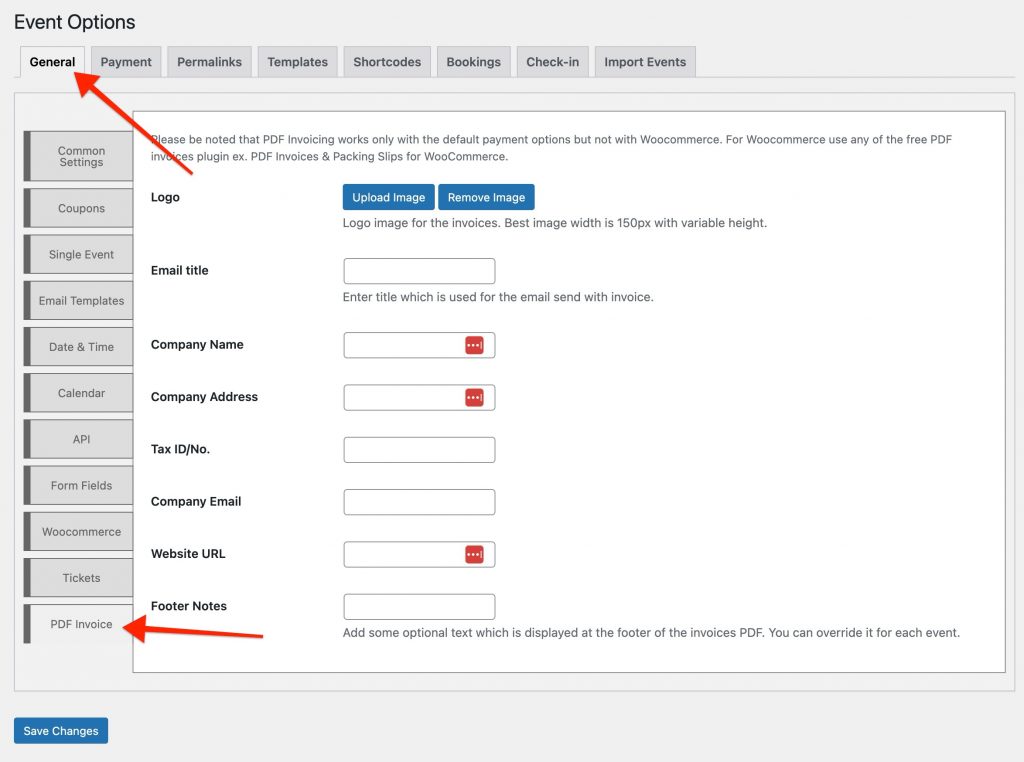
Here you can add:
- logo of your company/organisation
- title of the email which is sent with the invoice PDF attached
- your company/organisation/group name to display on the invoices
- postal address to show on the invoices
- your local Tax ID/Number(this is not used for any tax calculations)
- email address to display on the invoices, we recommend using your business email here
- your website URL to show on the invoice PDF
- some additional information which will be displayed on the invoice footer. Something like payment terms & conditions