Eventer plugin revolves around the tickets of the events and their booking. This is why tickets play an important role and need to be described in detail.
This plugin allows you to create different/unlimited type of tickets for each of your event. Tickets are not created once and used for multiple events but they are connected with an individual event exclusively.
To start creating tickets for your event, you must enable registration first.
Look for this section to start creating tickets for your event:

Steps to create a ticket
- Enter the name of your ticket. It is best to use short and recognisable name for the ticket.
- Enter the number of available tickets. Tickets availability is maintained per ticket type. See how you can set a combined/common tickets availability.
- Enter the price of a ticket. Do not enter currency here. It will be used from Eventer => Settings => Payment. For free entry(ticket) enter ‘0‘ in the price field.
- Check ‘Restriction’ field so that this ticket can be booked only once by an email address. This means anyone can book any number of this ticket in a single booking with their email address. This ticket will not be available if that user try to book again with the same email address.
Modify Tickets
You may need to edit your ticket information like ticket name, price etc. This can be easily done even after you have sold few tickets already.
To do this you just need to check the ‘Modify Ticket Info’ checkbox as shown below and make changes to your tickets and simply update the event post.
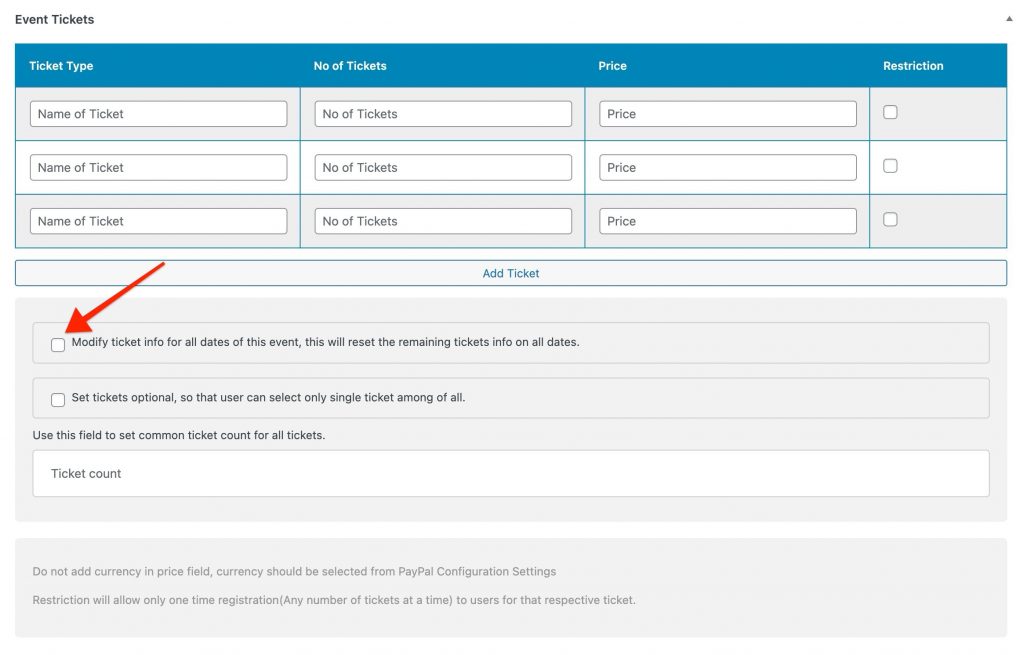
Please be noted, modifying tickets will change tickets details for each and every date in case of ‘Recurring Events‘ and to edit tickets info for only a single recurrence of a recurring event check out ‘Date wise booking records’
Combined Tickets Quantity/Availability
Though there is a field for quantity for each of the ticket type but there are situations where you want a common/combined tickets availability irrespective of the different ticket types.
You can do this by adding tickets number in the ‘Common Tickets’ field as shown below.
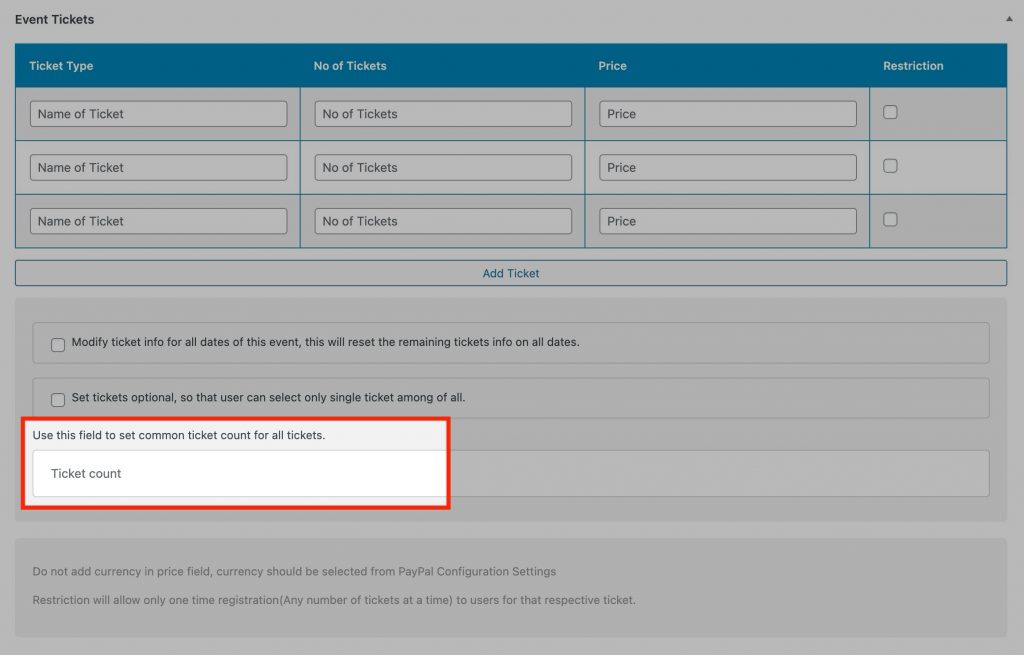
Be noted, once you fill value for the common tickets field, it will ignore the individual tickets quantity.
Date wise booking records
This is a very important part of the Eventer tickets booking system. It helps you make changes to tickets when you have a recurring event and need to make changes to tickets of a specific date(in the recurring series of events).
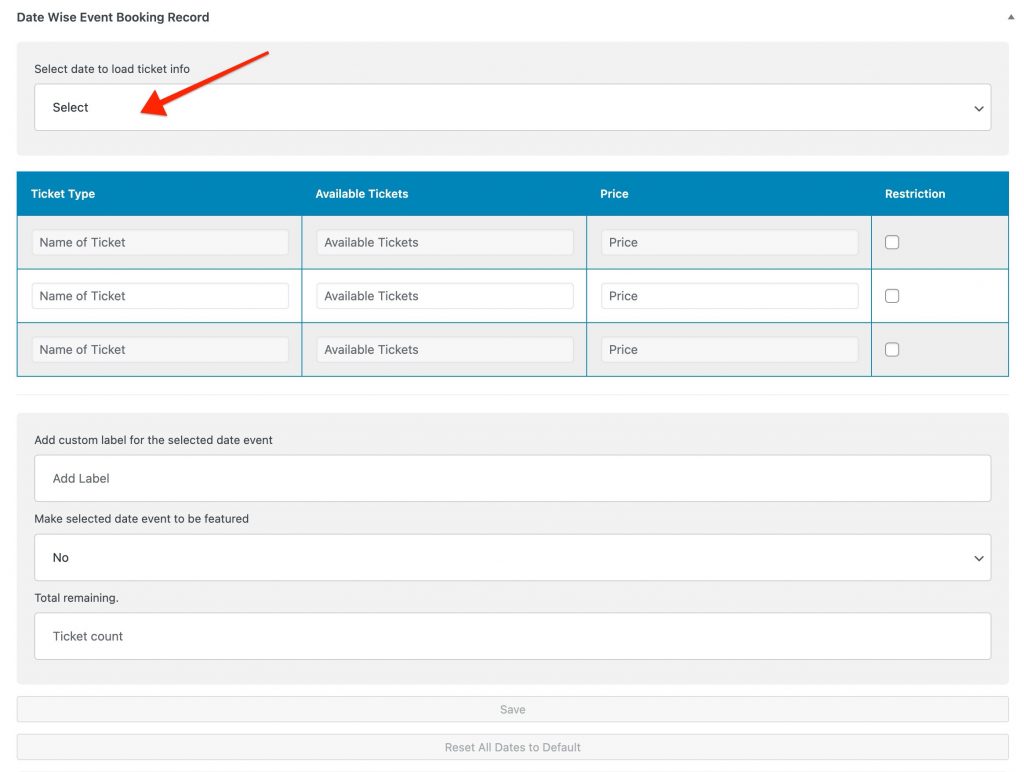
To make changes to a specific date of the recurring event, first select the date from the date selector. It will list out all the dates, your event is set to recur. For non-recurring events it will show only a single date.
After selecting the date, the tickets fields like name, available tickets, price will display and you would be able to make changes as required. These changes will only reflect on the the selected date of the recurring event.
Reset tickets info for all the dates: To do this, select ‘Enable Reset Button‘ from the date selector. Now click on the ‘Reset All Dates to Default‘ at the bottom of this section. This will reset tickets for the dates of the recurring event.
Custom Label: You can add some custom label(Text) to any instance of a recurring event. This text will display just next to event title in the events list/grid etc.
Featured Event: After selecting a date from the date selector, you can mark it as featured event. Featured events appear first in the events list/grid.
Total remaining: You may also change the common/combined ticket quantity for any specific event(date in a recurring events series) after selecting the date from the date selector.