All the Woocommerce tickets bookings now appears on your WP Dashboard => Eventer => Woo Bookings page

Order number you see here is the ‘Order ID’ of the Woocommerce details which is also available at your WP Dashboard => Woocommerce => Orders
To see the complete order details click on the Order #ID. It will show the primary user(who booked the tickets) at the top and all the tickets(multiple tickets) details at the bottom section under ‘Details’ box.
Tickets are auto generated as sent to registrant email address. When someone books multiple tickets in a single order and input name and email of each of the registrant then everyone will receive his own ticket in a separate email.
Regenerate tickets
Tickets are created as soon as the payment is completed for the booking order or instantly in case of free orders(0 value). But if you find that the tickets were not generated and sent. In this you may want to re-create tickets and send to the registrants.
To do this open the booking by clicking the Order #ID and look for this button:
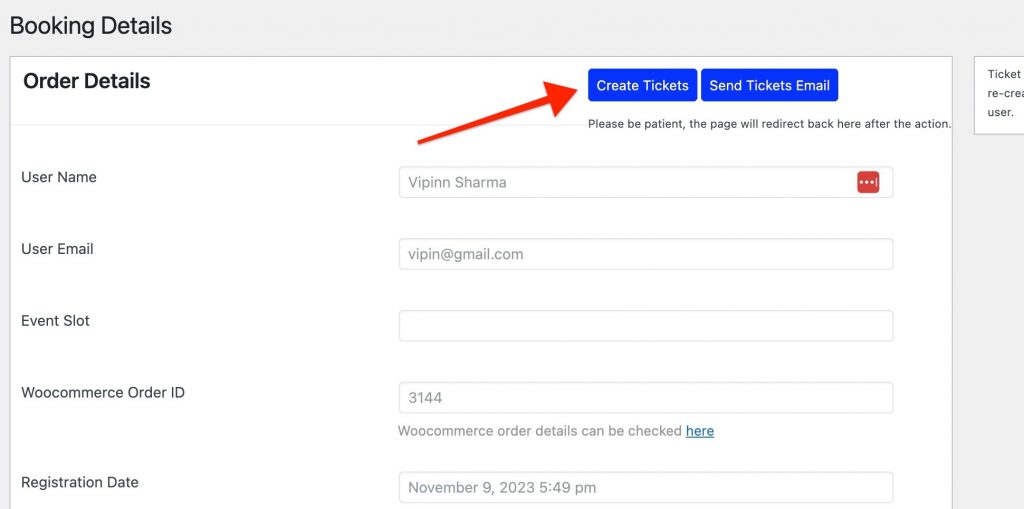
Clicking this button will open the event page on your website and will redirect back to booking page.
Do not click any where on your website or reload the page in the process of tickets regeneration until it returns to the booking page.
Resend tickets
Tickets email are sent using your host CRON job. Cron jobs trigger when there is some activity on your website. But sometimes this can be delayed due to inactivity on your website. In this you may want to re-send tickets to the registrants.
To do this open the booking by clicking the Order #ID and look for this button:

Clicking this button will open the event page on your website and will redirect back to booking page.
Do not click any where on your website or reload the page in the process until it returns to the booking page.
Export Bookings
To export all the bookings just click on the ‘Download CSV‘ button at the top.

This will download a CSV file with all of your event ticket woo bookings.
Filtering Bookings: You may need to download bookings for a specific event, this can be done easily by selecting the event from the dropdown(all events). Do remember to click on the ‘Filter‘ button after your event/date selection and then click the ‘Download CSV’ button.
You have a choice to select the date of the event as well. This is available only for the recurring events which have multiple instances of the event on different dates. Do not forget to click the ‘Filter‘ button after your selection.
Bookings data to export: In the version 3.9.9.5 of the plugin we have added new options for you to select the choice of data to export in the CSV. Click on ‘Select Export Fields‘ button to choose which data you want to export in the CSV. The options here will use your global fields selection from Eventer => Settings => Woocommerce but can be changed here for each export. The selected fields here on the Woo Bookings page will remain saved for the browser session but will reset when you restart your browser or clear the cache.
