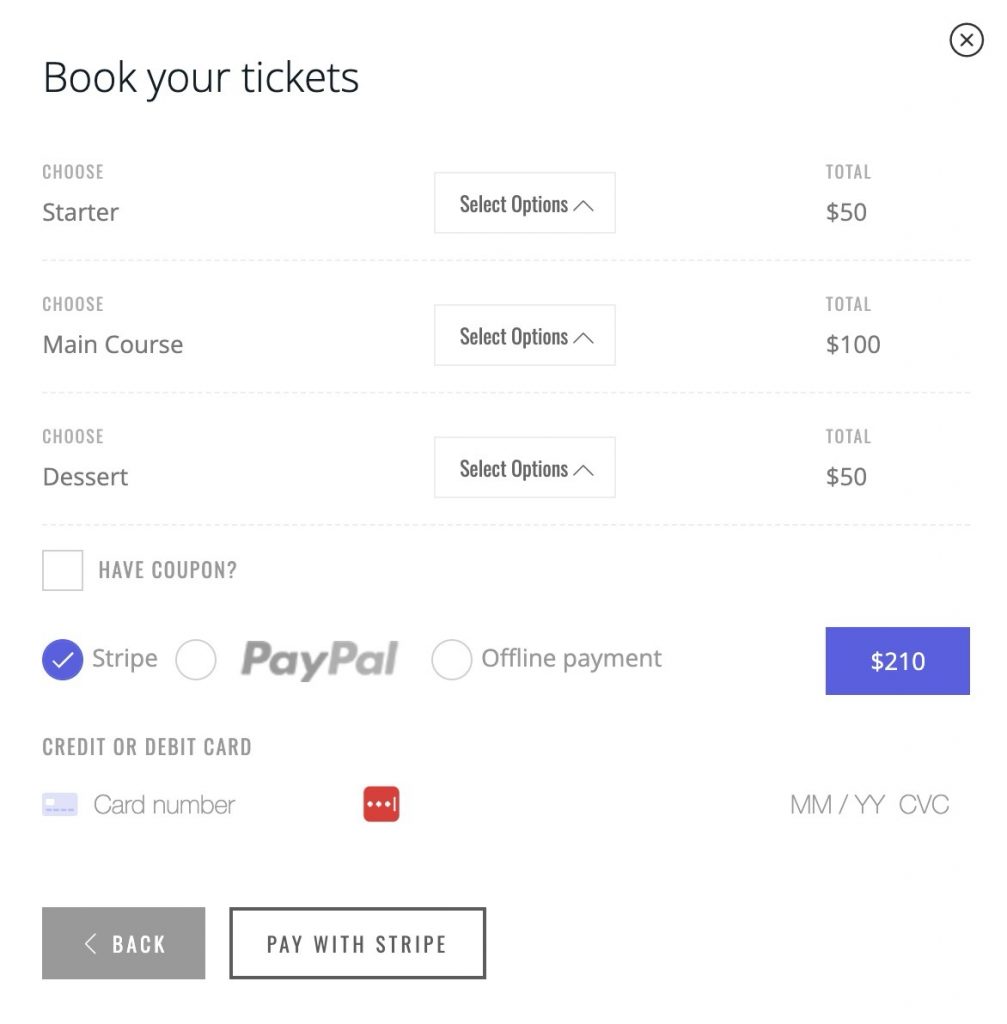
You can sell additional services with the ticket booking and it’s well integrated into the event post already. To sell additional services, event must have ‘Registration‘ enabled.

Once you create tickets for your event, the next steps is to create your additional services.
Additional Services for Default Bookings
With default bookings you can sell additional services as well. To create your services look for this section in your add/edit event post screen:
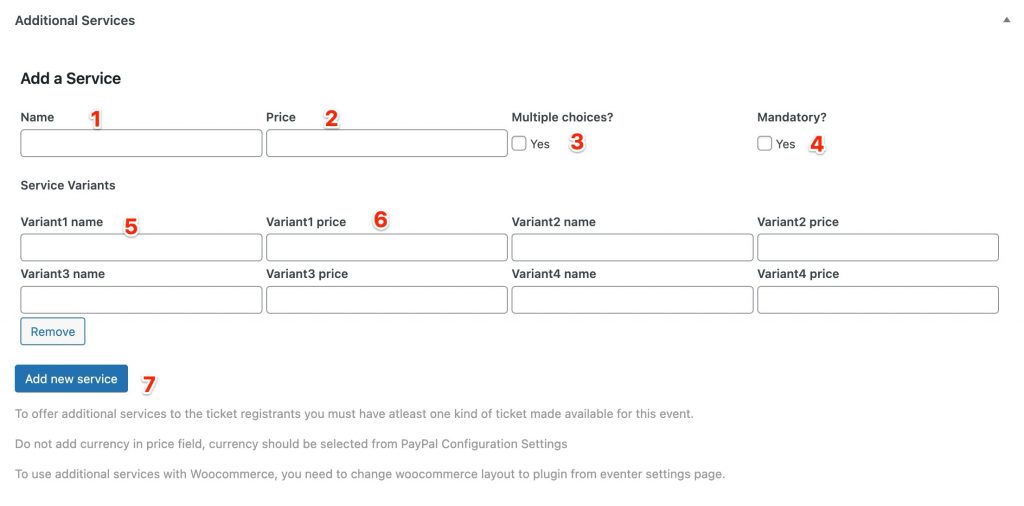
- Enter the name of the service you would like to offer along with the ticket booking. For instance: Parking
- Enter the price of the service like 10. Do not add currency in the price field this will be added by own by your choice at Eventer => Settings => Payment. This field should be filled only if you have a fixed price option for the service. For multiple option/variants of the service use the fields below for “Service Variants”. For example you want to offer different kind of parking “Valet parking”, “Free Parking” etc.
- Check the multiple choices option if you want to offer users to opt for multiple variants of a particular service. Like you can use this for food where you have multiple variants and users can opt for multiple food type.
- Check the mandatory option if this service is mandatory for the registrants to choose. For example you can make the parking mandatory for all bookings.
- Use these fields for adding multiple variants of the service. Add name and price of each variants up to maximum of 4 variants.
- Use “Remove” button if you wish to delete any added service. Be noted that you can not delete only service in here, if you wish to delete the only service you have then add a new service box by using the ‘Add new service‘ box and then DELETE your first service.
- Use “Add new service” button to add an additional service
Additional Services for Woocommerce Bookings
Additional services for Woocommerce bookings is only available when you user ‘Popup’ or ‘Popup with Woocommerce Checkout’ layout option
With Woocommerce bookings you can sell additional services along with event tickets. To create your services look for this section in your add/edit event post screen:

- Choose ‘Add New’ to create a new service(Woocommerce product under eventer_services category). Or select the product from the list of previous services.
- Enter the name of the service you would like to offer along with the ticket booking. For instance: Parking
- Check the multiple choices option if you want to offer users to opt for multiple variants of a particular service. Like you can use this for food where you have multiple variants and users can opt for multiple food type.
- Check the mandatory option if this service is mandatory for the registrants to choose. For example you can make the parking mandatory for all bookings.
- Use these fields for adding multiple variants of the service. Add name of the service variant. You can add up to 4 variants name
- Use these fields for adding multiple variants of the service. Add price of the service variant. You can add up to 4 variants prices. Do not add currency in here. Your Woocommerce default currency will be used.
- Use “Add new service” button to add any additional service
- Use “Remove” button if you wish to delete any added service. Be noted that you can not delete only service in here, if you wish to delete the only service you have then add a new service box by using the ‘Add new service‘ box and then DELETE your first service.
Delete Woocommerce product linked to Additional Services
Event additional services are basically Woocommerce products which are assigned to a dedicated products category ‘Eventer Services’ by own. Do not delete or change this category name. Event additional services are hidden from your regular products listing/shop page.
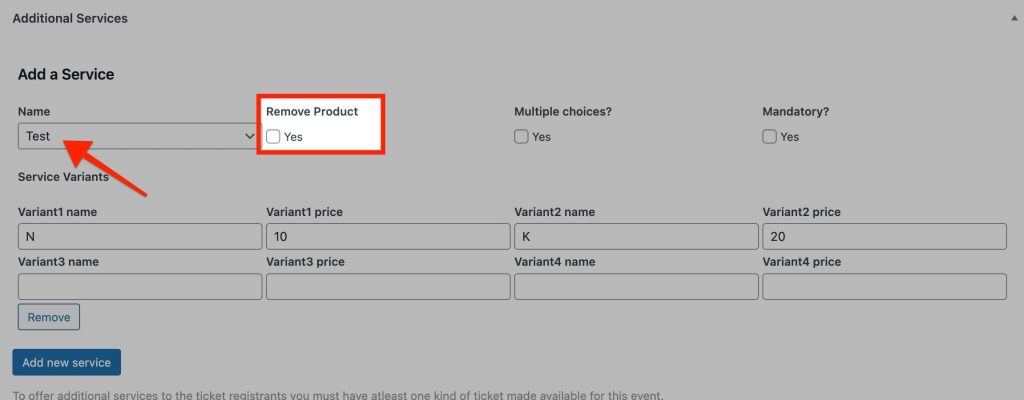
When you add an additional service to any of your event post, it creates a new Woocommerce product for the same. You may want to delete those products. You can delete them from the event edit screen as well. Select it from the list and check ‘Remove‘ field. Now update/save your event post and the Woocommerce product will be deleted.
Front view in the Booking Form
All the added services will be visible in the ticket booking form.