Creating a new event with Eventer is very easy, with just entering the title and start & end date of the event is what it needs to create a simple event post. However there is so much more options which can be used to use this plugin to it’s full potential and fulfil your project’s requirement. To create a new event move to your WP Dashboard => Eventer => Add New
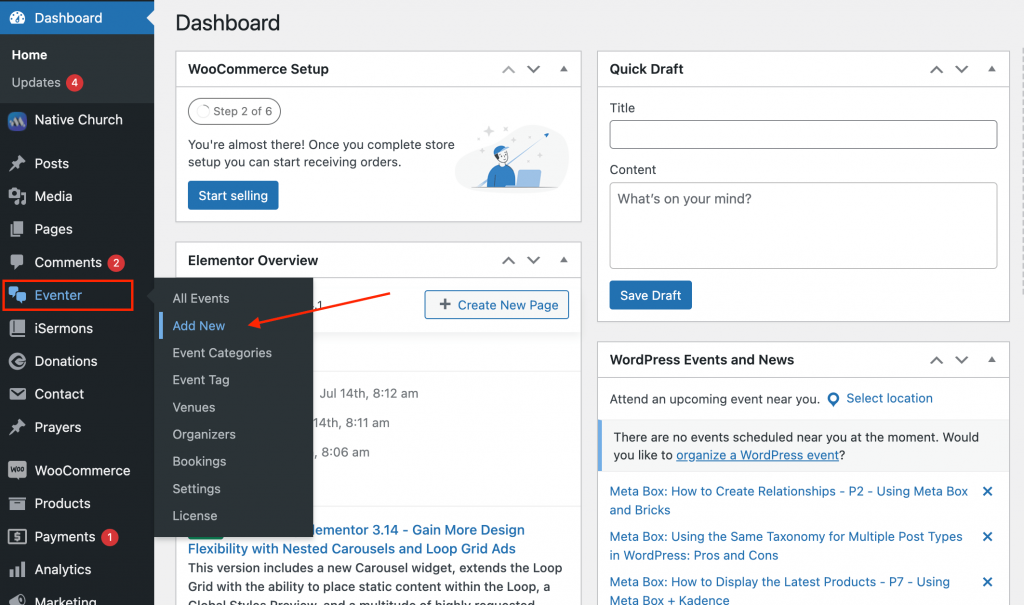
Below are the steps which are must required to create a new event and to have it list on your website’s events list.
1- Title of your event
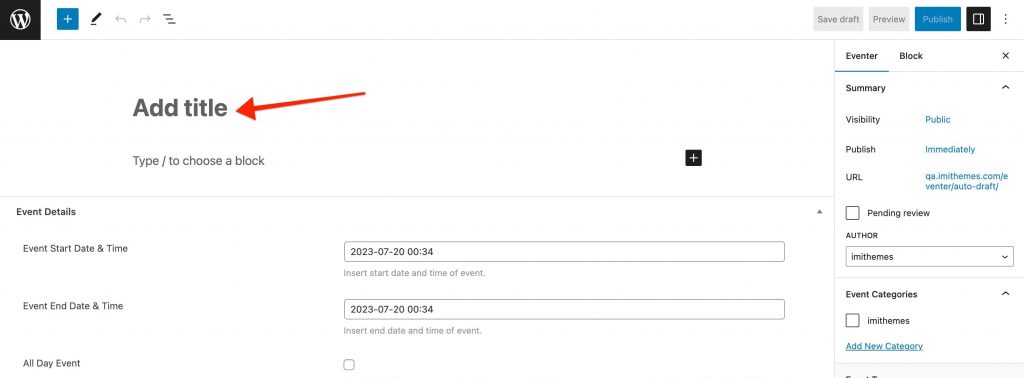
2- Start date & time of the event
Event start date field must be filled with a future date for the plugin to recognise it as an upcoming event. We recommend using the date picker instead of manually entering the date since date & time in a wrong format can make the event disappears from the upcoming events list.
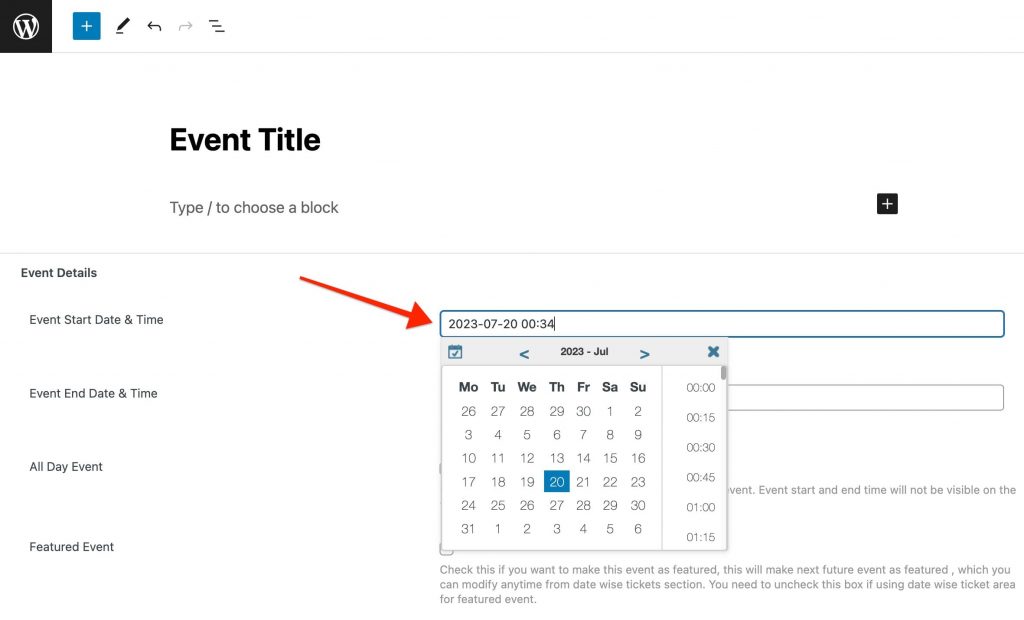
3- End date & time of the event
Though this is not a required field but if you are not setting the event for All day then the end date & time must be filled in using the date picker. This date & time is used by the plugin as when to remove the event from the upcoming events list.
It is worth mentioning here that choosing a different date(not time) as the event’s end date will disable the recurring options for your event. You must not set a different end date to create an event which occurs every day, for this purpose you should set the start and end date same and use the recurring options

Completing the above 3 steps is enough to list your event on the website. But we have lot more options to create a new event.
Now we are detailing out the other options you may use to customise the display and functionality of your events.
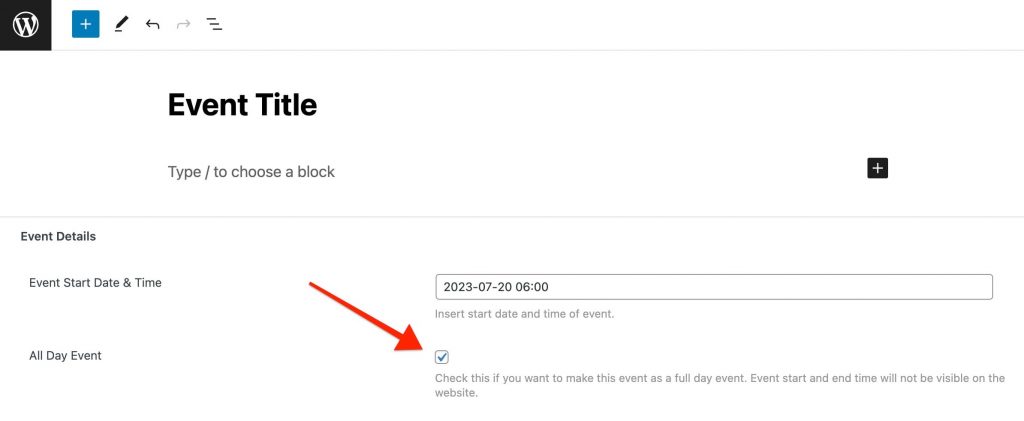
‘All Day’ event
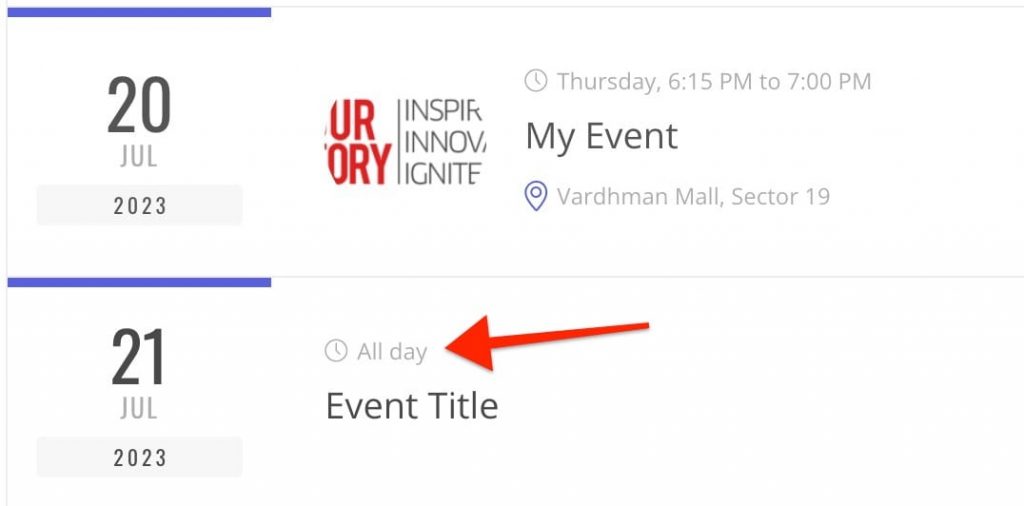
Checking this option will show ‘All Day’ in place of start and end time.
All day events starts from the 12 AM and end at mid night. This option must be used only when required as it will skip the end time and keep the event in the upcoming events for the whole day.
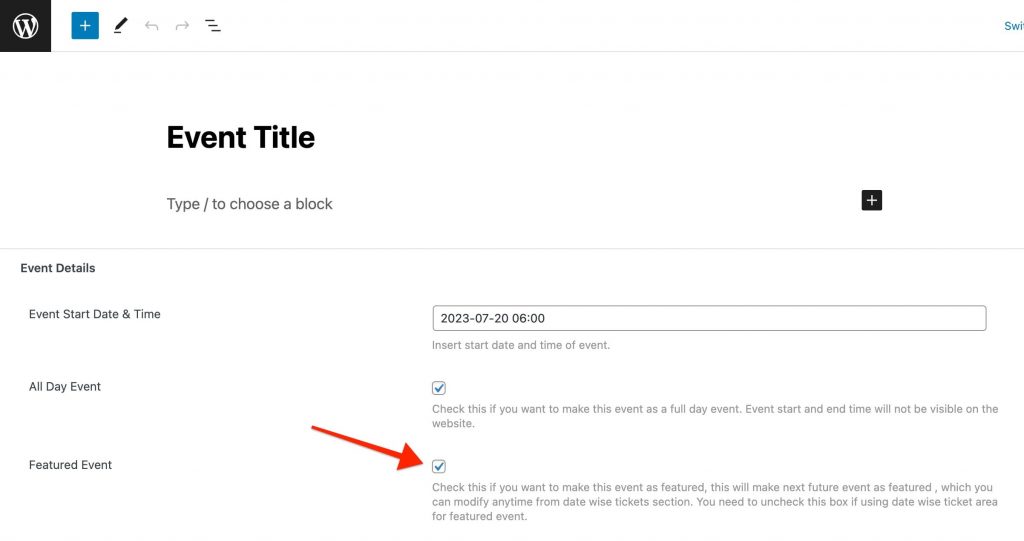
Featured Event
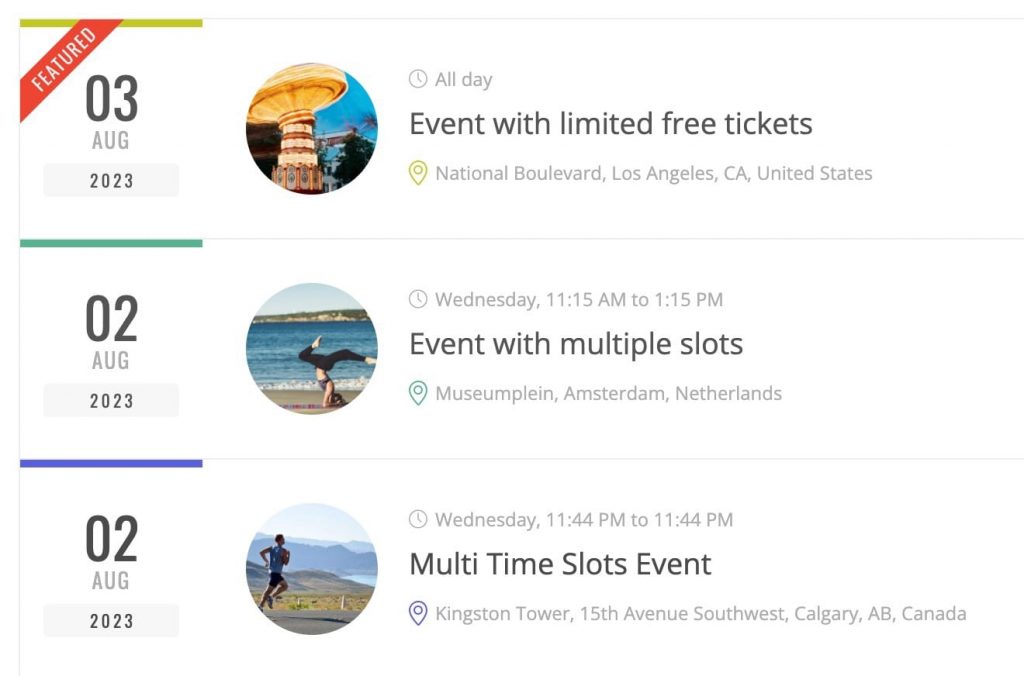
Featured event is a great choice in case you like to keep an event at the top place in the upcoming events list and show a little ribbon over it.
Do you know? In case of recurring event every next upcoming instance of the event will be ‘FEATURED’ but you have a choice to make any recurring instance as ‘FEATURED’. This can be done from the ‘Date wise booking records‘ and available only if you have event registration enabled.
Custom Link
This option is very useful when you need to show a separate page instead of the default event details page when someone clicks on the event link in the upcoming events list. You can enter an absolute or relative URL in the ‘Custom Permalink’ field. You may also make the custom URL to open in a new browser tab/window.
