Eventer comes with a predefined ticket booking form which can be edited to remove pre-added optional fields and to add new fields.
Name and Email fields of the booking form can not be deleted or modified
Booking form is opened when your website visitors click on the ‘Book Tickets‘ button on the event page.
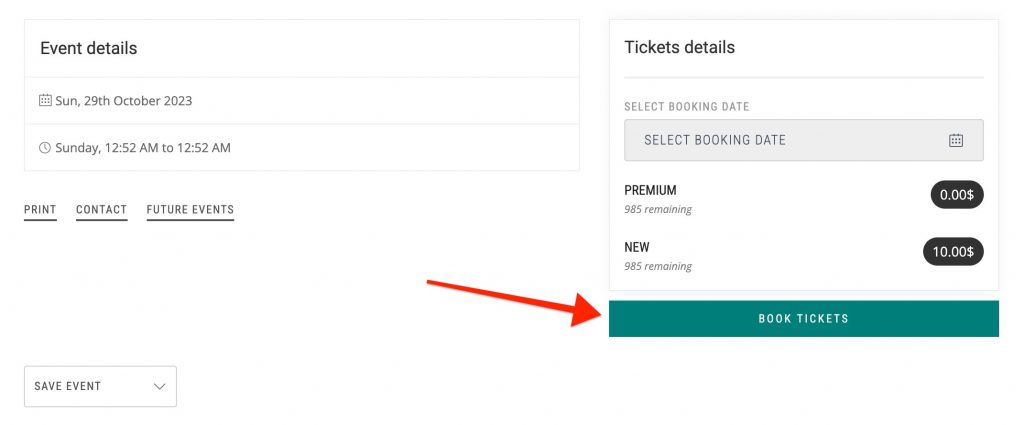
Book Tickets Button Custom Link
For some of the events you may want to link the booking button to some external third party website. For example you may want to link the ‘Book Now‘ button to your event on Eventbrite.
This option is available in Eventer and a separate field is displayed once you enable registration for your event
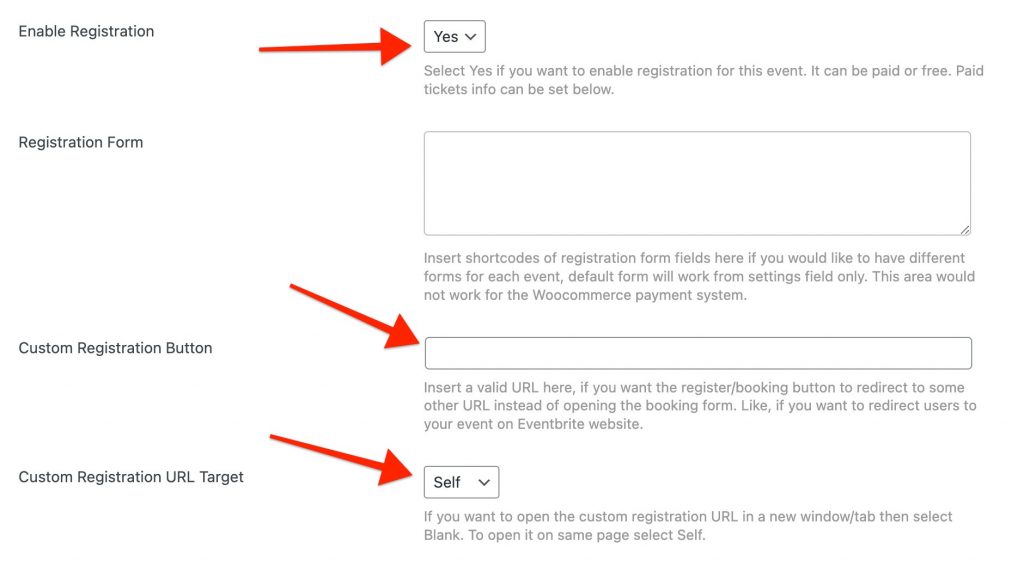
Here you need to add a full URL(with http:// or https://) of your external website in the ‘Custom Registration Button’ field.
You can/should also have option to open the custom third party URL in a new window. Select ‘Blank’ option from the select field.
Booking form
Booking form can be edited from your WP Dashboard => Eventer => Settings

Booking Form Shortcodes:
We use exclusive shortcodes to build the booking form which helps you easily modify the form as per your need. Here are the shortcodes for the rows and columns:
Row: This shortcode create a new row in the form. You should insert a new row only if you need to divide the row into 2 columns.
[eventer_field_row]


[/eventer_field_row]
Column: This shortcode create a new half column inside a row and should be put inside a row shortcode. See example:
[eventer_field_halfcol]

[/eventer_field_halfcol]
To add a field which uses full width of the form then put the form field shortcode directly outside the column or row shortcode
Form Fields: Eventer offers multiple type of fields for your form including checkboxes, radio buttons. New fields shortcode can be created from your WP Dashboard => Eventer => Setting => Shortcodes

To create a ‘Form Field Shortcode‘ there are several options you must fill before generating it.
- Select Field Type: Select your field type, you have several options for the field type and it must be selected as required. To understand the field types check out this article
- Select Textarea Rows: In case you select ‘Textarea‘ as field type then you can select the ‘textarea rows’ option. This option defines the default height of the textarea when the form loads. Selecting more rows means more height. Textarea is always expandable manually though.
- Mark Field Mandatory: If you want to ask an important question to people booking a ticket then mark your selected field as ‘Mandatory‘
- Field Classes: Sometimes you may want to style your field differently, in this case we recommend adding your custom ‘Class‘ to the field. You can add them here and it will be applied to the field in the form.
- Field ID: This must be filled with a unique name as ‘ID‘ of your field. ID is used to recognise the field in your form and to use the field value to store booking data. An ID must be unique for each field you create and must not contain any spaces, no special characters(except – or _) and it should start with an alphabet. For example: ‘my-email-field-1‘
- Field Values: Select, Radio, Checkbox fields let you create options field. You must add options for the field here. Separate your options by a ‘,‘ (Comma). Wrap value with curly braces to select an option by default,. For example:- {abc},def,ghi. Here abc will be default selected value of the field.
- Field Name: A field name must be unique for each field, we recommend using your ‘Field ID‘ as field name as well.
- Field Label: A label will show just above the field. It is best to add a label so user always know what they are filling in
- Field Placeholder: Placeholder text to show inside the text, email, number, textarea etc. fields.
- Field Meta Key: This is a unique key which helps the Eventer plugin store the data of the field. We recommend using a unique name for each field. Meta key must not contain any spaces, no special characters( except _ ) and it should only include alphabets. For example: ‘my_field_key‘
Default Form
Here is the default form which is loaded when you first activate the Eventer pligin:
[eventer_field_row]
[eventer_field_halfcol]
[eventer_fields type="text" text_row="4" required="no" class="" id="" param="" name="LAST NAME" label="LAST NAME"]
[/eventer_field_halfcol]
[eventer_field_halfcol]
[eventer_fields type="number" text_row="4" required="no" class="" id="" param="" name="YOUR PHONE" label="YOUR PHONE"]
[/eventer_field_halfcol]
[/eventer_field_row]

[eventer_field_row]
[eventer_field_halfcol]
[eventer_fields type="textarea" text_row="6" required="no" class="" id="" param="" name="YOUR ADDRESS" label="YOUR ADDRESS"]
[/eventer_field_halfcol]
[eventer_field_halfcol]
[eventer_fields type="textarea" text_row="6" required="no" class="" id="" param="" name="ADDITIONAL NOTES" label="ADDITIONAL NOTES"]
[/eventer_field_halfcol]
[/eventer_field_row]
Custom Booking Form
There are times when you need a different registration form for any specific event. Eventer have you covered for the same, look for this field when creating/editing your event post:
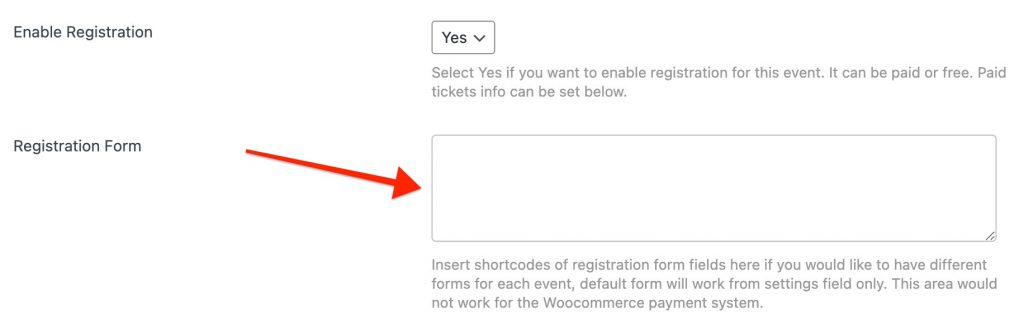
When registration is enabled, you will see this field just below event registration option. In this field you can enter any of the ‘Form field‘ shortcodes as described above.
This will replace the default booking form(as set at Eventer => Settings) for the respective event.
Be noted that the ‘Name‘ and ‘Email‘ field will remain there as is.
Multiple Tickets Booking
Your website visitor can choose multiple tickets at a time to book for an event. In case of multiple tickets you can ask to enter individual name, email of each ticket.
This option can be enabled from your WP Dashboard => Eventer => Settings

There is also option to make these fields mandatory to be filled. Here is how they will look when you enable the individual fields:
