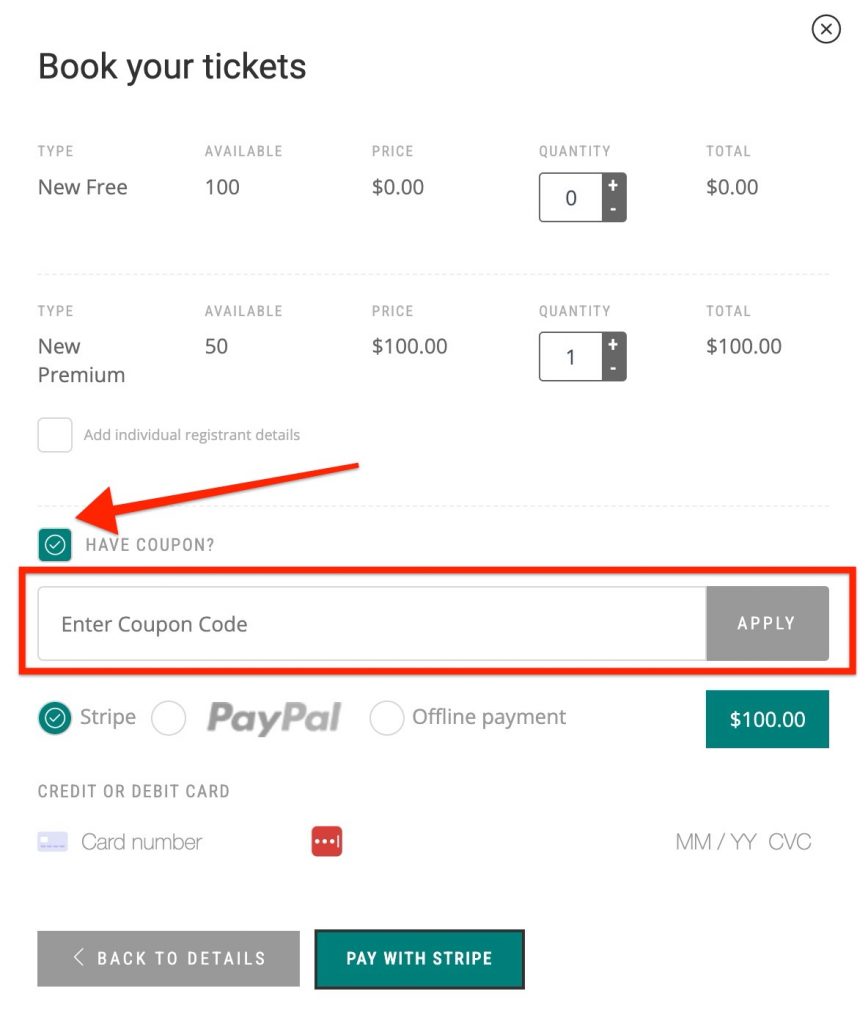
Eventer comes with built in coupon functionality for the default payment options
To enable coupon field at checkout, go to your WP Dashboard => Eventer => Settings
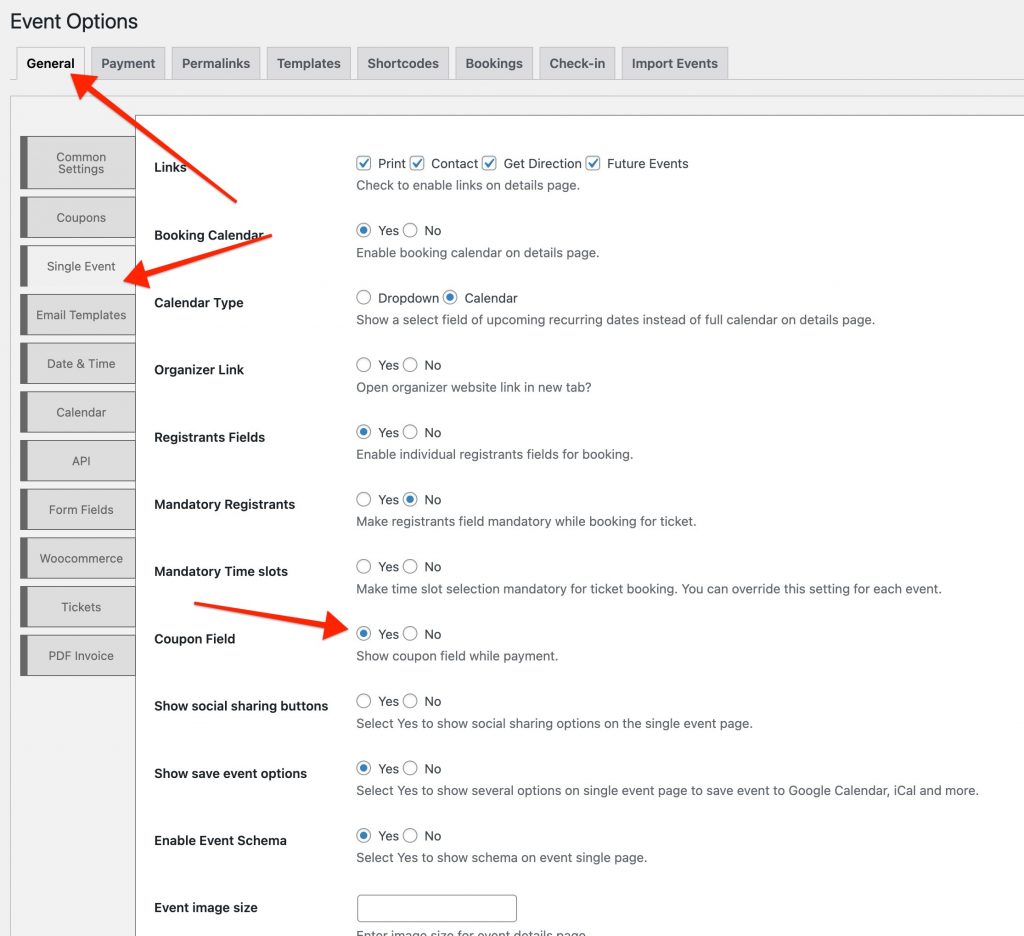
You can create unlimited coupon codes based on amount or percentage of total. Users can use the coupon code at the checkout of ticket booking:

Create a new coupon
All of your coupons are listed on this page of the settings. To create a new coupon follow these steps:
- Enter your coupon name. This is required so you can recognise the coupon in the list.
- Next, you need to enter your coupon code. This is what your website users will input in the coupon field to get the discount. We recommend entering the coupon code in ‘Uppercase‘ and alphanumeric.
- You can give coupon discounts by some percentage or a defined amount. Be noted, that coupon is applied on the total amount of the users tickets price. Please add ‘%’ with the percentage discount between 1-100. For example: 20%
- Choose a future date for the ‘Valid Till‘ field. This is the date until which users can apply this coupon code.
- You may keep a coupon code disabled even after creating it. Check the disable option for this.
- To remove a coupon code, just check the available option and ‘Save’ the settings.
Coupon field
Users will see a coupon code option before the booking payment options. The coupon form field will appear as soon as user click on the ‘Have Coupon‘ checkbox.