Exporting your bookings in a readable format is very important and we have got you covered with a built in export functionality to export the bookings.
To export your event tickets booking move to your WP Dashboard => Eventer => Bookings

This bookings page show every ticket bookings of your website. Latest bookings always appears at the top of the list.
Booking Details
This list show the important data of the each booking like a ‘Unique ID’, ‘Event Name with date’, Date of booking’, ‘Transaction ID’, ‘Payment Status’, ‘Amount’, ‘Mode of Payment’.
To see full details of any booking just click on any booking list.

Once a booking is opened, you can more details about the tickets and registrant. To see full details just click on the ‘Info icon‘ and it will open a separate page with full details.
Recreate Tickets
In this section of the booking, you have the option to re-create the tickets of the booking and email them to the registrant.

Clicking the ‘re-create’ ticket link, will open the event page and redirect back to the bookings page. This action is required to create the tickets again.
Once the process of re creating tickets is complete, open the booking again and you will see the a new option to send the tickets to the tickets registrant. Just click on the ‘Envelope Icon’ to send tickets email to the registrant email address.

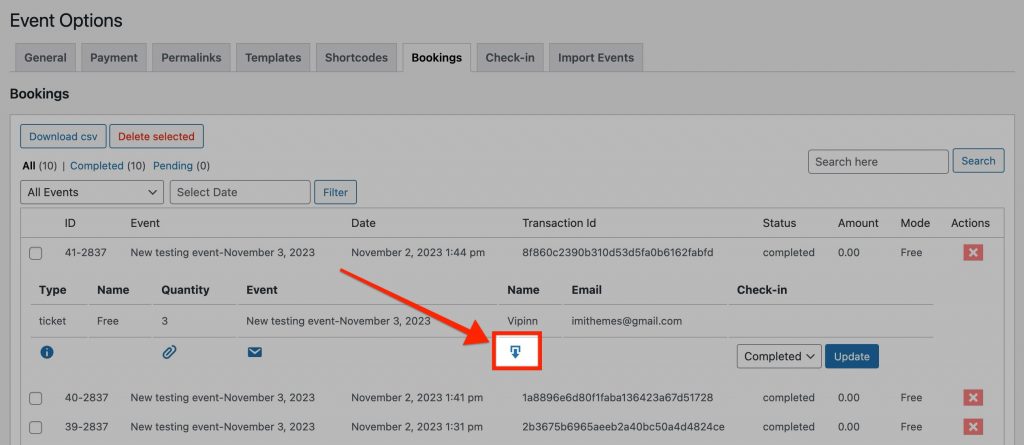
You will also see another new link here after the tickets re-creation, this is to download the tickets.
Export Bookings
To export all the bookings just click on the ‘Download CSV‘ button at the top.

This will download a CSV file with all of your event ticket bookings.
CSV data file will contain all the booking details along with your custom booking form fields
You may need to download bookings for a specific event, this can be done easily by selecting the event from the dropdown(all events). Do remember to click on the ‘Filter‘ button after your event selection

Once you select an event from the list of events, the list will be updated to show only the booking of your selected event. Also the download csv button will now export the bookings of your selected event only.
You have a choice to select the date of the event as well. This is available only for the recurring events which have multiple instances of the event on different dates. Do not forget to click the ‘Filter‘ button after your selection.