Eventer comes with a full calendar view which can be added easily to any of your website’s page. Though, you can add multiple calendars in your website on different or same page for different categories, venues etc. but some of the settings for the calendar view are common and applies to all the instances. These common settings can be found at your WP Dashboard => Eventer => Settings

To change the day when the week starts, go to your WP Dashboard => Settings => General
Calendar View:
There are several views for the full calendar available and here you can set the default view which applies to all the calendar instances of your website.
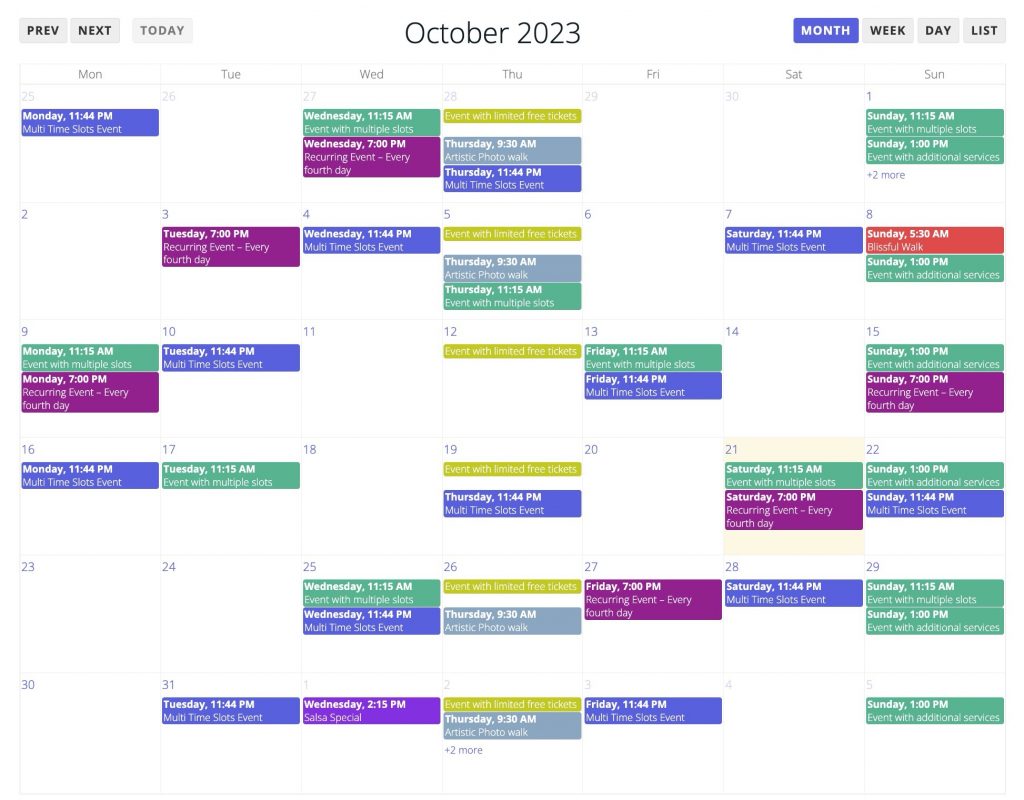
Month View: displays a full month calendar with events over it on the respective dates of their happening.
Agenda View: Agenda view displays one-or-more horizontal days as well as an axis of time, usually midnight to midnight, on the vertical axis. The two predefined agenda views are agendaDay and agendaWeek.
Basic View: A “basic” view is a view with one or more columns, each representing a day. The pre-configured basic views are basicDay and basicWeek.
List View: A list view displays events in a simple vertical list for a specific interval of time. If there are no events during a specific interval of time, the “No events to display” screen is displayed. There are 4 preset list views: listDay, listWeek, listMonth, and listYear.
Calendar Weeks:
Defines the number of maximum weeks visible for a single month.
Calendar Header View:
A full calendar view’s header is divided into 3 columns. These columns can be used to display different buttons, information or custom text. There are several options which can be entered in the left/center/right columns text fields, this displays information like current month, week, day name or to display switch buttons to toggle between weeks, months, days etc.
Available options are:
- title – text containing the current month/week/day
- prev – button for moving the calendar back one month/week/day
- next – button for moving the calendar forward one month/week/day
- prevYear – button for moving the calendar back on year
- nextYear – button for moving the calendar forward one year
- today – button for moving the calendar to the current month/week/day
Limit of Events:
Due to limited space in a single block os the calendar there are no way to show all your events visible all time but this calendar add a button on the block to show all the events a quick popover. But we recommend defining a limit to it, which also helps in better visibility and the load times of the calendar.
Calendar RTL:
If your website is using a language that works from Right to Left(RTL) then this option can be optionally enabled to follow the website’s direction.
Show End Time:
By default, events on the calendar displays only the ‘start day’ of the event but you can display ‘End Date’ as well by setting this option to ‘Yes’